Why Is My PC So Slow? 15 Proven Fixes to Speed Up Windows
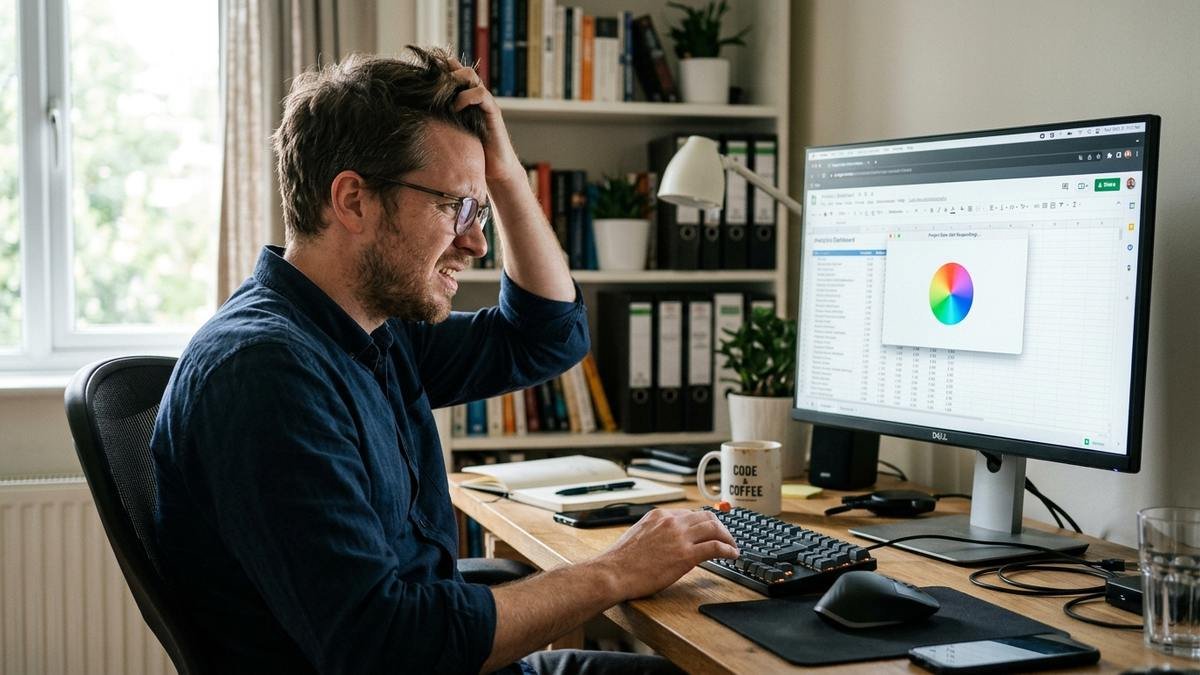
If you’re asking yourself “why is my PC so slow,” you’re not alone — few things are more frustrating than a PC that used to fly and now takes an eternity to open a browser tab. The good news: in the vast majority of cases, a slow PC isn’t dying — it’s just burdened. Too many startup programs, a stuffed hard drive, an outdated driver, or a sneaky background process is usually all it takes to turn a capable machine into a sluggish one.
This guide walks through 15 proven fixes, ordered from the quickest wins to deeper solutions. Start at the top; most people see a dramatic improvement within the first five steps.
Quick Wins: Do These First (Under 10 Minutes)
1. Restart Properly — Not Just Shut Down
Go to Start > Power > Restart. An actual Restart clears memory, resets stuck processes, and applies pending updates. Shutting down and powering back on doesn’t always do the same job, because Windows’ Fast Startup feature saves system state to disk. If you haven’t restarted in weeks, do it now — it’s the single most underrated performance fix.
2. Check Task Manager for Resource Hogs
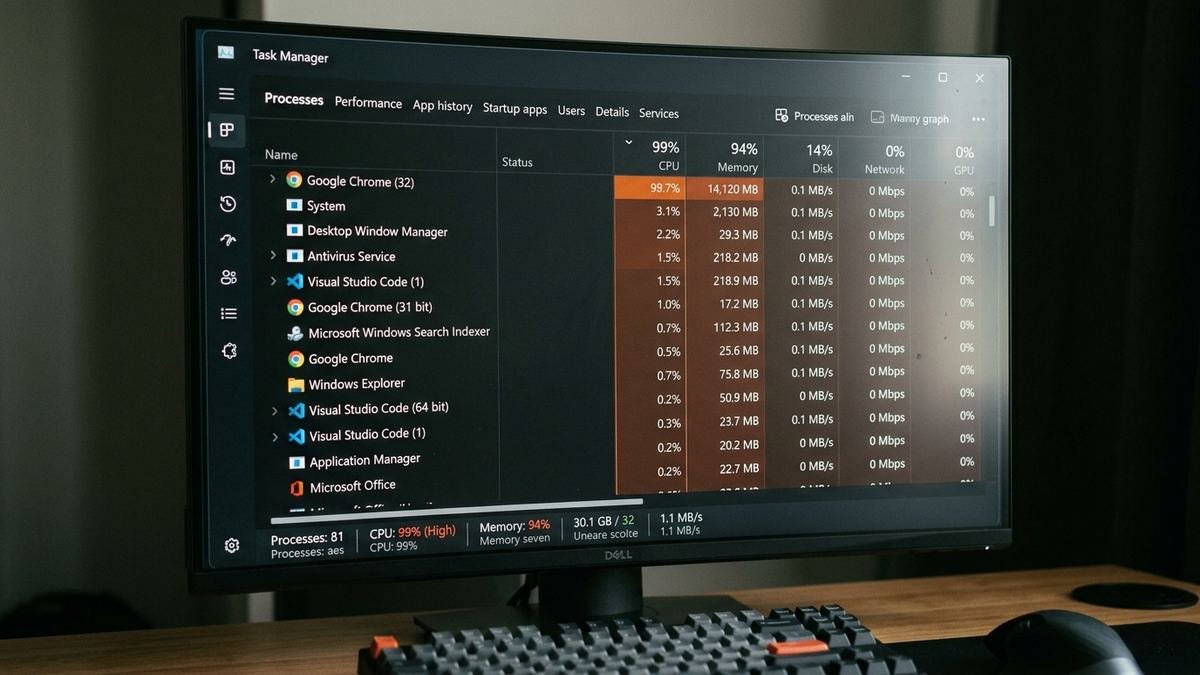
Press Ctrl + Shift + Esc to open Task Manager. Click the CPU column header to sort by processor usage, then do the same for Memory and Disk. Anything sitting above 10–15% that you don’t recognize or need right now is a candidate for closing. Right-click it and choose End task — you’re not uninstalling anything, just freeing resources.
3. Disable Startup Apps
Still in Task Manager, open the Startup apps tab. Every app listed here launches when Windows boots, and each one steals a slice of your boot time and memory. Right-click non-essentials — Spotify, Discord, Steam, Teams, manufacturer updaters — and select Disable. Keep your antivirus enabled. Then restart and feel the difference.
4. Switch to Best Performance Power Mode
On Settings > System > Power & battery, set Power mode to Best performance. Laptops especially default to Balanced mode, which throttles your CPU to save battery — great for longevity, terrible for speed. (On Windows 10: Settings > System > Power & sleep > Additional power settings > High performance.)
5. Close Browser Tab Overload
Chrome and Edge allocate roughly 50–150 MB of RAM per tab, and every extension runs its own background process. Twenty tabs plus a dozen extensions can quietly eat 3–4 GB of RAM. Enable Memory Saver in Chrome (Settings > Performance) or Sleeping tabs in Edge, and close what you’re not using.
If those five steps didn’t transform your PC, keep going — the deeper fixes below address the root causes.
Why Is My PC So Slow? The Usual Suspects
| Cause | How it slows you down | Fix difficulty |
|---|---|---|
| Too many startup programs | Slow boot, high idle RAM/CPU | Easy |
| Full system drive (under 15% free) | Windows can’t manage temp files or virtual memory | Easy |
| Mechanical hard drive (HDD) | The #1 hardware bottleneck in 2026 | Medium (upgrade) |
| Malware / bloatware | Hidden processes consuming resources | Easy |
| Outdated drivers | Poor hardware performance, glitches | Easy |
| Overheating | CPU/GPU throttle to protect themselves | Medium |
| Too little RAM (8 GB or less) | Constant swapping to slow disk | Medium (upgrade) |
| Bloated browser | Gigabytes of RAM gone to tabs/extensions | Easy |
Fix 6: Free Up Disk Space
Windows needs breathing room — keep at least 15% of your system drive free. Below 10%, expect serious slowdowns as Windows struggles with temporary files, virtual memory, and updates.
- Open Settings > System > Storage and turn on Storage Sense to auto-clean temp files.
- Run Disk Cleanup: search for it in Start, select your C: drive, check Temporary files, Recycle Bin, and Delivery Optimization Files.
- Uninstall programs you don’t use: Settings > Apps > Installed apps, sort by size, remove the giants you forgot about.
- Move large media libraries (photos, videos) to an external drive or cloud storage.
Fix 7: Scan for Malware and Bloatware
Malware doesn’t always announce itself — cryptominers and spyware are designed to run silently while eating your CPU. Run a full scan with Windows Security (Settings > Privacy & security > Windows Security > Virus & threat protection > Scan options > Full scan).
Also audit for manufacturer bloatware: trial antivirus suites, “helper” utilities, and game launchers you never open. If two antivirus programs are running simultaneously, they’ll fight each other and slow everything — keep exactly one.
Fix 8: Update Windows and Your Drivers
Outdated software is slow software. Microsoft ships genuine performance improvements in Windows updates, so staying current matters:
- Settings > Windows Update > Check for updates — install everything, then restart.
- Update your graphics driver from NVIDIA, AMD, or Intel directly (not just Windows Update) — GPU drivers affect far more than games.
- Update chipset drivers from your motherboard or laptop manufacturer’s support page.
If your PC started slowing down right after an update, by contrast, a bad driver may be the culprit — rolling back that specific driver in Device Manager can help.
Fix 9: Tame Background Apps and Services
Windows runs dozens of background processes you never asked for. Trim them:
The biggest background hog is often Windows’ own scanner — our Antimalware Service Executable guide explains the CPU spikes and how to tame them. Antimalware Service Executable high CPU fix
- Settings > Apps > Installed apps: click the three dots on apps you don’t need running constantly > Advanced options > set Background apps permissions to Never.
- Settings > Windows Update > Advanced options > Delivery Optimization: turn it Off so Windows stops using your bandwidth and disk to share updates with other PCs.
- Consider disabling SysMain (formerly SuperFetch) if disk usage sits at 100%: press Win + R, type
services.msc, find SysMain, set it to Disabled. This helps most on HDD-based systems.
Fix 10: Reduce Visual Effects
Windows’ animations and transparency are pretty — and cost GPU/CPU cycles on weak hardware. Search Start for “Adjust the appearance and performance of Windows”, and on the Visual Effects tab choose Adjust for best performance (or manually uncheck animations, shadows, and transparency). The interface gets plainer; everything gets snappier.
Fix 11: Check for Overheating
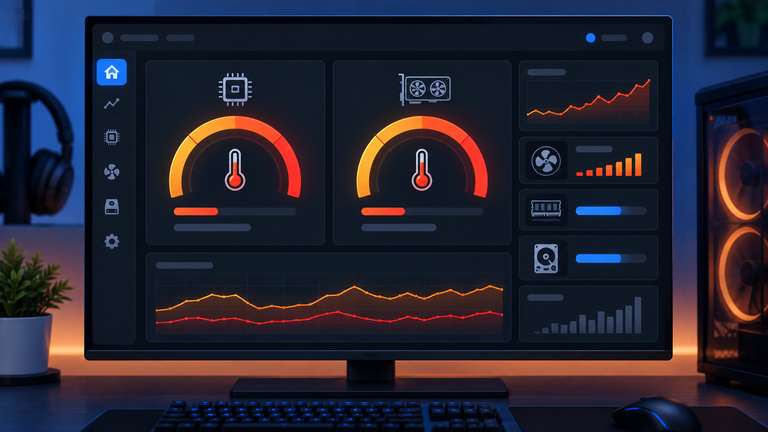
A hot PC is a slow PC: CPUs and GPUs automatically throttle performance to protect themselves when temperatures climb. Warning signs:
- The PC slows down after 20–30 minutes of use
- Fans run constantly at full speed
- The chassis is very hot to the touch
Fixes: clean dust from vents with compressed air, make sure the PC has airflow around it (not in an enclosed cabinet), and check temperatures with a free tool like HWiNFO64 — sustained CPU temps above 90°C under load indicate a cooling problem. On laptops, a cooling pad helps; on desktops, reapplying thermal paste is a bigger job but very effective on older machines.
Fix 12: Upgrade from HDD to SSD — The Biggest Single Upgrade
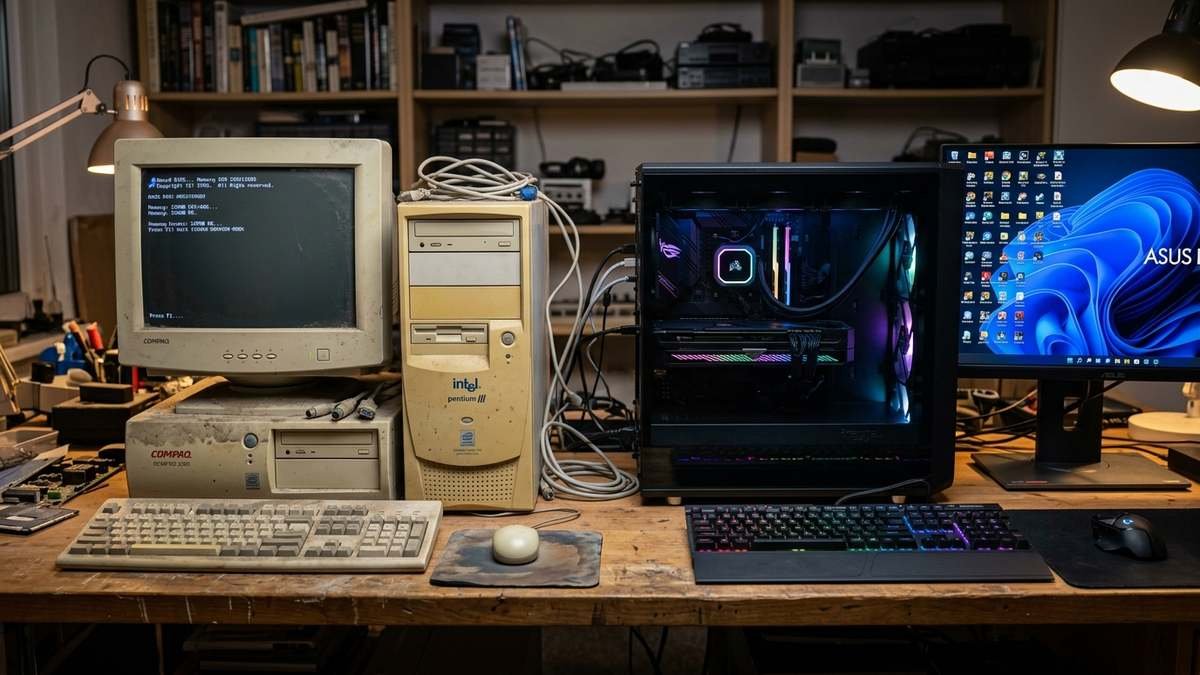
If your PC still boots from a mechanical hard drive in 2026, no software tweak will match an SSD upgrade. It’s the single most transformative performance upgrade for the money: boot times drop from minutes to seconds, and everything from app launches to file searches feels instant. A 500 GB–1 TB SATA SSD is inexpensive, and cloning your existing drive avoids reinstalling Windows.
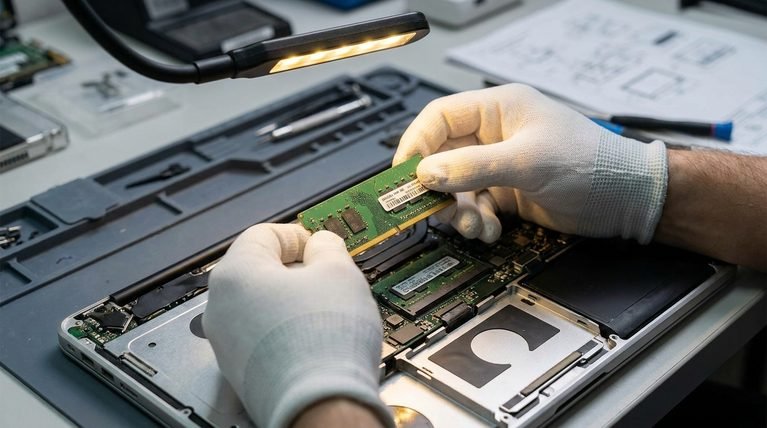
Fix 13: Add More RAM (If You Have 8 GB or Less)
Windows 11 idles at around 2–3 GB of RAM; add a browser and a few apps and you’re at 5–6 GB. With only 8 GB total, Windows constantly swaps to disk — and swapping to even an SSD is far slower than RAM. Moving to 16 GB eliminates most multitasking sluggishness, and RAM prices have dropped significantly, making it one of the most cost-effective upgrades available.
Faulty RAM doesn’t just slow you down — it causes stop codes like PFN List Corrupt, and our fix guide covers the memory diagnostics to run. PFN List Corrupt fix guide
Fix 14: Reset Windows (The Last Resort That Works)
If nothing else helps, Windows has a built-in fresh start: Settings > System > Recovery > Reset PC, choosing Keep my files. This reinstalls Windows while preserving your personal files, wiping out years of accumulated cruft, broken registry entries, and conflicting software in about 30–60 minutes. Back up anything irreplaceable first — “keep my files” is reliable, but backups are non-negotiable.
Fix 15: Know When It’s the Hardware
Software fixes resolve slowness for most people. But some slowdowns are hardware telling you it’s failing:
- Clicking or grinding noises from the drive → back up immediately; the drive is dying.
- Random shutdowns or blue screens → could be overheating, failing RAM, or a dying power supply. If crashes mention specific errors, our guide on why your PC keeps turning off digs into those.
- Apps won’t launch at all with compatibility errors → see our guide on “this app can’t run on your PC”.
- Everything is slow despite an SSD and 16 GB RAM on a 7+ year old machine → the CPU itself is the bottleneck, and it’s upgrade-or-replace time.
Slow Internet vs. Slow PC: Don’t Confuse Them
Sometimes the PC is fine — it’s the connection that’s slow. Quick test: do local apps (File Explorer, Notepad, offline games) feel fast while only web browsing lags? Then your PC is innocent and your network is the suspect. Our guide on why your upload speed is so slow covers the network side.
Diagnose Before You Fix: Find Your Actual Bottleneck
Randomly applying fixes wastes time. Spend five minutes diagnosing first, and you’ll know exactly which fixes matter for your machine.
Use Task Manager’s Performance Tab
Press Ctrl + Shift + Esc, then open the Performance tab. Watch it for a minute during normal use:
- CPU pinned near 100%? Something is hogging the processor — check the Processes tab to identify it. Common culprits: Windows Update working in the background, antivirus scans, or a runaway browser tab.
- Memory above 85% constantly? You’re RAM-starved. Close heavy apps or plan a RAM upgrade.
- Disk at 100% with an HDD? Classic hard-drive bottleneck — the SSD upgrade (Fix 12) is your answer. On an SSD, sustained 100% disk usually means SysMain, Windows Search indexing, or an antivirus scan.
- GPU at 100% on the desktop? A driver issue or a background app (often a browser with hardware acceleration misbehaving).
Run Resource Monitor for the Full Picture
For stubborn cases, open Resource Monitor (search for it in Start, or Task Manager > Performance > Open Resource Monitor). Its Disk tab shows exactly which processes are hammering your drive, and the CPU tab reveals hidden CPU consumers that Task Manager’s simplified view can miss.
Check Your Startup Impact Scores
Back in Task Manager’s Startup apps tab, look at the Startup impact column. Anything marked High that you don’t need immediately at boot is costing you real seconds every morning. Disable ruthlessly — you can always launch apps manually.
Advanced Fixes: Clean Boot and System File Repair
If basic fixes didn’t help, these two deeper repairs resolve the stubborn cases.
Perform a Clean Boot
A clean boot starts Windows with only essential Microsoft services, letting you determine whether a third-party program is the slowdown source:
- Press Win + R, type
msconfig, and press Enter. - On the Services tab, check Hide all Microsoft services, then click Disable all.
- Open Task Manager’s Startup apps tab and disable everything.
- Restart.
If the PC is fast in a clean boot, re-enable services in small groups until the slowness returns — you’ve found your culprit. Remember to return to normal startup afterward (msconfig > Normal startup).
Repair Corrupted System Files with SFC and DISM
Corrupted Windows system files cause mysterious slowdowns that nothing else explains. Run both tools from an elevated terminal (right-click Start > Terminal (Admin)):
sfc /scannow
This scans and repairs protected system files — it takes 10–20 minutes. If it reports unfixable corruption, follow with:
DISM /Online /Cleanup-Image /RestoreHealth
DISM repairs the component store that SFC depends on. Run SFC once more afterward. These two commands resolve an entire class of “my PC is slow and nothing makes sense” problems.
Frequently Asked Questions
How much free space should I keep on my hard drive?
Keep at least 15% free on your system drive. Below 10%, Windows struggles with temporary files, virtual memory, and updates — freeing space should be your first fix.
Do I need to buy new hardware to fix a slow PC?
Usually not. Disabling startup apps, freeing disk space, updating drivers, and removing malware resolve slowness for most users. If software fixes fail, an SSD upgrade gives the biggest performance gain per dollar.
Will too many browser tabs slow my PC?
Yes. Each tab uses 50–150 MB of RAM, and extensions add more. Use Memory Saver (Chrome) or Sleeping tabs (Edge), and close tabs you’re not actively using.
Is upgrading RAM still worth it in 2026?
Yes, if you have 8 GB or less. Windows 11 plus a browser can consume 5–6 GB at idle, so 16 GB eliminates most multitasking slowdowns — and RAM is relatively cheap right now.
Does restarting my PC really help?
Yes. Restarting clears memory leaks, flushes caches, applies pending updates, and resets stuck services. Do it at least weekly — and use Restart rather than Shut down if Fast Startup is enabled.
Why is my PC slow after a Windows update?
Occasionally an update introduces a buggy driver or a misbehaving service. Check Task Manager for the culprit, update drivers manually from the manufacturer, and check Windows Update again — Microsoft often ships a follow-up fix within days.
Keep It Fast: 5 Maintenance Habits
Fixing a slow PC is great; keeping it fast is better. Build these habits and you’ll rarely need this guide again:
- Restart weekly. Clears memory leaks and applies updates before they pile up.
- Audit startup apps quarterly. New software loves adding itself to your boot sequence — check Task Manager every few months.
- Keep 20%+ of your drive free. Set a calendar reminder to run Disk Cleanup or check Storage Sense.
- Update on schedule. Let Windows Update run; don’t postpone it for months.
- Dust it out twice a year. Compressed air through the vents prevents the slow thermal-throttle creep.
Final Thoughts
A slow PC is almost never a dead PC. Work through this list methodically — restart properly, trim startup apps, free disk space, scan for malware, update everything, and check your thermals — and you’ll resolve the problem in the large majority of cases. If software fixes don’t cut it, an SSD and a RAM bump will make even an aging machine feel new again.
For deeper dives, Microsoft Support and the Windows documentation are the authoritative references for every setting mentioned here. Your PC got slow gradually; with the right fixes, it gets fast again just as gradually — starting today.