Redo Shortcut: Every Redo Keyboard Shortcut for Windows, Mac & Apps
You just hit Ctrl+Z one time too many and watched good work vanish. Don’t reach for the mouse — the redo shortcut brings it right back. Redo reverses your last undo, stepping forward through your edit history exactly the way undo stepped back.
The catch: the redo shortcut isn’t the same everywhere. Windows, Mac, and individual apps each have their own conventions, and a few popular programs assign the “standard” keys to something else entirely. This guide covers every redo shortcut that matters — by operating system, by app, and what to do when redo doesn’t work.
What Is the Redo Shortcut?
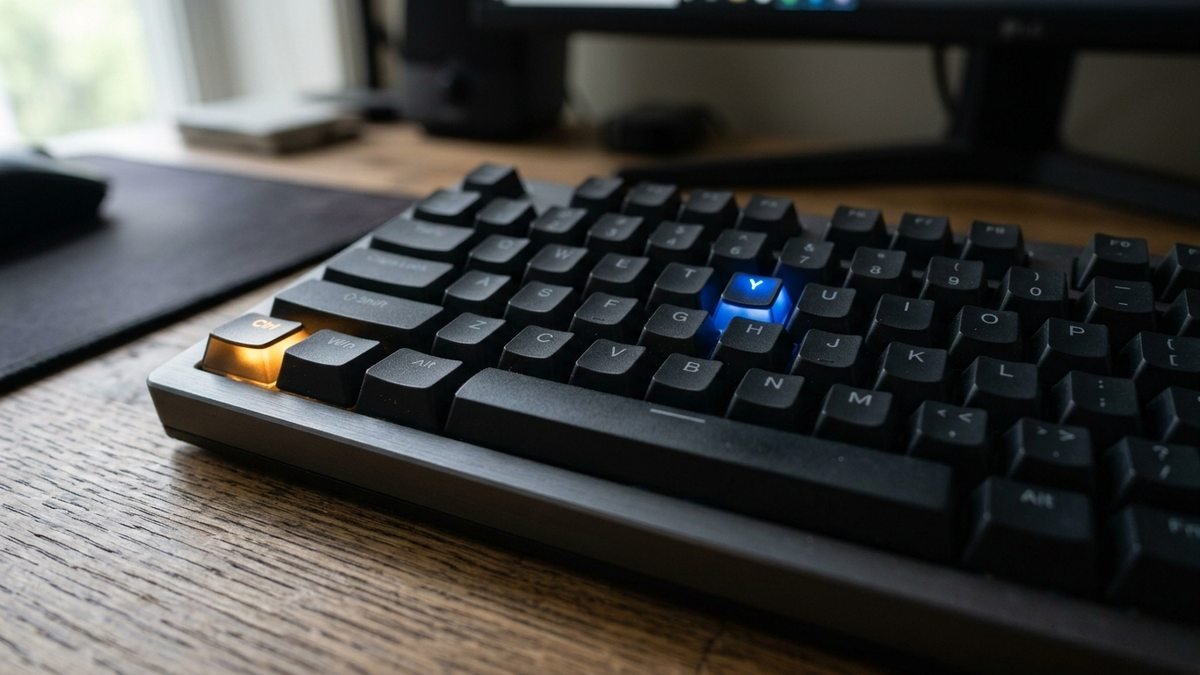
Redo re-applies the most recent action you undid. Think of undo and redo as moving backward and forward through a timeline of your edits:
- Undo (Ctrl+Z / Cmd+Z): steps backward — removes your last change.
- Redo (Ctrl+Y / Cmd+Shift+Z): steps forward — restores what undo just removed.
Redo only works if you’ve undone something first. If the redo option is grayed out in a menu, there’s simply nothing to redo — you haven’t undone anything yet, or you made a new edit (which clears the redo history in most apps).
The Redo Shortcut on Windows: Ctrl+Y
On Windows, the universal redo shortcut is Ctrl+Y. It works in the vast majority of applications:
- File Explorer (renames, moves)
- Notepad and WordPad
- Microsoft Office (Word, Excel, PowerPoint)
- Web browsers (text fields in Chrome, Edge, Firefox)
- Most text editors (Notepad++, Sublime Text)
The alternative Ctrl+Shift+Z also works in many Windows programs — particularly Adobe apps, VS Code, and anything cross-platform — because developers increasingly support both conventions. If Ctrl+Y does nothing in a specific app, try Ctrl+Shift+Z before assuming redo is missing.
The Excel Exception: Ctrl+Y Does Double Duty
In Microsoft Excel, Ctrl+Y is extra useful: it redoes an undone action, but it also repeats your last action even when nothing was undone. Formatted a cell bold? Select another cell and hit Ctrl+Y to apply the same formatting instantly. It’s one of Excel’s best-kept productivity secrets.
The Redo Shortcut on Mac: Cmd+Shift+Z
On macOS, the standard redo shortcut is Cmd+Shift+Z (hold Command and Shift, then press Z). Some Mac apps also accept Cmd+Y, but Cmd+Shift+Z is the reliable default across:
- Finder (file operations)
- Safari and Chrome text fields
- Notes, Pages, Keynote
- Most native Mac applications
Note the conflict to be aware of: on Windows, Ctrl+Y is redo, but on a Mac, the Control key (labeled “control”) does nothing for redo — macOS maps the Windows Ctrl role to Command. If you’re switching between platforms, that’s the single biggest muscle-memory trip-up.
Redo Shortcuts in Popular Apps

| App | Windows | Mac | Notes |
|---|---|---|---|
| Microsoft Word | Ctrl+Y | Cmd+Shift+Z | Also repeats last action in some contexts |
| Microsoft Excel | Ctrl+Y | Cmd+Y | Doubles as “repeat last action” |
| Microsoft PowerPoint | Ctrl+Y | Cmd+Shift+Z | |
| Google Docs / Sheets | Ctrl+Y or Ctrl+Shift+Z | Cmd+Shift+Z | Both Windows variants work |
| Adobe Photoshop | Ctrl+Shift+Z | Cmd+Shift+Z | Ctrl+Y toggles CMYK preview instead! |
| Adobe Illustrator | Ctrl+Shift+Z | Cmd+Shift+Z | |
| VS Code | Ctrl+Y or Ctrl+Shift+Z | Cmd+Shift+Z | Both work on Windows |
| Notepad++ | Ctrl+Y | — | |
| Chrome / Edge / Firefox (text fields) | Ctrl+Y or Ctrl+Shift+Z | Cmd+Shift+Z | |
| Windows File Explorer | Ctrl+Y | — | Redo for rename/move operations |
Watch Out: Apps That Hijack Ctrl+Y
A few programs assign Ctrl+Y to something unrelated:
- Adobe Photoshop: Ctrl+Y switches the CMYK proof preview — use Ctrl+Shift+Z for redo.
- Microsoft Outlook: Ctrl+Y opens the “Go to Folder” dialog in some versions.
- Emacs: Ctrl+Y pastes (“yanks”) — Emacs uses Ctrl+/ for undo/redo.
- Vim: Ctrl+Y scrolls the window up one line; use
Ctrl+Rfor redo instead.
When in doubt, check the app’s Edit menu — the redo shortcut is always printed next to the Redo item.
Redo on Linux and ChromeOS
- Linux (most desktop environments): Ctrl+Shift+Z is the most common redo shortcut; many apps also accept Ctrl+Y.
- ChromeOS: Ctrl+Shift+Z for redo in text fields and Google Workspace apps.
- Vim/Neovim:
Ctrl+Rredoes (normal mode);uundoes. - Emacs:
Ctrl+/toggles undo/redo through the undo tree.
Undo vs. Redo: How They Work Together
Understanding the relationship prevents the most common redo frustration:
- Every edit pushes onto the undo stack. Ctrl+Z pops the last edit off.
- Popped edits go onto the redo stack. Ctrl+Y pushes the most recent one back.
- Making a new edit clears the redo stack. This is why redo “stops working” — you undid three things, typed one character, and the three redos are gone forever.
Practical takeaway: if you over-undo, redo immediately — don’t type anything first. And in apps with a visible edit history panel (Photoshop’s History panel, Word’s undo dropdown arrow), you can jump to any point in the timeline directly.
Redo Shortcut Not Working? Fix It
“Nothing happens when I press it”
You probably haven’t undone anything. Redo needs an undo to reverse. Check the Edit menu — if Redo is grayed out, the history is empty.
“It worked a second ago, then stopped”
You made a new edit after undoing, which cleared the redo stack. There’s no recovery from this in most apps — it’s by design. (Autosave and version history in Google Docs or Office 365 can still save you.)
“The shortcut does something weird”
The app remaps the key (see the Photoshop/Outlook/Emacs exceptions above). Use the alternative — Ctrl+Shift+Z on Windows or Cmd+Shift+Z on Mac — or check the Edit menu for the app’s actual binding.
“Redo is limited to one step”
Some older or simpler apps only remember a single undo/redo level. Modern Office apps, Google Workspace, and Adobe apps support dozens or hundreds of levels. If you’re stuck with single-level undo, save versions of your file frequently (File > Save a Copy) as a manual safety net.
“My keyboard isn’t typing the shortcut at all”
If modifier keys seem dead across all apps, the issue may be the keyboard itself — stuck keys, a bad wireless connection, or a driver problem. a stuck key, bad wireless connection, or driver issue is likely — inspect the keyboard hardware and its connection first.
The Full Essential Shortcut Cheat Sheet
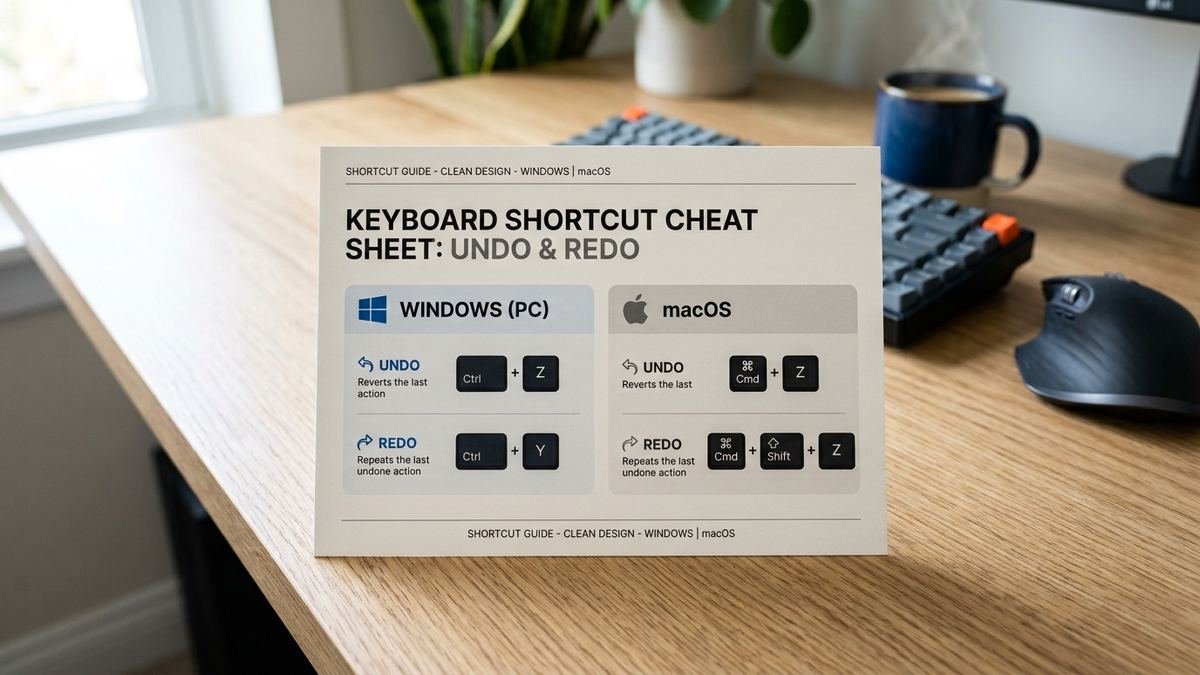
Redo is one of five shortcuts worth committing to muscle memory:
| Action | Windows | Mac |
|---|---|---|
| Undo | Ctrl+Z | Cmd+Z |
| Redo | Ctrl+Y (or Ctrl+Shift+Z) | Cmd+Shift+Z |
| Cut | Ctrl+X | Cmd+X |
| Copy | Ctrl+C | Cmd+C |
| Paste | Ctrl+V | Cmd+V |
| Select all | Ctrl+A | Cmd+A |
| Save | Ctrl+S | Cmd+S |
| Find | Ctrl+F | Cmd+F |
Learn these eight and you’ll navigate almost any application without touching the mouse. For the complete official reference, Microsoft’s keyboard shortcut documentation covers every Windows shortcut systematically.
Redo for Developers and Creators
- VS Code: Ctrl+Shift+Z (or Ctrl+Y) redoes; the timeline view (Explorer > Timeline) shows file history visually.
- Photoshop/Illustrator: Ctrl+Shift+Z steps forward through history; the History panel lets you click any state directly. Remember: in Photoshop, Ctrl+Y is not redo.
- Google Docs: full version history (File > Version history) means even a cleared redo stack isn’t fatal — restore any earlier version.
- Terminals: most shells don’t have redo, but Ctrl+_ (undo) works in bash readline, and your shell history (up arrow) is the practical equivalent.
And if your coding session goes sideways beyond what undo can fix — say, a cryptic Python error from a copied snippet — our Bvostfus Python issue fix guide walks through diagnosing phantom-module errors step by step.
When Losing Work Is the Real Problem
Redo has limits: a sudden crash wipes the undo history entirely. That’s why autosave matters more than any shortcut. Enable AutoRecover in Office, rely on Google Docs’ automatic version history, and turn on VS Code’s auto-save. If crashes are frequent enough to make this a habit rather than a precaution, the underlying instability needs attention — our guides on CLOCK_WATCHDOG_TIMEOUT and Driver Power State Failure cover diagnosing the blue screens that eat unsaved work.
How to Customize the Redo Shortcut
Don’t like the default? Most serious apps let you remap it:
- VS Code: File > Preferences > Keyboard Shortcuts, search “redo”, click the binding and press your preferred keys.
- Photoshop: Edit > Keyboard Shortcuts > Edit menu — assign redo to any combination not already taken.
- Microsoft Office: File > Options > Customize Ribbon > Customize Keyboard — though Office’s defaults are rarely worth changing.
- System-wide (Windows): Microsoft PowerToys’ Keyboard Manager can remap keys globally — for example, making Ctrl+Shift+Z behave identically everywhere.
Custom bindings are personal, but there’s a real argument for standardizing on Ctrl+Shift+Z everywhere: it’s the one redo shortcut that works across Windows, Mac, Linux, Adobe apps, VS Code, and Google Workspace. One binding to remember instead of three.
Redo on Mobile: It’s Different
Desktop shortcuts don’t translate to touchscreens, but redo exists on mobile too:
- iOS: shake the phone to undo, then shake again — or tap the undo/redo arrows in the toolbar above the keyboard in apps like Notes and Pages. iOS 18+ shows dedicated undo/redo buttons in many text fields.
- Android (Gboard): the clipboard toolbar includes undo; some apps add explicit redo buttons. In Google Docs for Android, use the undo/redo arrows in the top toolbar.
- General rule: mobile apps favor visible undo/redo buttons over gestures, because there’s no keyboard to hold modifiers on. Look in the app’s toolbar before assuming redo is missing.
Redo vs. Repeat: The Subtle Difference
Beginners often confuse redo with repeat, because in some apps one shortcut does both:
- Redo reverses an undo — it restores something you just removed. It requires a prior undo.
- Repeat re-applies your last action to a new target — no undo involved. Excel’s Ctrl+Y/F4 and Word’s Ctrl+Y fall here.
Example: you bold one heading in Word, select another heading, and press Ctrl+Y — that’s repeat, not redo, because you never undid anything. But if you bold a heading, press Ctrl+Z (un-bolding it), then press Ctrl+Y — that’s redo, restoring the bold. Same key, two meanings, distinguished entirely by whether an undo came first. Once you see the pattern, the behavior stops feeling random.
Redo in Browsers and Web Apps
Browser text fields (address bar excluded) generally support the OS-standard redo, but web apps add their own layers:
- Google Workspace: Ctrl+Shift+Z / Cmd+Shift+Z, plus infinite version history as a backstop.
- Figma / Canva: Ctrl+Shift+Z steps through design history; both also keep full version histories.
- Notion: Ctrl+Shift+Z for redo; page history on paid plans.
- Web-based code editors (CodePen, StackBlitz): follow the VS Code convention — Ctrl+Shift+Z.
One browser quirk: Ctrl+Y in Firefox opens the downloads/library history in some configurations rather than redoing — another case for preferring Ctrl+Shift+Z.
A Brief History of the Redo Shortcut
Undo arrived first. The Ctrl+Z convention traces back to Xerox PARC’s pioneering work on modeless editing in the 1970s and was popularized by the Apple Lisa and Macintosh in the early 1980s — placing undo one key away from cut (X), copy (C), and paste (V) on the bottom row of the keyboard.
Redo came later as software grew more sophisticated, and the industry never fully agreed on its key: Microsoft standardized Ctrl+Y for Windows, Apple chose Cmd+Shift+Z for the Mac, and cross-platform apps split between the two. That’s why, forty years later, you still need a guide like this one — the shortcut war was never formally resolved, so learning both conventions is the pragmatic answer.
Frequently Asked Questions
What is the redo shortcut key?
Ctrl+Y on Windows, Cmd+Shift+Z on Mac. Many Windows apps also accept Ctrl+Shift+Z as an alternative.
What is the opposite of Ctrl+Z?
Ctrl+Y (redo). Ctrl+Z undoes your last action; Ctrl+Y redoes it — they step backward and forward through your edit history.
Why is redo grayed out?
There’s nothing to redo. Either you haven’t undone anything yet, or you made a new edit after undoing, which clears the redo history in most applications.
Does Ctrl+Y work on Mac?
Not as redo. On Mac, the Control key doesn’t map to Windows’ Ctrl for this purpose — use Cmd+Shift+Z (or Cmd+Y in some apps like Excel) instead.
What’s the difference between Ctrl+Y and Ctrl+Shift+Z?
Functionally, both redo the last undone action in apps that support them. Ctrl+Y is the traditional Windows shortcut; Ctrl+Shift+Z is common in Adobe apps, VS Code, Google Docs, and macOS. Many programs accept both.
How do I redo in Google Docs?
Press Ctrl+Shift+Z (Windows/ChromeOS) or Cmd+Shift+Z (Mac). Ctrl+Y also works on Windows. For older changes, use File > Version history to restore any saved version.
How many times can I redo?
It depends on the app’s undo depth — modern Office, Adobe, and Google apps support dozens to hundreds of levels. Simpler apps may support only one.
Can I redo multiple steps at once?
In most apps, no — redo steps forward one action at a time, so restoring five undone edits takes five presses. The faster route is the app’s history panel: Photoshop’s History panel, Word’s undo dropdown arrow, or Google Docs’ version history let you jump to any point in one click.
Is there a redo shortcut in Windows File Explorer?
Yes — Ctrl+Y redoes file operations like renames and moves in File Explorer, mirroring Ctrl+Z’s undo for the same actions. It surprises people because Explorer doesn’t show an Edit menu, but the shortcuts work.
Final Thoughts
The redo shortcut is small, but it’s the safety net under your entire workflow: Ctrl+Y on Windows, Cmd+Shift+Z on Mac, with Ctrl+Shift+Z as the near-universal backup. Learn the exceptions in your most-used apps (Photoshop’s Ctrl+Y especially), remember that new edits clear the redo stack, and lean on version history when redo isn’t enough.
Pair it with its partner — Ctrl+Z / Cmd+Z — and the eight shortcuts in the cheat sheet above, and you’ll edit faster in every application you touch. For the full technical background on these key bindings, the Wikipedia article on Control-Y traces their history across operating systems.