
Your Device Ran Into a Problem: How to Fix the Windows Restart Error
A black or blue screen appears out of nowhere. Your cursor freezes for a second, and then the words show up: your device ran into a problem and needs to restart. The screen shows a percentage counter, sometimes a QR code, sometimes a string of characters like “DPC_WATCHDOG_VIOLATION.” Then the PC reboots on its own, and you’re left staring at your desktop wondering what just happened to your files.
This message is Windows’ version of what’s commonly called the Blue Screen of Death, or BSOD. It shows up when the operating system hits an error serious enough that it can’t keep running safely, so it stops everything and restarts rather than risk corrupting data. It’s disruptive, but in most cases it’s fixable without professional repair.
This guide walks through what causes the error, how to diagnose which cause applies to your PC, and the exact steps to fix it — including what to do if it keeps happening every time you turn the computer on.

What “Your Device Ran Into a Problem” Actually Means

Technically, this is called a stop code error, a bug check, or a kernel error. According to Microsoft’s official troubleshooting documentation, Windows 11 shuts down or restarts unexpectedly when it detects a serious problem, briefly shows this error, and then reboots automatically.
Underneath the plain-language message, Windows records a specific stop code — something like MEMORY_MANAGEMENT, CRITICAL_PROCESS_DIED, or IRQL_NOT_LESS_OR_EQUAL. That code is the actual clue to the cause. The generic wording (“your device ran into a problem”) is the same regardless of what triggered it, which is why two people with completely different hardware problems can see the exact same on-screen message.
There’s also a related but distinct scenario: a completely black screen with no code and only a cursor. Microsoft treats that as a separate issue — a blank or black screen — rather than a standard stop code error, and it usually points toward a display driver or graphics hardware problem specifically.
Is It a Virus? Separating Real Causes From Myths
Malware can, in rare cases, trigger a crash like this — usually if it corrupts a system driver or damages critical files. But the vast majority of these errors have nothing to do with a virus. They’re far more commonly tied to a driver conflict, a botched update, failing memory, or a corrupted system file.
Treating every BSOD as a virus infection leads people to reinstall Windows or run endless antivirus scans when the real problem is a two-year-old graphics driver that’s incompatible with a recent Windows update. Running one antivirus scan as a precaution is reasonable. Assuming it’s the cause without checking anything else usually wastes time.
Common Causes Behind the Error
The specific stop code narrows things down, but most cases fall into one of five categories.

Driver conflicts
Graphics, chipset, and network drivers interact directly with the Windows kernel. When one is outdated, buggy, or was written for an older Windows build, it can crash the entire system rather than just the one app using it.
A recent or failed Windows update
If the error started right after your PC installed updates, that’s a strong signal. Occasionally an update itself introduces a bug, or it gets interrupted mid-install (commonly during a scheduled “update and shut down” cycle) and leaves system files in an inconsistent state.
Failing or incompatible RAM
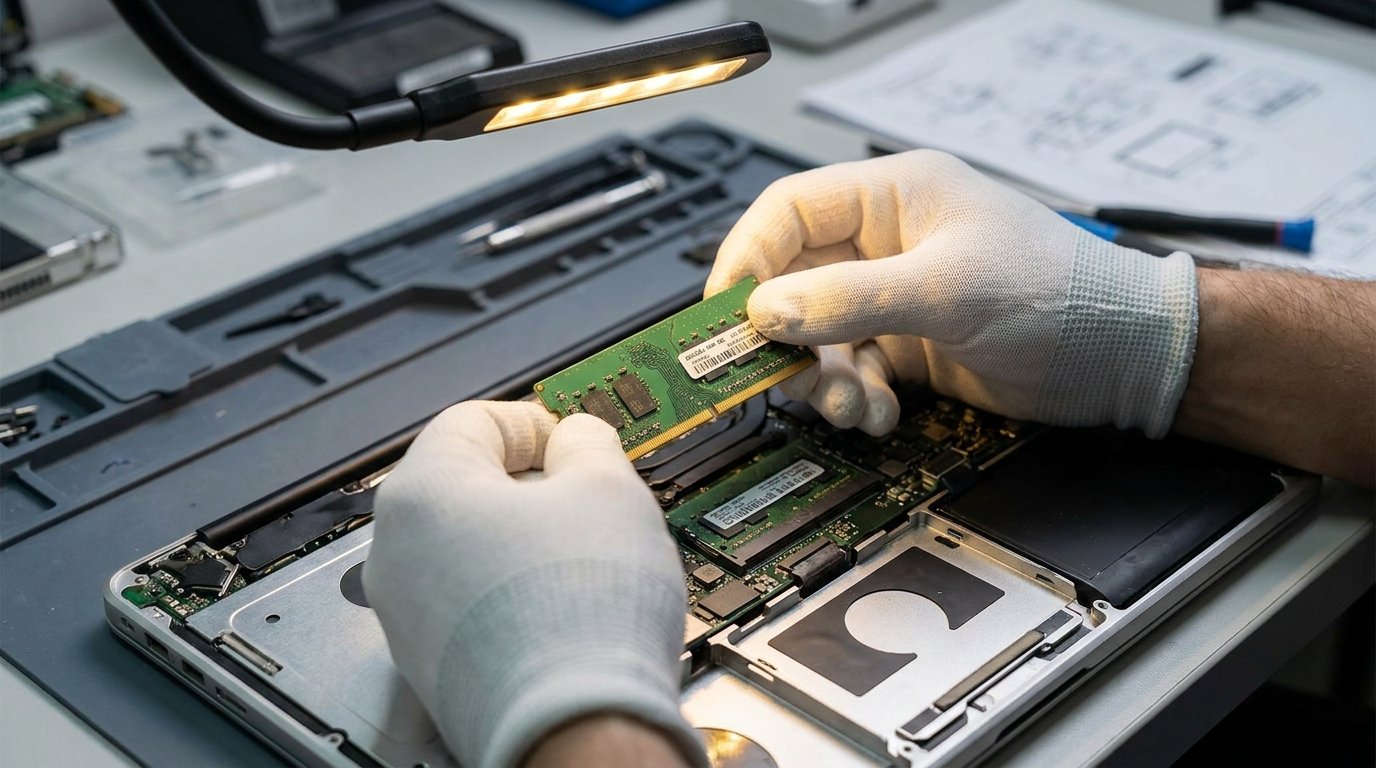
Memory errors are one of the most common root causes of stop codes with names like MEMORY_MANAGEMENT or PAGE_FAULT_IN_NONPAGED_AREA. A single bad memory module can cause crashes that appear completely random and unrelated to what you’re doing.
Corrupted system files
Interrupted updates, sudden power loss, or a failing drive can damage the Windows system files responsible for booting and running core processes. When Windows can’t read a file it depends on, it may crash rather than continue in an unstable state.
Hardware problems: storage and overheating
A drive that’s beginning to fail, loose internal connections, or a laptop running hot enough to throttle or shut down components can all produce this same message. These are less common than software causes but worth ruling out if nothing else explains a recurring crash.
Step-by-Step: How to Fix It

Work through these in order. Most people resolve the issue within the first three or four steps; the later steps are for cases that don’t respond to the basics.
Step 1: Let it restart and see if it happens again
A single, isolated crash — especially right after a shutdown-and-update cycle — often resolves itself. If your PC boots normally afterward and stays stable, there’s no need to dig further. If it crashes again within the same session or every time you turn it on, move to the next step.
Step 2: Boot into Safe Mode
Safe Mode starts Windows with only the essential drivers and services running, which helps isolate whether a third-party driver or app is the trigger. If your PC won’t reach the desktop normally, Windows should automatically drop into the Windows Recovery Environment (WinRE) after a few failed boot attempts.
- From WinRE, select Troubleshoot → Advanced options → Startup Settings → Restart.
- When the PC restarts, press 4 or F4 for Safe Mode, or 5/F5 for Safe Mode with Networking if you need internet access to download a driver.
If the PC runs fine in Safe Mode, the cause is almost certainly a driver or software issue rather than a hardware failure.

Step 3: Check whether a recent update is responsible
Go to Settings > Windows Update > Update history. If a driver or feature update installed shortly before the crashes began, uninstalling it can confirm the cause. From the same update history screen, look for an option to uninstall the most recent update, then restart and test.
Step 4: Update or roll back drivers
Open Device Manager and look for any entry marked with a yellow warning icon — that’s an immediate red flag. Even without a warning icon, focus first on graphics and chipset drivers, since these are the most frequent culprits.
- Right-click the device, choose Update driver, and let Windows search automatically, or download the latest version directly from the manufacturer’s site.
- If the crashes started right after a driver update, right-click the device, select Properties > Driver tab, and use Roll Back Driver if the option is available.
Step 5: Run the built-in memory diagnostic
Since faulty RAM is such a common trigger, testing memory early saves time. Press Windows key + R, type mdsched.exe, and press Enter. Choose Restart now and check for problems. The PC will reboot, run a memory test automatically, and show results after you log back in.
Step 6: Run SFC and DISM scans
These two commands repair corrupted system files, which is one of the more overlooked fixes for this error. Open Command Prompt as administrator and run:
sfc /scannow
DISM /Online /Cleanup-Image /RestoreHealth
Run sfc /scannow first. If it reports errors it couldn’t fix, run the DISM command, then run sfc /scannow a second time.
Step 7: Use System Restore
If the crashes started around a specific point in time and nothing above has resolved it, System Restore can roll the system back to a snapshot from before the problem began, without touching your personal files. Go to Settings > System > Recovery, or search “Create a restore point” from the Start menu, then choose System Restore and pick a date before the crashes started.
Stuck in a Restart Loop? What to Do Differently

A single crash and a repeating restart loop call for different approaches. If your PC crashes, restarts, and crashes again before you can even reach the desktop, Safe Mode is your entry point — you generally can’t run Device Manager or Command Prompt fixes from a screen you never get past.

If it won’t even boot into Safe Mode, try a hard shutdown: hold the power button for 5–10 seconds as soon as the spinning dots or logo appears, then power on again. Doing this two or three times in a row often triggers WinRE automatically, since Windows detects the repeated failed boots. From there, unplug any recently added external hardware — USB drives, external monitors, printers — before trying again, since a peripheral can sometimes be the actual trigger rather than anything internal.
If none of that gets you to a usable desktop or Safe Mode, that’s the point where a factory reset or a professional repair becomes the more realistic option, since further software troubleshooting requires being able to run tools that need a working boot.
Dell and HP-Specific Notes
Dell and HP both preload their own diagnostic and driver-management utilities, and it’s worth using them before generic Windows tools since they’re built for that exact hardware. Dell’s SupportAssist can run a built-in hardware scan, including memory and storage checks, directly from the recovery menu on many models. HP includes a similar built-in hardware diagnostic accessible by pressing Esc repeatedly at startup, then selecting the diagnostics option.
On both brands, always pull driver updates from the manufacturer’s own support site rather than relying solely on generic Windows Update drivers, particularly for graphics and chipset drivers, since the manufacturer’s versions are tested against that specific model’s hardware combination.
Mistakes to Avoid
- Repeatedly force-restarting without checking anything. Each crash generates a minidump file that can help identify the cause — restarting over and over without investigating just delays the fix.
- Reinstalling Windows as a first step. It’s a last resort, not a diagnostic shortcut, and it erases the chance to find out what actually caused the crash before it happens again on the fresh install.
- Ignoring a yellow warning icon in Device Manager. It’s one of the fastest, most direct clues available and gets skipped surprisingly often.
- Assuming a virus without evidence. Running a scan is fine; treating it as confirmed without checking drivers, updates, and memory first usually means missing the real cause.
When to Stop Troubleshooting and Get Help
If you’ve run through Safe Mode, driver updates, the memory diagnostic, SFC/DISM, and System Restore without success, and the PC still crashes or won’t stay booted, that’s a reasonable point to involve a professional or the manufacturer’s support line. Recurring hardware-level causes — a genuinely failing drive, a dying memory module, or motherboard issues — usually need physical testing or replacement that software troubleshooting can’t resolve.
Frequently Asked Questions
Q: What does it mean when it says your device ran into a problem?
A: It means Windows detected an error serious enough that continuing to run could risk instability or data corruption, so it stopped and restarted. The specific stop code shown on screen points to the actual cause, whether that’s a driver, memory issue, or corrupted file.
Q: Is Blue Screen of Death caused by RAM?
A: It can be. Faulty or incompatible memory is one of the most common causes of stop codes, particularly ones related to memory management. Running the built-in Windows Memory Diagnostic (mdsched.exe) is the fastest way to check.
Q: How do I fix the blue screen of death on Windows 11?
A: Start with Safe Mode to confirm whether it’s driver-related, then check recent Windows updates, update or roll back drivers, run the memory diagnostic, and use SFC/DISM to repair system files. Work through these in order rather than jumping to a full reinstall.
Q: Can a virus cause a restart loop on a Dell laptop?
A: It’s possible but uncommon. A restart loop is far more often tied to a driver conflict, a failed update, or a hardware issue like failing memory. On Dell hardware specifically, running the built-in SupportAssist hardware scan is a faster way to rule causes in or out than assuming malware.
Q: How can I tell if Windows 11 is corrupted?
A: Persistent crashes with varying stop codes, failed SFC scans that can’t fully repair themselves, or repeated boot failures are signs of underlying corruption. Running sfc /scannow followed by the DISM restore health command will confirm and often fix it.
Q: My PC says “ran into a problem and couldn’t be repaired.” What should I do?
A: This variant means Windows’ automatic repair attempt failed. From that screen, choose Advanced options, then try System Restore first if you have a restore point from before the issue started. If that’s not available, a reset that keeps your personal files is the next option before a full reinstall.
Q: What happens during a Blue Screen error?
A: Windows stops all running processes immediately once it detects a critical error, writes diagnostic information (a minidump) about what caused it, displays the stop code, and then restarts automatically. The whole sequence typically takes only a few seconds.
Q: Does this error mean I’m going to lose my files?
A: Not usually. The crash itself doesn’t erase personal files; the risk mainly applies to unsaved work at the moment of the crash. Files already saved to disk are generally unaffected, though it’s still worth backing up important data if crashes are recurring and a system reset becomes necessary.