Computer Won’t Connect to WiFi? 9 Proven Fixes for Windows 10/11
Few things are more frustrating than when your computer won’t connect to WiFi — especially when your phone and every other device in the house are online without a problem. If your Windows 10 or 11 PC says “Can’t connect to this network,” shows “No internet, secured,” or simply doesn’t see your WiFi network at all, the good news is that the cause is almost always software-related and fixable in a few minutes.
This guide walks you through the exact troubleshooting order that actually works, from the 30-second checks most people skip to deeper repairs like resetting the TCP/IP stack and reinstalling your wireless driver. Work through the fixes in order — most people are back online by fix 4 or 5.
Quick Checks First: The 60-Second Round
Before touching any settings, rule out the obvious. These take a minute and solve a surprising number of cases.
1. Make sure WiFi is actually on. On Windows 11, click the network/sound/battery icons in the bottom-right corner. If WiFi shows as off, turn it on. On Windows 10, click the network icon in the taskbar and make sure the WiFi tile is blue (on). Also check your laptop’s physical WiFi switch or function key (often Fn + F2 or similar) — it’s easy to toggle accidentally.
2. Turn off Airplane Mode. Airplane mode kills all wireless radios. In the same quick-settings panel, make sure Airplane mode is off.
3. Check other devices. If your phone also can’t connect, the problem is your router or ISP — not your computer. Restart the router (unplug it for 30 seconds, plug it back in, wait 2 minutes) and try again.
4. Move closer to the router. Weak signal causes failed connections and endless “connecting” loops. If it works next to the router but not at your desk, you’ve got a range or interference problem, not a broken PC.
If other devices connect fine but your computer still won’t, keep going — the problem is in your PC.
Why Your Computer Won’t Connect to WiFi: Common Causes

Understanding the likely cause saves time. Here’s how the symptoms map to causes:
| Symptom | Most likely cause | How common |
|---|---|---|
| “Can’t connect to this network” error | Corrupt/outdated WiFi driver | Very common |
| “No internet, secured” | IP configuration failure (DHCP/TCP-IP) | Very common |
| WiFi network doesn’t appear in the list | Adapter disabled or driver missing | Common |
| Connects but drops every few minutes | Power management turning off the adapter | Common |
| Started right after a Windows update | Update broke the driver or settings | Common |
| Works on phone hotspot but not home WiFi | Router-side issue (band, MAC filter, firmware) | Less common |
| Nothing wireless works at all | Hardware failure (WiFi card/antenna) | Rare |
Fix 1: Properly Restart Your PC and Router
A full power cycle clears stale network states that a normal restart doesn’t. Do it in this order:
- Shut down your computer completely (don’t just restart — hold Shift while clicking Shut down to bypass Fast Startup).
- Unplug your router and modem from power. Remove any cables if you want to clear static buildup.
- Wait at least 30 seconds (60 is better).
- Plug the modem back in first, wait for its lights to stabilize, then plug in the router.
- Wait 2 full minutes, then power on your PC and try connecting.
This alone fixes a large share of “it worked yesterday” cases.
Fix 2: Forget the Network and Reconnect
A corrupted saved network profile causes repeated “Can’t connect to this network” errors. Delete it and start fresh:
- Go to Settings > Network & internet > WiFi > Manage known networks.
- Find your network, click it, and select Forget.
- Go back to the WiFi list, select your network, click Connect, and carefully re-enter the password.
Typos in long passwords are a classic cause — retyping from scratch eliminates that variable.
Fix 3: Run the Windows Network Troubleshooter
Windows has a built-in diagnostic that can reset adapters and detect common misconfigurations automatically:
- Windows 11: Settings > System > Troubleshoot > Other troubleshooters > Network and Internet > Run.
- Windows 10: Settings > Update & Security > Troubleshoot > Additional troubleshooters > Internet Connections > Run the troubleshooter.
Let it finish and apply whatever it recommends. It’s not magic, but it catches disabled adapters and misconfigured services quickly.
Fix 4: Update or Reinstall Your WiFi Driver
Drivers are the #1 cause of WiFi connection failures on Windows, especially after major Windows updates. Here’s the full drill:
- Press Win + X and open Device Manager.
- Expand Network adapters and find your wireless adapter (names like “Intel Wi-Fi 6 AX200” or “Realtek 8821CE Wireless LAN”).
- Right-click it and choose Update driver > Search automatically for drivers.
- If that doesn’t help, right-click again and choose Uninstall device. If you see “Attempt to remove the driver for this device,” check it only if you already downloaded a fresh driver from the manufacturer’s site — otherwise leave it unchecked so Windows can reinstall automatically.
- Restart your PC. Windows will reinstall a working driver on boot.
Pro tip: If Windows Update recently broke things, use Roll Back Driver instead (right-click > Properties > Driver tab > Roll Back Driver). This restores the previous working version.
If your adapter shows a yellow warning icon in Device Manager, or doesn’t appear at all, the driver is definitely the problem — download the latest driver from your laptop manufacturer’s support page using another device, transfer it via USB, and install it manually.
Fix 5: Reset the TCP/IP Stack and Flush DNS
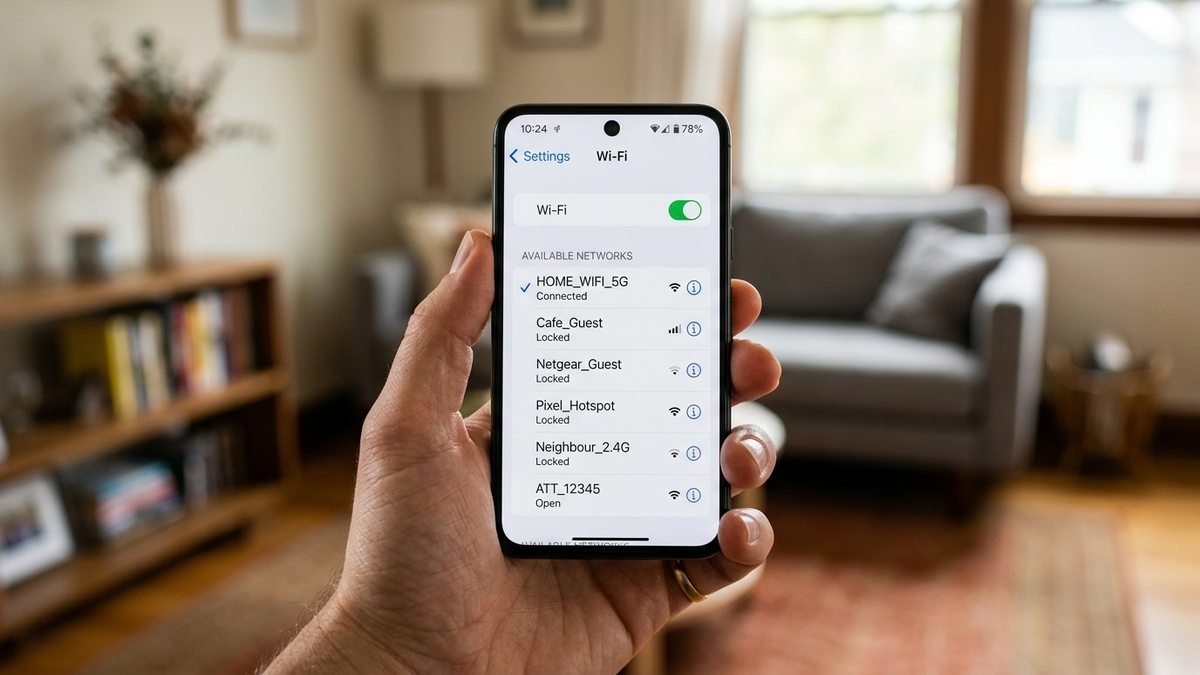
When your PC connects to the router but gets “No internet, secured,” the TCP/IP configuration is usually corrupted. These commands rebuild it:
- Click Start, type cmd, right-click Command Prompt, and choose Run as administrator.
- Run these commands one at a time, pressing Enter after each:
netsh winsock reset

   netsh int ip reset

   ipconfig /release

   ipconfig /renew

ipconfig /flushdns - Restart your PC and reconnect.
This clears corrupted socket catalogs, resets IP settings to DHCP defaults, and flushes stale DNS entries — the three most common culprits behind the “connected but no internet” state.
Fix 6: Use Network Reset (The Nuclear Option for Settings)
If individual fixes aren’t working, Windows can wipe all network configuration back to factory defaults:
- Windows 11: Settings > Network & internet > Advanced network settings > Network reset > Reset now.
- Windows 10: Settings > Network & Internet > Status > Network reset > Reset now.
This removes all saved WiFi networks, VPN connections, and custom adapter settings, then restarts your PC. You’ll need to re-enter your WiFi password afterward. It’s aggressive but extremely effective for stubborn configuration corruption.
Fix 7: Stop Windows From Turning Off Your WiFi Adapter
Windows power management can switch off your wireless adapter to save battery — causing random disconnects, especially on laptops:
- Open Device Manager (Win + X).
- Expand Network adapters, right-click your WiFi adapter, and choose Properties.
- Go to the Power Management tab.
- Uncheck “Allow the computer to turn off this device to save power.”
- Click OK.
Also check Settings > System > Power & battery (Windows 11) — if you’re on a power-saver plan, try switching to Balanced while troubleshooting.
Fix 8: Check VPN, Firewall, and Third-Party Security Software
VPN clients, third-party firewalls, and even some antivirus suites install virtual network adapters that hijack your connection:
- Disconnect from any VPN and try connecting again.
- Temporarily disable third-party firewall/antivirus (keep Windows Defender on) and test.
- In Device Manager, look under Network adapters for virtual adapters (TAP, VPN, virtual) — if WiFi works with them disabled, you’ve found your conflict.
If a recent security software install coincides with the problem, that’s your prime suspect.
Fix 9: Look at the Router Side
When every PC-side fix fails but other devices work, check the router:
- Wrong band: Some older PC adapters only support 2.4 GHz. If your router broadcasts separate 2.4 GHz and 5 GHz networks, try the 2.4 GHz one.
- MAC filtering: If MAC address filtering is enabled on the router, your PC’s MAC must be whitelisted.
- Too many devices / DHCP pool exhausted: Rebooting the router (Fix 1) usually clears this.
- Firmware: Log into your router’s admin page and check for firmware updates.
- Channel interference: In crowded apartment buildings, switching the router’s WiFi channel (1, 6, or 11 for 2.4 GHz) can fix flaky connections.
Microsoft’s own support engineers recommend this same router-side checklist when PC-side fixes don’t resolve the issue — see Microsoft’s WiFi troubleshooting guidance and ASUS’s official no-WiFi troubleshooting steps for manufacturer-specific paths.
What About “No Internet, Secured”?
This specific message means your PC joined the WiFi network but couldn’t get a valid IP configuration. The fastest fixes in order:
- Run the
ipconfig /release,ipconfig /renew,ipconfig /flushdnscommands from Fix 5. - Forget the network and reconnect (Fix 2).
- Restart the router (Fix 1).
- As a last resort, set a static IP temporarily to confirm DHCP is the problem — then switch back to automatic once confirmed.
When It’s Actually a Hardware Problem
If none of the above works, consider hardware:
- WiFi adapter missing from Device Manager entirely (even after “Scan for hardware changes”) suggests a dead card or loose internal connection — common after drops.
- Works with a $15 USB WiFi adapter but not the internal one confirms the internal card is the problem. USB adapters are a cheap permanent workaround.
- Antenna wires inside laptops can come loose — if you’re comfortable opening the machine, reseat the two thin wires on the WiFi card.
Related hardware troubleshooting on TechVistaLab: if your machine has deeper problems, see our guides on computer turns on but no display and computer stuck restarting. And if you suspect malware is interfering with your connection, read our explainer on computer worms — some malware actively disrupts networking.
WiFi Works on Some Networks but Not Others
A useful diagnostic clue: if your laptop connects fine at a café or on your phone’s hotspot but not on your home WiFi (or vice versa), the problem is almost certainly a mismatch between your PC’s settings and that specific network — not a broken adapter.
Common mismatches:
- Security protocol: Very old routers using WEP, or very new ones set to WPA3-only, can confuse older Windows WiFi drivers. In the router settings, WPA2-Personal (AES) remains the most compatible choice in 2026.
- Saved profile corruption for one network: Forgetting just that network (Fix 2) and re-adding it usually resolves it.
- Captive portals: Hotel, airport, and office networks require a login page. If the portal doesn’t pop up, open a browser and navigate to any plain HTTP site — that usually triggers the login page. If it still doesn’t appear, temporarily disable any VPN and custom DNS (like 1.1.1.1), which commonly break captive portals.
- Hidden SSIDs: If the network doesn’t broadcast its name, you must add it manually via Settings > Network & internet > WiFi > Manage known networks > Add network, checking “Connect even if this network is not broadcasting.”
Frequently Asked Questions
Why does my computer say “Can’t connect to this network” but my phone connects fine?
Your phone and PC use completely different WiFi drivers and network stacks. The error almost always points to a corrupted driver or saved network profile on the PC — work through Fix 2 (forget and reconnect) and Fix 4 (driver reinstall) first.
How do I fix WiFi that connects but says “No internet, secured”?
That message means the WiFi link is up but IP configuration failed. Run ipconfig /release, ipconfig /renew, and ipconfig /flushdns in an admin Command Prompt, then restart. If it persists, do a full Network Reset (Fix 6).
Why did my WiFi stop working after a Windows update?
Major Windows updates sometimes replace your working WiFi driver with a generic or incompatible one. Open Device Manager, roll back the WiFi driver to the previous version, or download the latest driver from your laptop manufacturer’s website.
Can a VPN stop my computer from connecting to WiFi?
Yes. VPN clients install virtual network adapters that can conflict with your physical WiFi adapter. Disconnect the VPN entirely (not just the session — quit the app) and test. If WiFi returns, update or reinstall the VPN client.
My WiFi adapter is missing from Device Manager. What now?
First click Action > Scan for hardware changes. If it still doesn’t appear, the card may be disabled in BIOS/UEFI or physically dead. A USB WiFi adapter ($10–20) is the fastest workaround and works fine as a permanent fix.
Should I use 2.4 GHz or 5 GHz?
Use 5 GHz when you’re close to the router (faster), 2.4 GHz when you’re far or going through walls (better range). If your PC’s adapter is old, it may only support 2.4 GHz — connect to that network name explicitly.
Why does WiFi keep disconnecting and reconnecting on its own?
Random disconnects are usually power management (Fix 7) or a driver that crashes under load. Uncheck “Allow the computer to turn off this device to save power” on the adapter, update the driver, and check whether the drops stop. If they only happen during video calls or gaming, interference or an overloaded router is more likely — try the 5 GHz band or a less congested channel.
Is it safe to run Network Reset? Will I lose anything?
Network Reset only touches network configuration — saved WiFi passwords, VPN profiles, and virtual adapters. Your files, apps, and personal data are untouched. You’ll just need to re-enter WiFi passwords afterward, so make sure you know them before resetting.
Final Thoughts
A computer that won’t connect to WiFi is annoying, but it’s rarely serious. In the vast majority of cases, the fix is one of three things: a proper router + PC restart, forgetting and re-entering the network, or reinstalling the WiFi driver. The deeper tools — TCP/IP reset, network reset, and power-management tweaks — cover almost everything else.
Work through the fixes in order, test after each one, and you’ll almost certainly be back online without spending a cent. If you’ve tried everything and the adapter doesn’t even show up in Device Manager, grab an inexpensive USB WiFi adapter — it’s the fastest way to confirm whether the problem is hardware and get working again today.