Driver Power State Failure: What It Means & How to Fix It
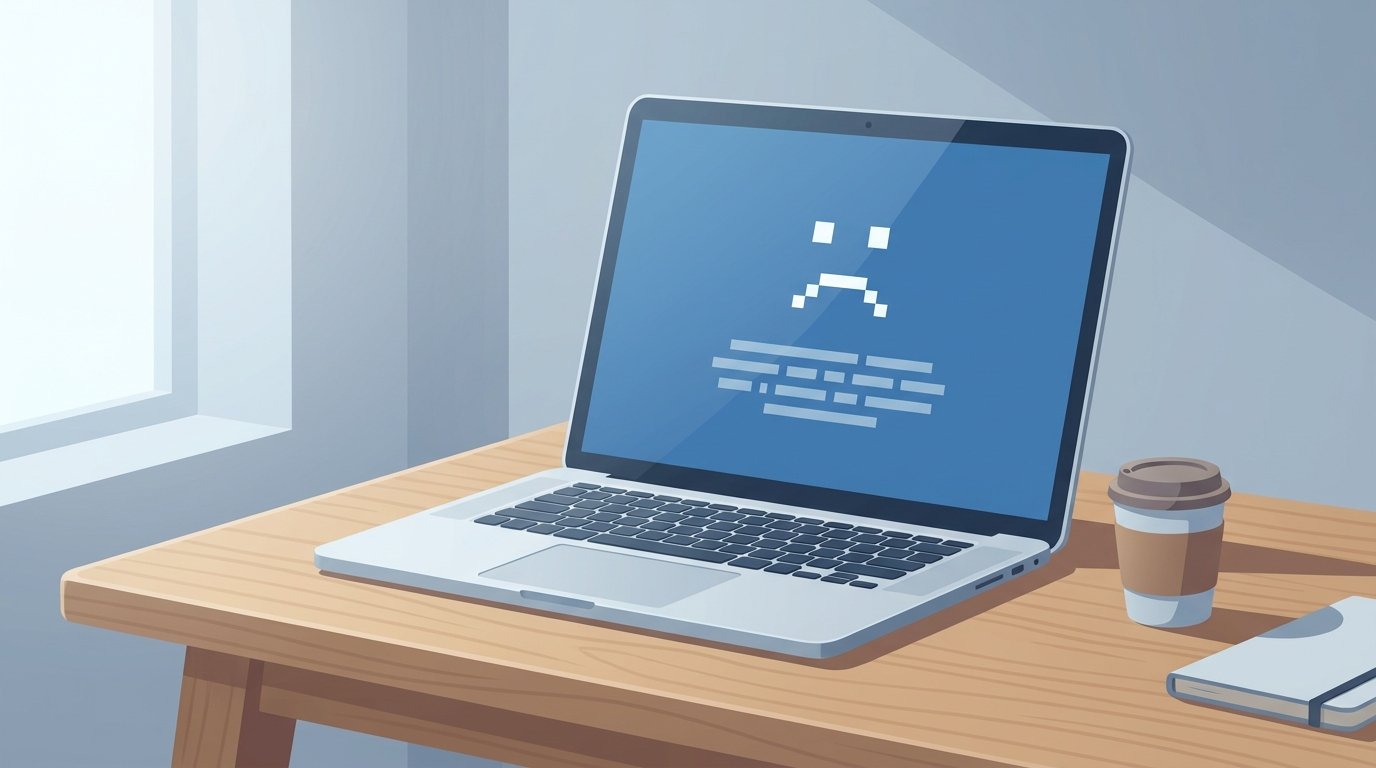
A driver power state failure crash interrupts your work with a blue screen and a stop code — 0x0000009F — right as your PC tries to sleep, wake up, or shut down. It’s one of the more confusing blue screens because the crash itself doesn’t name the broken hardware; it just says a driver missed a deadline.
This guide breaks down what’s actually happening inside Windows when this error fires, which drivers are most often responsible, and the exact order of steps to try — from the safest, five-minute fixes to reading your own crash dump without needing to be a programmer.

What Does the Driver Power State Failure Error Mean?

When Windows moves your PC into or out of a power state — sleeping, hibernating, waking up, or shutting down — the kernel sends every device driver a specific instruction called a power IRP (I/O Request Packet). Each driver has to acknowledge and complete that instruction within a set window, typically up to around ten minutes according to Microsoft’s official bug check documentation.
If a driver never responds — usually because it’s waiting on a piece of hardware that isn’t answering back — Windows assumes the system is stuck and forces a crash rather than let the machine hang indefinitely. That crash is bug check 0x9F, DRIVER_POWER_STATE_FAILURE.
This is why the error feels random. It’s not tied to one program or one moment of heavy use. It’s tied to a specific transition — closing the lid, clicking sleep, or restarting — and it only shows up when the misbehaving driver’s hardware happens to be in the exact state that triggers the stall.
What Causes Driver Power State Failure?
The stop code doesn’t tell you which driver failed by itself, but crash reports gathered from real user cases point to a fairly short list of repeat offenders.
USB Devices
USB Wi-Fi adapters, webcams, external audio interfaces, and USB hubs are the most common trigger, particularly when a setting called USB selective suspend tries to power the device down and it doesn’t wake back up cleanly.
This matters because it’s also the easiest cause to rule out. If you can unplug a USB accessory and the crashes stop, you’ve found your culprit without touching a single system file.
Graphics Drivers
Outdated or buggy GPU drivers, especially on laptops that switch between integrated and discrete graphics, are a frequent second cause. The driver fails to renegotiate power state when the display goes to sleep or the laptop lid closes.
Power Management Settings
Fast Startup and aggressive sleep settings can expose driver bugs that would otherwise stay dormant. These settings aren’t the root cause, but they’re often the trigger that surfaces an existing driver flaw.
BIOS, Chipset, and ACPI Issues
On older motherboards, the failure traces back to the chipset driver (often pci.sys) or an outdated BIOS with incomplete ACPI (power management) support. A pending BIOS update is worth checking before assuming the problem is purely software.
How to Fix Driver Power State Failure on Windows 10 or 11


Work through these in order. Each step is lower-risk than the next, so you’ll catch the easy fixes before touching anything advanced.
- Disconnect non-essential USB devices. Unplug external Wi-Fi adapters, webcams, and hubs one at a time and see if the crashes stop.
- Disable USB selective suspend. Go to Control Panel > Power Options > Change plan settings > Change advanced power settings, expand USB settings, and set USB selective suspend to Disabled.
- Update or roll back your graphics driver. Open Device Manager, expand Display adapters, and update the driver. If the crashes started right after a recent update, roll it back instead.
- Turn off Fast Startup. Go to Control Panel > Power Options > Choose what the power buttons do, then uncheck “Turn on fast startup.”
- Check for a pending BIOS/chipset update. Visit your motherboard or laptop manufacturer’s support page and confirm your BIOS and chipset drivers are current, especially if your PC is more than two years old.
Most cases resolve within the first two or three steps. If the crashes continue after all five, the next section shows you how to find the exact driver name from your own system.
Reading Your Own Crash Dump (No WinDbg Experience Needed)


Windows saves a small crash log every time it blue-screens, and you don’t need to be a developer to read the important line out of it.
- Open File Explorer and go to
C:\Windows\Minidump. If you see one or more .dmp files, Windows is logging the crashes. - Download WinDbg Preview from the Microsoft Store — it’s free and takes about a minute to install.
- Open WinDbg Preview, choose File > Open dump file, and select the most recent .dmp file.
- Type
!analyze -vand press Enter. Wait for the analysis to finish. - Look for a line labeled FAILURE_BUCKET_ID or IMAGE_NAME. This names the actual driver file involved, such as
nvlddmkm.sys(NVIDIA graphics) or a specific USB driver.
Once you have the driver’s file name, a quick search tells you which manufacturer it belongs to, so you know exactly which driver to update, roll back, or remove.
When It Might Be a Hardware Problem, Not a Driver

If you’ve updated every driver, disabled USB selective suspend, and updated the BIOS, and the crashes still happen on a predictable schedule (always after the same number of minutes idle, for example), it’s worth considering hardware rather than software.
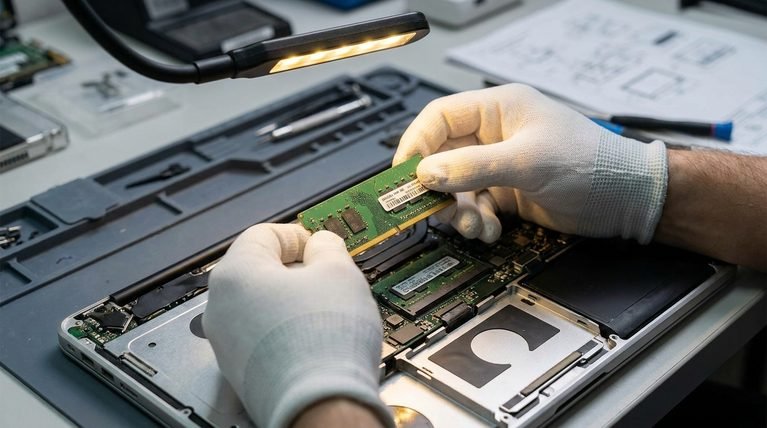
A failing SSD, a loose RAM module, or a dying power supply can all produce power-state timeouts that look identical to a driver bug from the crash log’s perspective. Running your manufacturer’s built-in hardware diagnostic tool, usually accessible from the BIOS boot menu, can rule this out in a few minutes.
Mistakes to Avoid When Troubleshooting This Error
- Reinstalling Windows first. A full reinstall wipes out the exact evidence (recently added drivers, minidump files) that would have shown you the cause in minutes.
- Updating every driver on the system at once. If several drivers change simultaneously and the crash stops, you still won’t know which one caused it, which matters if the fix breaks something else later.
- Ignoring the BIOS. On older hardware, a chipset-level ACPI bug is a common root cause that no amount of Windows driver updating will fix.
- Assuming Safe Mode “fixing” it means the problem is solved. Safe Mode disables the very drivers that are likely causing the crash, so stability there is expected and doesn’t confirm a fix.
Frequently Asked Questions
Q: What does the driver power state failure error mean?
A: It means a device driver failed to respond to a power state change request — like going to sleep or waking up — within the time Windows allows, so the system forced a crash instead of hanging indefinitely.
Q: Is driver power state failure a Windows 10 or Windows 11 issue?
A: It affects both. The underlying cause is the same on either version, though Windows 11’s modern standby and USB power management behave slightly differently, which can make certain USB devices more likely to trigger it there.
Q: How do I find which driver is causing the crash?
A: Open your minidump file in WinDbg Preview and run !analyze -v. The FAILURE_BUCKET_ID or IMAGE_NAME line in the output names the specific driver file involved.
Q: Can a bad USB device really cause a blue screen?
A: Yes. USB Wi-Fi adapters, webcams, and hubs are among the most common triggers, especially when USB selective suspend tries to power them down and they fail to wake up properly.
Q: Should I disable sleep mode completely to stop the crashes?
A: It’s a workaround, not a fix. Disabling sleep avoids the transition that triggers the crash, but the underlying driver bug is still there, and it may surface again during shutdown or a Windows update.
Q: Why does the crash only happen sometimes and not every time I sleep my PC?
A: The failing driver only stalls when its hardware happens to be in a specific state during the transition, which is why the crash can seem intermittent even though the same bug is behind every occurrence.
Q: Do I need WinDbg to fix this, or can I skip it?
A: You can skip it. The five-step fix list covers the most common causes without any tools. WinDbg is only needed if those steps don’t resolve the crashes and you want to identify the exact driver.
Q: Could this error mean my hardware is failing instead of a driver?
A: It’s possible, particularly if crashes happen on a very consistent schedule after you’ve already ruled out drivers and settings. A failing SSD or power supply can produce the same symptom.
Related Reading
If you’re troubleshooting other software behavior on your PC — like comparing AI writing assistants for technical documentation — you might also find our breakdown of ChatGPT vs. Copilot useful.