
Fix CLOCK_WATCHDOG_TIMEOUT in Windows 10/11: Full Guide
A blue screen reading CLOCK_WATCHDOG_TIMEOUT means one of your processor’s cores stopped responding to the system’s clock signal. Windows treats this as unrecoverable and forces a restart to prevent further damage. It’s disruptive, but in most cases it’s fixable without reinstalling Windows.
This guide explains what the CLOCK_WATCHDOG_TIMEOUT bug check actually means, what triggers it, and the order of troubleshooting steps that resolves it fastest — starting with the checks that take two minutes, before you touch any hardware.
What Is the CLOCK_WATCHDOG_TIMEOUT Error?

CLOCK_WATCHDOG_TIMEOUT is Windows bug check 0x101. According to Microsoft’s own driver documentation, it fires when an expected clock interrupt on a processor core in a multi-core system isn’t received within the allotted interval — in other words, one core stopped processing interrupts and the rest of the system noticed.
Every modern CPU has more than one core, and Windows relies on all of them staying synchronized through periodic clock ticks. If a core goes unresponsive — deadlocked, frozen, or simply not receiving power correctly — the watchdog built into Windows detects the silence and crashes the system on purpose, rather than let it run in a corrupted state.
This is a hardware-adjacent error. It can be caused by software (a bad driver holding a core hostage), but it is fundamentally about a physical core failing to respond, which is why the fixes below start at the software layer and move toward hardware only if needed.

What Causes CLOCK_WATCHDOG_TIMEOUT
There isn’t one single cause. The error shows up across brand-new gaming PCs, five-year-old laptops, and freshly built desktops for different underlying reasons.
Overclocking, undervolting, and unstable BIOS tuning
This is the single most common cause on desktop PCs. A manual overclock, an aggressive undervolt, or an enabled memory profile (XMP/EXPO) that passed a short benchmark can still be unstable under different, real-world workloads. AMD’s Curve Optimizer feature is a frequent culprit: an overly negative curve can starve a core of voltage specifically at low, idle-level clock speeds — the opposite of when most people expect instability.
Outdated or conflicting drivers
A chipset, storage, or GPU driver that mismanages power states or interrupt handling can hold a core busy long enough to trip the watchdog. This is more common right after a major Windows feature update, when older drivers haven’t caught up to new power-management behavior.
Overheating or failing hardware
Thermal throttling gone wrong, a failing VRM, degraded thermal paste, or a dying power supply can all cause a core to stall. Laptops with clogged fans and dust-packed heatsinks are especially prone to this after a year or two of use.
Corrupted system files
Damaged system files affecting the kernel’s power or interrupt-handling components can occasionally trigger the same crash, even on stock hardware with up-to-date drivers.
A recent Windows or driver update
If the crashes started right after a Windows update or a specific driver install, that update is the prime suspect until proven otherwise.
How to Fix CLOCK_WATCHDOG_TIMEOUT: Step-by-Step

Work through these in order. Each step is listed roughly by how common the cause is and how easy it is to reverse, so you’re not disassembling a laptop before checking a two-minute software setting.
Step 1: Find and read the minidump
Windows saves a crash record in C:\Windows\Minidump each time this happens. Open it with the free WinDbg Preview (from the Microsoft Store) and run !analyze -v. If a specific driver file is named in the output, that’s your starting point — update or remove it before doing anything else.
Step 2: Revert overclocking and undervolting
Reset your BIOS/UEFI to its default, non-overclocked profile. This includes disabling XMP/EXPO memory profiles, resetting Curve Optimizer or PBO settings to 0/Auto, and reverting any settings changed in vendor tools like Ryzen Master or Intel XTU. If the crashes stop, you’ve found your cause — you can reintroduce a more conservative overclock later, one setting at a time.
Step 3: Update chipset, BIOS, and device drivers
Update your motherboard’s chipset driver and BIOS from the manufacturer’s official support page, along with GPU and storage drivers. A BIOS update often includes revised CPU microcode, which directly affects core stability.
Step 4: Run Windows Memory Diagnostic
Search “Windows Memory Diagnostic” in the Start menu and run a restart-and-scan. Faulty RAM can produce a wide range of seemingly unrelated bug checks, including this one.
Step 5: Run SFC and DISM
Open Command Prompt as administrator and run sfc /scannow, followed by DISM /Online /Cleanup-Image /RestoreHealth. This repairs corrupted system files that could interfere with core scheduling.
Step 6: Use Driver Verifier to isolate a faulty driver
If the minidump didn’t clearly name a culprit, Driver Verifier stress-tests installed drivers and forces a crash that points directly at the offending one. Run it only briefly (a day or two), since it deliberately makes your system less stable while testing — and make a system restore point first, since a small number of systems become temporarily unbootable under it.
Step 7: Check temperatures and reseat hardware
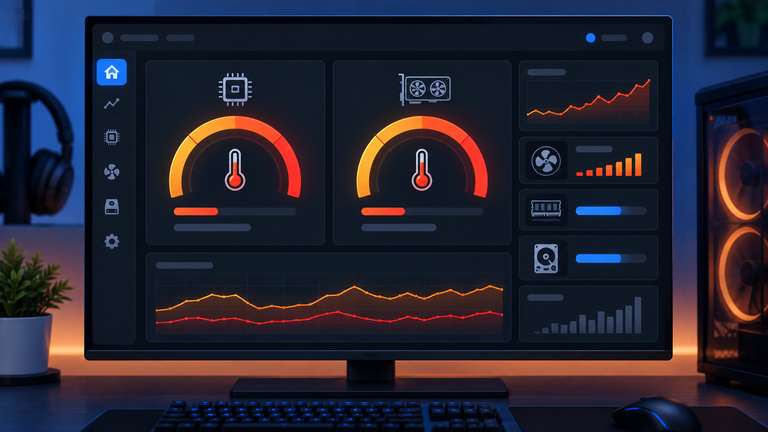
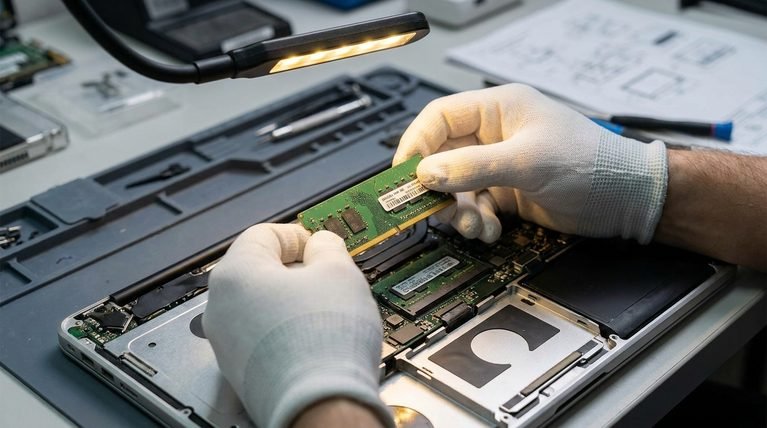
Monitor core temperatures with HWiNFO during normal use. If any core is regularly hitting the high 90s°C or throttling, clean out dust, reapply thermal paste, or check that the CPU cooler is properly seated. On desktops, reseat RAM and any add-in cards while you’re in there.
Step 8: Roll back a recent update
If the crashes began right after a Windows Update, go to Settings > Windows Update > Update History > Uninstall updates, and remove the most recent one. If it began after installing a specific driver, roll that driver back through Device Manager instead.

CLOCK_WATCHDOG_TIMEOUT on Windows 11: What’s Different
The bug check itself is identical on Windows 10 and Windows 11 — the underlying cause is hardware-level, not tied to the OS version. What has changed is the surrounding software: Windows 11’s stricter CPU scheduling and power-management defaults occasionally expose an unstable overclock or aggressive undervolt that Windows 10 tolerated. If your crashes started specifically after upgrading to Windows 11 on the same hardware, treat Step 2 (reverting tuning) as your first stop, not a last resort.
Why Does My Clock Watchdog Timeout Value Show as 0?
Microsoft’s own bug-check parameter table for 0x101 lists four parameters passed with the crash: the clock interrupt timeout interval, the address of the unresponsive processor’s control block, the index of the hung processor — and a second parameter that is documented as simply 0. That’s not a malfunction or a sign the crash data is missing; it’s a fixed, reserved value in Microsoft’s own bug-check definition, not a live diagnostic number. If you see “0” in that field of a crash analysis tool, it tells you nothing about severity — look at the processor index and the faulting driver instead.
SYNTHETIC_WATCHDOG_TIMEOUT (0x1CA) vs. CLOCK_WATCHDOG_TIMEOUT (0x101)
These two get mixed up constantly because both involve a “watchdog” and both end in a forced restart, but they’re triggered by different mechanisms.
| Aspect | CLOCK_WATCHDOG_TIMEOUT (0x101) | SYNTHETIC_WATCHDOG_TIMEOUT (0x1CA) |
|---|---|---|
| What expired | A hardware clock interrupt on a physical CPU core | A system-wide software watchdog, most often tied to virtualization |
| Typical trigger | Overclocking, undervolting, driver conflicts, overheating, failing hardware | Hyper-V or other virtualization workloads, a hung host OS not processing timer ticks |
| Most common on | Any PC, especially tuned or aging desktops | Systems running virtual machines or Hyper-V-dependent features |
| First troubleshooting step | Revert BIOS/overclock tuning | Disable or update Hyper-V and check virtualization-related drivers |
If you’re not running any virtual machines or Hyper-V features, 0x1CA is unlikely to be your issue — the CLOCK_WATCHDOG_TIMEOUT fixes above are the relevant path. If you do run Hyper-V and see bug check 0x1CA specifically, start by updating your virtualization drivers and checking for a pending Hyper-V or host OS update.

Using AI Chatbots to Help Diagnose the Error
If reading a raw minidump feels intimidating, pasting the !analyze -v output into an AI chatbot can help translate it into plain language. The free version of ChatGPT can summarize which driver or module a crash report is pointing to, though you should still verify any suggested fix against Microsoft’s own documentation before making changes.
If you’re already using X’s assistant for other research, Grok can be used the same way. For quickly cross-referencing a specific driver version against known issues, Perplexity is useful because it cites its sources directly. And if you’re deciding which AI assistant to lean on for this kind of technical troubleshooting long-term, our comparison of ChatGPT and Copilot covers how each handles technical, code-adjacent questions.
Mistakes to Avoid While Troubleshooting
- Reinstalling Windows first. This wipes potential evidence (the minidump) and rarely fixes a hardware-triggered crash.
- Running Driver Verifier for days at a time. It’s meant for short diagnostic windows, not everyday use — leaving it on stresses drivers unnecessarily.
- Changing multiple BIOS settings at once. Revert one variable at a time so you know which change actually fixed it.
- Ignoring temperature checks because “the PC is new.” Poor case airflow or a badly seated cooler affects brand-new builds just as much as old ones.
When It’s Time to Suspect Hardware, Not Software

If you’ve reverted all overclocking, updated every driver and the BIOS, passed a full memory test, and repaired system files — and the crashes continue on a consistent pattern (same time of day, same workload, same core index in every dump) — the CPU, motherboard VRM, or power supply itself is the more likely remaining cause. At that point, testing with a different PSU, or having the CPU tested in another compatible board, narrows it down faster than repeating software fixes.
Frequently Asked Questions
Q: Is CLOCK_WATCHDOG_TIMEOUT a sign of a virus?
A: No. It’s a processor/interrupt-handling issue, not a malware symptom. Malware can occasionally cause instability that triggers various bug checks, but this specific one points to a core losing its clock signal, not to malicious code.
Q: Can a laptop battery cause this error?
A: Indirectly. A failing battery or faulty charging circuit can cause voltage instability that affects core power delivery, particularly on laptops running on battery without the charger connected.
Q: How do I know which core failed?
A: The minidump’s bug-check parameters include the index of the hung processor. WinDbg’s !analyze -v output will surface this number directly.
Q: Will a fresh Windows install fix it?
A: Only if the cause is corrupted system files, which is one of the less common triggers. Since the underlying issue is usually tuning, drivers, or hardware, a reinstall alone often doesn’t resolve it.
Q: What stop code should I search for if my screen shows a hex number instead of a name?
A: Search for 0x00000101 or 0x101 — that’s the numeric form of CLOCK_WATCHDOG_TIMEOUT. If you see 0x1CA instead, you’re dealing with the related but distinct SYNTHETIC_WATCHDOG_TIMEOUT error covered above.
Q: Is it safe to keep using my PC while this keeps happening?
A: You can, but repeated forced restarts increase the risk of file corruption and, if the root cause is thermal or power-related, potential hardware wear. It’s worth working through the fix order above rather than ignoring repeated crashes.
Q: Why did this start right after I built a new PC?
A: New builds are the most common case for this error because factory-default BIOS settings on many motherboards auto-enable a mild overclock or an aggressive XMP/EXPO profile out of the box. Reverting to fully stock settings resolves a large share of new-build cases.
Q: Does undervolting always cause this error?
A: No — most undervolts are stable. The issue is specifically an undervolt that’s too aggressive for the chip’s silicon quality, especially at low, idle-level clock speeds where some negative Curve Optimizer settings run out of voltage headroom.