Antimalware Service Executable High CPU? 8 Fixes That Work
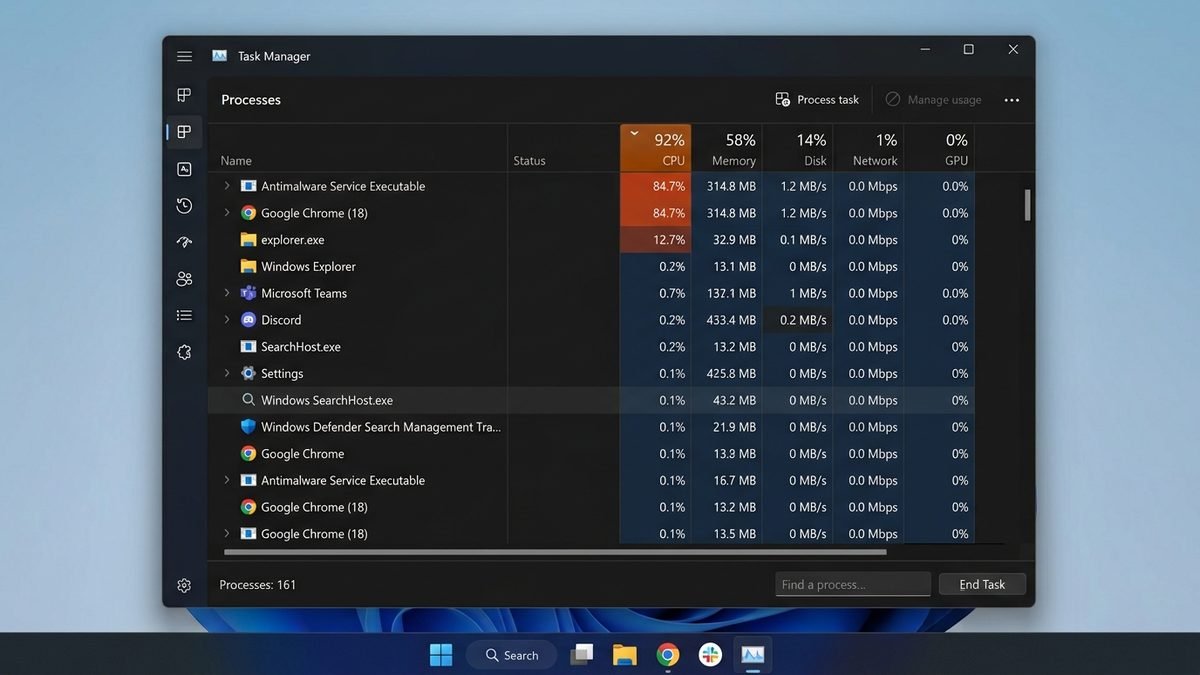
You open Task Manager because your PC feels sluggish, and there it is: Antimalware Service Executable — also known as MsMpEng.exe — chewing through 30%, 50%, sometimes nearly 100% of your CPU. The irony is hard to miss: the very process that’s supposed to protect your computer is the one slowing it to a crawl.
Before you do anything drastic, know this: Antimalware Service Executable is a legitimate and essential part of Microsoft Defender (the antivirus built into Windows 10 and 11). High CPU usage from it is usually temporary and fixable. This guide explains what the process actually does, why it spikes, and the 8 safest fixes — in order — that calm it down without leaving your PC unprotected.
What Is Antimalware Service Executable?

Antimalware Service Executable (MsMpEng.exe) is the background engine of Microsoft Defender Antivirus, which ships built into every copy of Windows 10 and 11. Its job is to:
- Run real-time protection — scanning every file you open, download, or execute
- Perform scheduled full-system scans in the background
- Process definition updates and apply new threat signatures
- Monitor behavioral signals for ransomware-like activity
When you see it using CPU, it’s usually doing exactly what it’s supposed to do. The problem is when it does it at the wrong time, for too long, or in a wasteful loop.
Important: If you have a third-party antivirus installed (Norton, Bitdefender, McAfee, etc.), Microsoft Defender disables itself automatically, and you shouldn’t see MsMpEng.exe using significant resources. If you do, something is misconfigured.
Why Antimalware Service Executable Uses So Much CPU

The most common triggers, ranked by how often they cause the problem:
| Cause | What happens | Typical duration |
|---|---|---|
| Scheduled full scan running | Defender scans every file on your drives | 30–90 minutes |
| Scan right after definition update | Fresh signatures trigger a re-scan of recent files | 10–30 minutes |
| Defender scanning its own files | Recursive self-scanning loop inflates CPU | Ongoing until fixed |
| Large file operations | Copying/downloading big files triggers real-time scanning of each one | During the operation |
| Corrupted Defender definitions | Broken update puts the engine in a retry loop | Ongoing until fixed |
| Malware masquerading as MsMpEng.exe | Fake process with the same name | Ongoing — needs removal |
The key question is always: is a scan actually running right now? Open the Windows Security app > Virus & threat protection and check under “Current threats” — if a scan started recently, the fix is patience, not surgery.
Is It Safe to Disable Antimalware Service Executable?
Short answer: you shouldn’t permanently disable it unless you have another reputable antivirus running. Killing MsMpEng.exe leaves you with no real-time protection, and Windows will fight you to turn it back on anyway — tamper protection actively blocks most disable attempts.
What you can safely do is tame it: reschedule scans, exclude its own process, cap its CPU usage, and fix whatever is triggering the spikes. Every fix below keeps your protection intact. That’s the whole point — a fast PC and a protected one.
Fix 1: Check Whether a Scan Is Running and Let It Finish
The fastest “fix” is often no fix at all:
- Press Win + S, type Windows Security, and open it.
- Go to Virus & threat protection and look at the scan status under Current threats.
- If a scan is in progress, let it finish — interrupting it just means it starts over later.
Full scans are CPU-heavy by nature. If this is a one-time spike after an update or after plugging in an external drive, waiting 30–60 minutes is the correct move. If the high usage never stops, move to Fix 2.
Fix 2: Update Defender Definitions and Windows
Outdated or corrupted definitions are a classic cause of runaway scanning behavior:
- Open Windows Security > Virus & threat protection > Protection updates and click Check for updates. Install everything offered.
- Go to Settings > Windows Update and install all pending updates.
- Restart your PC.
Microsoft regularly ships Defender engine improvements that specifically reduce CPU usage. Running months-old definitions is one of the most common reasons people see permanent high CPU from MsMpEng.exe.
Fix 3: Reschedule Scans to When You’re Away
By default, Defender’s scheduled scan can kick off while you’re working. Move it to the middle of the night:
- Press Win + S, search Task Scheduler, and open it.
- Navigate to Task Scheduler Library > Microsoft > Windows > Windows Defender.
- Double-click Windows Defender Scheduled Scan.
- Go to the Triggers tab, select the existing trigger, and click Edit.
- Set it to run daily at a time you’re not using the PC (e.g., 3:00 AM).
- On the Conditions tab, you can also check “Start the task only if the computer is idle.”
This doesn’t reduce Defender’s protection at all — real-time protection keeps running 24/7. It just moves the heavy full scan out of your way. For the official documentation on what Microsoft Defender Antivirus does and how it’s configured, see Microsoft Learn’s Defender Antivirus overview.
Fix 4: Stop Defender From Scanning Itself (Most Effective)
This is the highest-impact fix for chronic high CPU: prevent Defender from recursively scanning its own process files, which creates a wasteful self-monitoring loop.
- Open Windows Security.
- Go to Virus & threat protection > Manage settings (under Virus & threat protection settings).
- Scroll to Exclusions and click Add or remove exclusions.
- Click Add an exclusion > Process.
- Type
MsMpEng.exeand click Add. - Repeat and add
NisSrv.exe(the Network Inspection Service).
Most users see an immediate, noticeable CPU drop after this — no restart required. You’re not excluding your files from protection; you’re just telling Defender not to waste cycles inspecting its own engine binaries.
Fix 5: Cap Defender’s CPU Usage with PowerShell
Windows lets you limit how much CPU Defender’s scans can consume. This is a safe, Microsoft-supported setting:
- Click Start, type PowerShell, right-click it, and choose Run as administrator.
- Run:
Set-MpPreference -ScanAvgCPULoadFactor 30 -EnableLowCpuPriority $true
This caps scan CPU usage at roughly 30% and runs scans at low priority so your apps stay responsive. - To verify, run
Get-MpPreferenceand check the values.
If you ever want to revert: Set-MpPreference -ScanAvgCPULoadFactor 50 -EnableLowCpuPriority $false (50 is the default).
Fix 6: Exclude Trusted Folders That Trigger Constant Scans
If Defender spikes whenever you work in a specific folder — a code project with thousands of small files, a video editing scratch disk, a virtual machine directory — exclude that folder:
- Windows Security > Virus & threat protection > Manage settings > Add or remove exclusions.
- Add an exclusion > Folder and select the folder.
Only do this for folders you trust completely. Never exclude Downloads, Temp, or anything that receives files from the internet. A wrongly excluded folder is a blind spot malware can exploit.
To find out which folder is triggering scans, open Resource Monitor (search it in Start), go to the Disk tab, and watch which files MsMpEng.exe is reading — the culprit is usually obvious within a minute.
Fix 7: Run One Full Manual Scan to Clear the Backlog
Sometimes Defender is stuck in a loop because a full scan never completed — it keeps retrying. Force a clean, complete scan:
- Open Windows Security > Virus & threat protection.
- Click Scan options, select Full scan, and click Scan now.
- Don’t use the PC heavily until it finishes (go make coffee — it takes a while).
Once a full scan completes cleanly, the background retry behavior usually stops. If the scan itself finds threats, let Defender quarantine them and restart.
Fix 8: Make Sure It’s Really MsMpEng.exe (Not Malware)
Real MsMpEng.exe lives in C:\Program Files\Windows Defender\ and is signed by Microsoft. Malware occasionally disguises itself with the same name. Verify:
- Open Task Manager (Ctrl + Shift + Esc), find Antimalware Service Executable.
- Right-click it > Open file location. It should open
C:\Program Files\Windows Defender. - Right-click the file > Properties > Digital Signatures — it should show Microsoft as the signer.
If the file is anywhere else (especially in Temp or AppData), treat it as malware: disconnect from the internet and run a full Defender scan plus the Microsoft Safety Scanner guidance on threat removal.
How to Find Exactly What Defender Is Scanning

Guessing is inefficient. Windows gives you two built-in ways to see precisely which files MsMpEng.exe is chewing on:
Resource Monitor (quick and visual):
1. Press Win + S, type Resource Monitor, and open it.
2. Go to the Disk tab.
3. Check the box next to MsMpEng.exe in the processes list.
4. The Disk Activity panel now shows only files Defender is reading/writing, with read/write speeds. If one folder dominates the list, that’s your trigger — consider excluding it (Fix 6) or moving the workload.
Defender Performance Analyzer (precise):
PowerShell includes a dedicated analyzer for exactly this problem:
1. Open PowerShell as administrator.
2. Run New-MpPerformanceRecording -RecordTo C:\DefenderPerf.etl, reproduce the slowdown for a minute or two, then press any key to stop.
3. Run Get-MpPerformanceReport -Path C:\DefenderPerf.etl -TopFiles 10 -TopScans 10 to see the top offending files and scan types.
This is the same tool Microsoft’s own support engineers use. If the report shows a single application (a game launcher, a dev tool, a backup program) dominating scan time, excluding that app’s folder is the correct, targeted fix — far better than broad exclusions.
Defender vs. Third-Party Antivirus: CPU Usage Compared
A common question: would switching antivirus fix the CPU problem? Here’s the honest picture:
| Microsoft Defender | Typical third-party suite | |
|---|---|---|
| Idle CPU usage | Near zero | Near zero (some add background services) |
| Full scan CPU | High (30–90 min) | High (similar — scanning is scanning) |
| Real-time overhead | Low–moderate | Low–moderate |
| Schedulability | Fully adjustable via Task Scheduler | Varies by product |
| Cost | Free, built in | $30–60/year |
| Detection quality (2026) | Excellent, top-tier in independent tests | Excellent for top products |
The CPU cost of a full scan is inherent to scanning, not specific to Defender — any antivirus doing a thorough job will spike CPU during a full scan. Switching products rarely fixes the underlying issue; scheduling and exclusions do, regardless of which antivirus you use. If you do switch, Defender disables itself automatically — never run two real-time antivirus engines simultaneously, as they’ll fight over every file and double your CPU load.
What NOT to Do
- Don’t delete or rename MsMpEng.exe. Windows File Protection will restore it, and you’ll have wasted your time.
- Don’t permanently disable real-time protection via registry hacks unless you’re installing a replacement antivirus the same day. An unprotected PC gets compromised fast.
- Don’t follow “disable Windows Defender” tutorials that involve Group Policy unless you know exactly why — most are written for enterprise admins, not home users.
- Don’t install “MsMpEng.exe fixer” tools from random sites. They’re a classic malware delivery vehicle. Everything in this guide uses built-in Windows tools.
When High CPU Means Something Else
Antimalware Service Executable isn’t the only Windows process that hogs CPU. If Task Manager shows a different culprit, the fix is different too. For example, blue-screen-class system problems have their own troubleshooting paths — see our guides on CLOCK_WATCHDOG_TIMEOUT and Driver Power State Failure for those. And if you’re dealing with a machine that’s slow for murkier reasons, our piece on obscure Windows software errors covers the stranger corners of Windows troubleshooting.
Frequently Asked Questions
Why is Antimalware Service Executable using 100% CPU?
Almost always one of three things: a scheduled full scan is running, Defender just updated its definitions and is re-scanning, or it’s stuck in a self-scanning loop. Check Windows Security for an active scan first; if none is running, apply Fix 4 (the MsMpEng.exe exclusion) — it resolves the chronic cases.
Can I end Antimalware Service Executable in Task Manager?
You can try, but Tamper Protection will usually block it, and it’ll restart anyway. Ending the task doesn’t fix the underlying trigger — the CPU spike will return. Use the scheduling, exclusion, and CPU-cap fixes in this guide instead.
Is MsMpEng.exe a virus?
The real one isn’t — it’s Microsoft Defender’s core process, located in C:\Program Files\Windows Defender\ and digitally signed by Microsoft. But malware can use the same filename. Verify the file location and signature (Fix 8) if anything seems off.
Will adding MsMpEng.exe as an exclusion make me unsafe?
No. That exclusion only stops Defender from scanning its own engine files — your documents, downloads, and apps are still fully protected by real-time scanning. It’s a widely used, safe optimization.
Why does it spike every time I copy large files?
Real-time protection scans files as they’re written. Copying gigabytes of data means gigabytes of scanning. This is normal and temporary. If you regularly move huge trusted datasets, consider excluding that specific folder (Fix 6) — but never exclude folders that receive internet downloads.
Should I replace Microsoft Defender with a third-party antivirus?
For most users in 2026, no. Defender’s detection rates are excellent and it’s free and built in. Third-party suites make sense for specific needs (centralized family management, certain enterprise features), but “Defender uses too much CPU” alone isn’t a good reason to switch — the fixes here solve that.
Why does Defender spike at the same time every day?
That’s the scheduled scan trigger. Open Task Scheduler (Task Scheduler Library > Microsoft > Windows > Windows Defender > Windows Defender Scheduled Scan) and check the Triggers tab — you’ll see the configured time. Change it to 3:00 AM or whenever the PC is idle, per Fix 3.
The CPU is still high after all fixes. What’s next?
Run the Defender Performance Analyzer (see the section above) to identify the exact file or process being scanned. In rare cases, persistent high CPU with no scan running indicates corrupted Defender platform files — running DISM /Online /Cleanup-Image /RestoreHealth followed by a restart repairs the underlying Windows image Defender depends on. If even that fails, an in-place Windows repair install (keeping files and apps) resets Defender cleanly.
Final Thoughts
Antimalware Service Executable using high CPU looks alarming, but it’s one of the most solvable performance problems on Windows. Start by checking whether a scan is simply running, update everything, then apply the big three: reschedule scans to idle hours, exclude MsMpEng.exe from its own scanning, and cap scan CPU via PowerShell. Together, those fixes resolve the problem for the overwhelming majority of users — while keeping every layer of protection exactly where it should be.