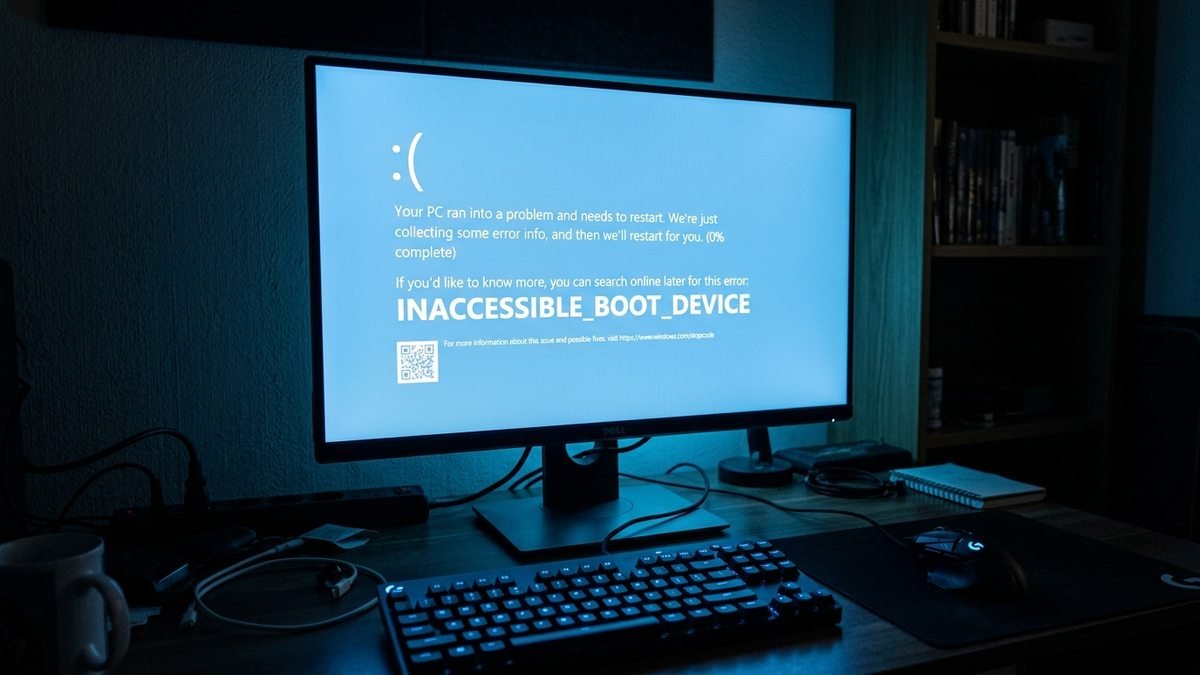
INACCESSIBLE_BOOT_DEVICE in Windows 10/11: 9 Proven Fixes That Work
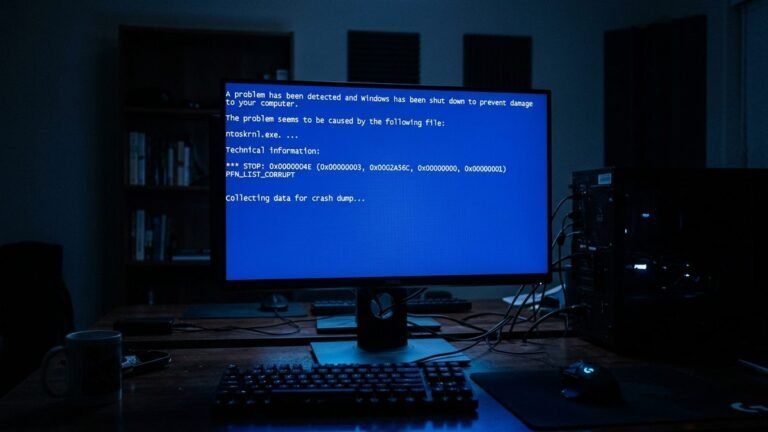
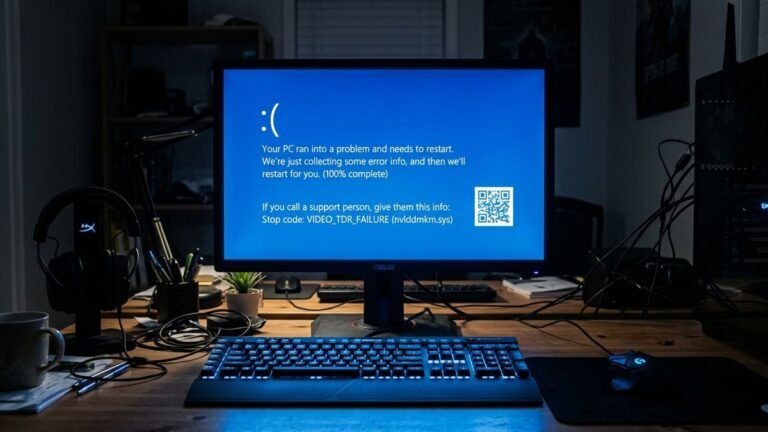
Seeing the INACCESSIBLE_BOOT_DEVICE blue screen on Windows 10 or Windows 11 is one of the most alarming errors a PC owner can face. This complete guide to the inaccessible boot device error explains what the stop code means, the most common causes behind it, and nine proven fixes ordered from simplest to most advanced.
Your computer restarts, Windows tries to load, and instead of the login screen you get a blue screen with the stop code INACCESSIBLE_BOOT_DEVICE (0x0000007B) — and the loop repeats. The good news: this error rarely means your data is gone. In most cases, it means Windows simply lost communication with the drive it is installed on, and the connection can be restored with the right fix. Follow the fixes below in sequence — most people resolve the issue within the first four.
What the Inaccessible Boot Device (INACCESSIBLE_BOOT_DEVICE) Error Actually Means
When Windows starts, the boot loader hands control to the operating system kernel, which then needs to read the system partition — the drive where Windows lives. The INACCESSIBLE_BOOT_DEVICE stop code (bug check 0x7B) means the kernel could not access that boot device during startup.
Think of it this way: Windows knows where it is installed, but the road to get there is blocked. The blockage is usually a driver problem, a changed storage setting, a corrupted boot configuration, or — less commonly — a failing drive. Because the failure happens so early in the boot process, Windows cannot load the desktop, which is why you need the Windows Recovery Environment (WinRE) or installation media to apply most fixes.
If your blue screen shows a generic restart message rather than this specific stop code, our guide to fixing the Your Device Ran Into a Problem Windows restart error covers the broader troubleshooting path.
What Causes INACCESSIBLE_BOOT_DEVICE
The error has a handful of well-documented triggers. Knowing which one applies to you saves a lot of time.
| Cause | Why it triggers the error | How common |
|---|---|---|
| SATA mode changed in BIOS (AHCI vs RAID/RST) | Windows loads the storage driver matching the old mode; the new mode needs a different driver | Very common after BIOS updates or resets |
| Intel VMD enabled/disabled | Volume Management Device changes how the storage controller appears to Windows | Common on newer Intel laptops |
| Corrupt or missing storage drivers | Filter drivers in the storage stack are damaged or incompatible | Common after driver or Windows updates |
| Corrupted Boot Configuration Data (BCD) | Boot entries point to the wrong partition or are damaged | Common |
| File system corruption or bad sectors | Damaged system partition the kernel cannot read | Moderate |
| Failed or incomplete Windows update | TrustedInstaller could not commit update files cleanly | Moderate |
| Faulty drive, cable, or motherboard controller | Hardware can no longer serve the boot partition | Less common but serious |
| Recently added hardware | New device conflicts with the storage controller | Occasional |
A closely related stop code with overlapping fixes is CLOCK_WATCHDOG_TIMEOUT, which we cover separately — it points at the CPU rather than the storage stack, so the fixes differ.
Before You Start: Protect Your Data
Because most fixes below are non-destructive, your files are usually safe. Still, take two precautions:
- Disconnect all external drives and USB devices. A plugged-in USB stick or external hard drive can confuse the boot order and is one of the simplest causes of this error.
- If you have irreplaceable files and no backup, consider recovering them first using the Command Prompt in WinRE (you can copy files to a USB drive with
xcopyorrobocopy) before running repair commands.

How to reach the Windows Recovery Environment
You will need WinRE for nearly every fix below. If Windows fails to boot twice in a row, it usually opens Automatic Repair on its own. If not:
- Force-shut down the PC during the Windows logo twice (hold the power button). On the third boot, WinRE should appear.
- Alternatively, boot from a Windows 10/11 installation USB, choose your language, and click Repair your computer.
- In WinRE, go to Troubleshoot > Advanced options. From here you can open Command Prompt, Startup Repair, System Restore, or Uninstall Updates.
Fix 1: Check the Boot Drive and BIOS Storage Settings
Start with the simplest explanation: the PC is trying to boot from the wrong device, or the storage mode changed.
- Enter BIOS/UEFI (usually F2, Del, or Esc during startup).
- Open the Boot section and confirm your Windows drive (SSD/HDD) is first in the boot order.
- Open the Storage or Advanced section and check the SATA mode:
- If it says RAID or Intel RST Premium, and you did not intentionally change it, try switching to AHCI.
- On newer Intel systems, look for VMD Controller — if it was recently enabled or disabled, toggle it back.
- Save and exit, then restart.
Warning: switching between AHCI and RAID without preparation can itself cause this exact BSOD. If Windows was installed in RAID/RST mode, do not switch to AHCI casually. The safe procedure is: in WinRE Command Prompt run bcdedit /set {current} safeboot minimal, reboot into BIOS, change to AHCI, boot into Safe Mode, then run bcdedit /deletevalue {current} safeboot and reboot normally.
Fix 2: Run Startup Repair
Windows includes an automated tool that fixes common boot problems:
- In WinRE, go to Troubleshoot > Advanced options > Startup Repair.
- Select your Windows installation and let the tool run. It can take 10–20 minutes.
- Restart when it finishes and check whether the INACCESSIBLE_BOOT_DEVICE error is gone.
Startup Repair resolves simple BCD and boot-file issues. If it reports that it could not repair the PC, move on to the manual fixes below.
Fix 3: Rebuild the Boot Configuration Data (BCD)
A corrupted BCD is one of the most common software causes. Rebuilding it from the Command Prompt fixes a large share of cases.
A corrupted BCD often surfaces as Bad System Config Info instead — our repair guide walks through the same BCD rebuild with config-specific steps. Bad System Config Info repair guide
- In WinRE, open Troubleshoot > Advanced options > Command Prompt.
- Run these commands one at a time, pressing Enter after each:
bootrec /fixmbr
bootrec /fixboot
bootrec /scanos
bootrec /rebuildbcd
- If
bootrec /fixbootreturns “Access is denied” (common on UEFI systems), use this alternative sequence instead:
diskpart
list vol
Find the volume labeled FAT32 with size around 100–500 MB (the EFI partition) and note its letter, e.g. E:. Then:
sel vol <number>
assign letter=Z:
exit
bcdboot C:\Windows /s Z: /f UEFI
- Type
exit, then choose Continue to restart normally.

Fix 4: Run CHKDSK on the System Drive
File system corruption or bad sectors on the system partition can block the kernel from reading boot files. CHKDSK finds and repairs these problems.
- In WinRE Command Prompt, first confirm your Windows drive letter — in WinRE it is often not C:. Run
diskpart, thenlist vol, thenexitto identify it. - Run:
chkdsk C: /f /r
(replace C: with the correct letter if needed)
- The
/fflag fixes logical errors;/rlocates bad sectors and recovers readable information. On large drives this can take an hour or more — let it finish. - Restart and test.
Fix 5: Repair System Files with SFC and DISM
Corrupted Windows system files — especially storage stack drivers — can produce the 0x7B stop code. Run both tools:
sfc /scannow
If SFC cannot complete or reports unfixable corruption, follow with:
DISM /Online /Cleanup-Image /RestoreHealth
Note: in WinRE offline mode, DISM needs the /Image: parameter pointing at your Windows installation. If the online variant fails, boot into Safe Mode (if reachable) and run it there instead.
Fix 6: Uninstall Recent Windows Updates
If the INACCESSIBLE_BOOT_DEVICE error appeared right after a Windows update, the update itself is the prime suspect — occasionally an update ships with a storage driver conflict or fails to commit cleanly.
- In WinRE, go to Troubleshoot > Advanced options > Uninstall Updates.
- First choose Uninstall latest quality update, restart, and test.
- If the error persists, repeat and choose Uninstall latest feature update.
Microsoft documents the 0x7B bug check in detail, including the driver and storage-stack conditions that trigger it, in the official INACCESSIBLE_BOOT_DEVICE bug check reference.
Fix 7: Update or Roll Back Storage Drivers
A bad storage controller driver is a classic cause — particularly Intel RST drivers updated through Windows Update or a manufacturer utility.
If you can reach Safe Mode:
- Press Win + X and open Device Manager.
- Expand IDE ATA/ATAPI controllers and Storage controllers.
- Right-click the storage controller → Properties → Driver tab:
- If the problem started after a driver update, click Roll Back Driver.
- Otherwise, click Update driver → Search automatically for drivers.
- Better still, download the latest storage driver from your motherboard or laptop manufacturer’s support page and install it manually.
For application-level errors that show up after Windows boots successfully, our Bvostfus Python issue fix guide covers a different class of software troubleshooting.
Fix 8: Check Physical Connections and Drive Health
If no software fix works, suspect hardware:
- Desktop PCs: power off, open the case, and reseat the SATA data and power cables (or the M.2 SSD). Try a different SATA port or cable.
- Laptops: if you are comfortable opening it, reseat the SSD; otherwise skip to step 3.
- Check the drive’s SMART health. In WinRE Command Prompt you cannot easily read SMART data, but your BIOS/UEFI often has a storage health or diagnostics page — run the manufacturer’s built-in diagnostic.
- Listen for clicking or grinding from mechanical hard drives — that signals imminent failure. Back up immediately if the drive is still readable.
A drive that fails SMART checks or makes unusual noises should be replaced; no software fix can repair failing hardware.
Fix 9: Reset Windows or Clean Install (Last Resort)
If everything above fails, the Windows installation itself is likely damaged beyond practical repair.
- In WinRE, go to Troubleshoot > Reset this PC → Keep my files. This reinstalls Windows while preserving personal files (installed programs will be removed).
- If the reset also fails, perform a clean install from USB installation media. Back up your files first via the WinRE Command Prompt.
A clean install resolves virtually every software-caused instance of this error. If the BSOD returns even on a fresh install, you are almost certainly dealing with a hardware fault — replace the drive or have the storage controller inspected.
How to Prevent INACCESSIBLE_BOOT_DEVICE From Coming Back
- Do not change SATA mode or VMD settings after Windows is installed unless you follow the safe-switch procedure.
- Create a system restore point before installing driver updates or major Windows updates.
- Keep storage drivers (Intel RST, AMD RAID, NVMe) updated from your motherboard or laptop manufacturer’s site — not just Windows Update.
- Maintain backups. A regular image backup (File History plus a periodic system image) turns a boot failure from a crisis into an inconvenience.
- Monitor drive health with SMART tools like CrystalDiskInfo a few times a year.
Quick Diagnosis: Which Fix Should You Try First?
Nine fixes is a lot to work through blindly. Use this decision table to jump to the most likely solution for your situation:
If your blue screen names a failed process instead of the boot drive, see our Critical Process Died fix guide for the right repair sequence.
| Your situation | Start with | Why |
|---|---|---|
| Error appeared after a BIOS update or reset | Fix 1 (BIOS storage settings) | Updates often flip SATA mode or VMD |
| Error appeared right after a Windows update | Fix 6 (uninstall updates) | Update/driver conflict is the prime suspect |
| You recently installed or updated a driver | Fix 7 (roll back storage drivers) | Bad storage driver is a classic 0x7B cause |
| You added new hardware | Disconnect it, then Fix 1 | New devices disturb boot order and controllers |
| Error appeared out of nowhere | Fix 2, then Fix 3 | Startup Repair and BCD rebuild cover the common silent causes |
| Clicking or grinding noises from the PC | Fix 8 (hardware check) | Mechanical drive failure needs immediate backup |
| Nothing above applies | Work through Fixes 2–5 in order | They cover the remaining software causes systematically |
Keep notes as you go — which fixes you tried and their results. If you end up seeking help on a forum or from a technician, that log will save everyone a lot of time.
Frequently Asked Questions
Will I lose my files because of the INACCESSIBLE_BOOT_DEVICE error?
Almost certainly not. The error means Windows cannot reach the drive, not that the data is deleted. Files remain intact in the vast majority of cases, and you can copy them off using the WinRE Command Prompt before attempting repairs.
Can a Windows update really cause this BSOD?
Yes. Updates that touch storage drivers or fail to commit cleanly are a documented cause. If the error appeared within a day of an update, uninstalling the latest quality update (Fix 6) is one of the first things to try.
Is INACCESSIBLE_BOOT_DEVICE a virus?
No. It is a boot and storage-stack failure, not malware behavior. That said, running a full antivirus scan from Safe Mode after you regain access is sensible hygiene.
How long does CHKDSK take on the system drive?
Anywhere from 15 minutes to several hours depending on drive size, speed, and the extent of damage. The /r flag is the slow part. Never interrupt it — let it complete.
AHCI or RAID — which should I use?
Use whichever mode Windows was installed with. For most single-drive systems, AHCI is correct. RAID/RST mode matters mainly for multi-drive arrays or Intel Optane setups. The key rule: do not switch modes casually after installation.
The error keeps returning every few weeks. What does that mean?
Recurring instances point to a deteriorating drive, an unstable storage driver that Windows Update keeps reinstalling, or a flaky SATA connection. Check SMART health, pin your storage driver version, and reseat cables.
Final Thoughts
The INACCESSIBLE_BOOT_DEVICE blue screen looks catastrophic, but it is one of the more fixable Windows stop codes. In most cases the culprit is a changed BIOS storage setting, a corrupted BCD, a bad storage driver, or a problematic update — all repairable without losing data. Work through the nine fixes in order: check BIOS settings and boot order first, then Startup Repair, then the BCD rebuild and CHKDSK. Reserve the Windows reset for last.
If you work through every fix and the error persists on a clean install, treat it as a hardware problem: test or replace the drive, and have the motherboard’s storage controller checked. And once you are back up and running, set up regular backups — the next boot failure will be a minor annoyance instead of a crisis.
For related Windows troubleshooting, see our guides on CLOCK_WATCHDOG_TIMEOUT and Driver Power State Failure. Microsoft’s community discussion of real-world cases is also worth reading: How to fix INACCESSIBLE_BOOT_DEVICE error.