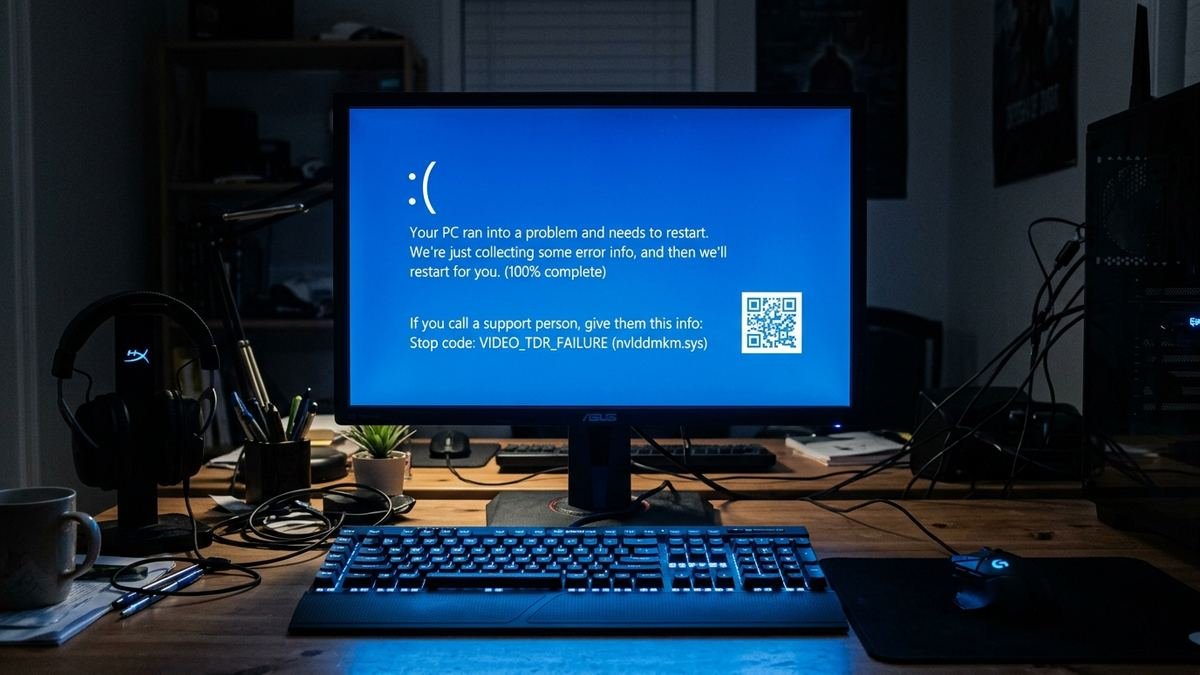
VIDEO_TDR_FAILURE in Windows 10/11: 8 Fixes for the GPU Timeout BSOD
Few things are more frustrating than a crash that strikes mid-game or mid-render. This guide explains the video tdr failure error in detail: how Timeout Detection and Recovery works, what causes it to fail, and eight fixes ordered by effectiveness — starting with the clean driver reinstall that resolves most cases.
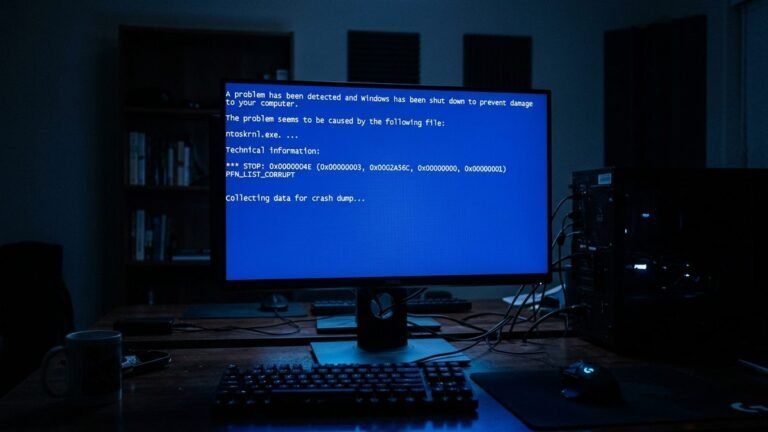
The VIDEO_TDR_FAILURE blue screen (bug check 0x00000116) appears when Windows’ Timeout Detection and Recovery mechanism decides your graphics driver has stopped responding — and cannot recover it. The screen often names a driver file like nvlddmkm.sys (NVIDIA), atikmpag.sys (AMD), or igdkmd64.sys (Intel), which is actually a helpful clue: it tells you exactly which GPU driver timed out.
What the Video TDR Failure (VIDEO_TDR_FAILURE) Error Actually Means
Windows constantly monitors the graphics driver. If the GPU does not respond to the operating system within a timeout window (default: 2 seconds), Windows first tries to recover the driver — resetting the GPU without a full reboot. That recovery attempt is the “R” in TDR.
VIDEO_TDR_FAILURE means the recovery failed. Windows gave the GPU driver every chance, could not bring it back, and blue-screened to protect the system. The named .sys file is the driver that was in control when the timeout happened:
| File named on the blue screen | GPU vendor | Meaning |
|---|---|---|
nvlddmkm.sys |
NVIDIA | NVIDIA driver timed out |
atikmpag.sys / atikmdag.sys |
AMD | AMD driver timed out |
igdkmd64.sys / igdkmd64.sys variants |
Intel | Intel integrated graphics driver timed out |
dxgkrnl.sys |
Microsoft | DirectX graphics kernel — usually points at the underlying GPU driver |
This is fundamentally a driver and GPU health issue, not a Windows core issue — which is why driver-focused fixes dominate below. A related driver-power stop code is covered in our Driver Power State Failure guide.
Common Causes of VIDEO_TDR_FAILURE
| Cause | Why it triggers TDR timeouts | Likelihood |
|---|---|---|
| Corrupt or conflicting GPU driver | Leftover files from old installs conflict with the new driver | Very high |
| Outdated GPU driver | Known bugs fixed in later releases | High |
| GPU overheating | Thermal throttling makes the GPU miss its response window | High |
| Unstable overclock | GPU cannot complete work at boosted clocks/voltages | Moderate–high |
| Insufficient or failing power supply | Voltage droop under load starves the GPU | Moderate |
| Conflicting software (overlays, recorders) | Third-party hooks interfere with the driver | Moderate |
| Failing GPU hardware | Degraded VRAM or core cannot complete operations | Low–moderate |
| Corrupt DirectX / system files | Broken graphics stack beneath the driver | Low |

Fix 1: Clean-Reinstall the GPU Driver with DDU
This single fix resolves the majority of VIDEO_TDR_FAILURE cases. Standard driver updates often leave remnants behind; a Display Driver Uninstaller (DDU) wipe removes everything.
- Download the latest driver for your exact GPU model from the manufacturer:
- NVIDIA: official driver download page
- AMD or Intel: their official support/download pages
- Laptop owners: prefer the driver from your laptop manufacturer’s support page — mobile GPUs sometimes need OEM-customized drivers.
- Download DDU (Display Driver Uninstaller) from a reputable source.
- Disconnect from the internet (prevents Windows Update from installing a driver mid-process).
- Boot into Safe Mode.
- Run DDU, select your GPU brand, and choose Clean and restart.
- After reboot, install the driver you downloaded. For NVIDIA, choose Custom (Advanced) installation and tick Perform a clean installation.
- Reconnect to the internet and test with the workload that previously crashed.
If crashes persist after a true clean install, the problem is likely thermal, power, or hardware — continue below.
Fix 2: Try a Different Driver Version
Sometimes the latest driver is the problem. New releases occasionally introduce TDR regressions for specific GPU generations.
- Note your current driver version (Device Manager → Display adapters → Properties → Driver tab).
- If crashes started after a driver update, roll back: Properties → Driver → Roll Back Driver.
- Otherwise, try one or two older “known-stable” versions from the manufacturer’s archive — many users find that a driver from 3–6 months prior is rock solid.
- Disable automatic driver updates temporarily (via the GPU vendor’s app settings or Windows Update advanced options) so a bad version is not reinstalled silently.
Fix 3: Check GPU Temperature and Cooling
An overheating GPU slows down and can miss the TDR response window.
Heat damage doesn’t always crash the driver — sometimes it shows as visual glitches, and our GPU artifacting guide helps you diagnose them. GPU artifacting diagnosis guide
- Install HWMonitor or HWiNFO and log GPU temperature during the crashing workload.
- Sustained temperatures above 85°C under load are concerning; above 90°C is critical.
- Fixes:
- Clean dust from GPU fans, heatsinks, and case filters with compressed air.
- Improve case airflow (cable management, intake/exhaust balance).
- Create a more aggressive fan curve in MSI Afterburner or the vendor app.
- On older cards, consider repasting the GPU die thermal paste.
- Retest. If crashes only happen when hot, cooling was the cause.
Fix 4: Verify Power Supply and Connections
A GPU starved of power behaves exactly like a faulty one.
- Confirm your PSU wattage meets the GPU manufacturer’s recommendation with headroom (add ~150W for the rest of the system).
- Reseat the PCIe power connectors firmly — use separate cables from the PSU for each connector rather than daisy-chained splitters on high-end cards.
- Reseat the GPU in its PCIe slot.
- If you have access to a known-good PSU, swap it in as a test — failing PSUs cause intermittent TDR crashes that mimic driver problems.
Fix 5: Disable Hardware Acceleration and Overlays
Software that hooks into the GPU can destabilize the driver:
- Remove GPU overclocks — reset MSI Afterburner or similar tools to stock clocks and voltages, then test.
- Disable hardware acceleration in browsers (Chrome/Edge Settings → System) and apps like Discord if crashes happen there.
- Disable overlays: Steam overlay, Discord overlay, GeForce Experience/NVIDIA App overlay, and screen recorders — test with all of them off.
- In NVIDIA Control Panel → Manage 3D Settings, try setting Power management mode to Prefer maximum performance — this prevents aggressive power-state transitions that can trigger TDR on some systems.

Fix 6: Update Windows and Repair System Files
A broken DirectX or system graphics stack can cause TDR failures even with a perfect driver:
- Install all pending Windows updates (Settings → Windows Update).
- Open an elevated Command Prompt and run:
sfc /scannow
- Follow with:
DISM /Online /Cleanup-Image /RestoreHealth
- Restart and retest.
Fix 7: Adjust the TDR Timeout (Advanced, Use with Care)
Windows allows tuning how long it waits before declaring a TDR failure via the TdrDelay registry value. This masks symptoms rather than fixing causes — only use it after the fixes above, and never as a first step.
- Press Win + R, type
regedit, and navigate to:
HKEY_LOCAL_MACHINE\SYSTEM\CurrentControlSet\Control\GraphicsDrivers - Create a new DWORD (32-bit) value named
TdrDelayand set it to8(seconds, up from the default 2). - Optionally add
TdrDdiDelaywith the same value. - Restart.
If this stops the crashes, your GPU was likely just slow to respond under specific loads (common with heavy compute/rendering tasks) rather than truly broken. If crashes continue even with a generous timeout, suspect hardware.
Fix 8: Test the GPU in Another System
When all software fixes fail:
- Test the GPU in a different PC. If it crashes there too, the card is faulty — check warranty/RMA status.
- Test a different (known-good) GPU in your PC. If crashes stop, your card is the problem; if they continue, suspect the motherboard PCIe slot or PSU.
- Check VRAM specifically — tools like OCCT’s VRAM test or MemTestG80 can catch memory faults on the card that general tests miss.
For application crashes that are not GPU-timeout related, our Bvostfus Python issue fix guide covers software-layer troubleshooting, and CLOCK_WATCHDOG_TIMEOUT addresses CPU-side blue screens.
How to Confirm It’s Really a TDR Problem
Before investing hours in driver surgery, confirm the diagnosis. Two free tools make this quick:
If diagnostics point to memory management rather than the GPU, you’re dealing with a different stop code — see our guide to fixing the PFN List Corrupt blue screen.
Check Event Viewer
- Press Win + X → Event Viewer.
- Navigate to Windows Logs → System.
- Filter for Warning and Error events around the crash time.
- Look for entries from source
nvlddmkm,amdkmdap, orDisplaywith messages like “Display driver stopped responding and has recovered.” Recovered TDR events that did not blue-screen prove the GPU is timing out intermittently — the BSOD is just the instance where recovery failed.
Read the minidump with BlueScreenView
- Download BlueScreenView (NirSoft, free portable).
- Open it and find your VIDEO_TDR_FAILURE entries (bug check 0x116).
- The Caused By Driver column should name your GPU driver file. If every 0x116 dump names the same file, the diagnosis is confirmed.
- Note the bug check parameters too: parameter 1 is a pointer to the GPU driver internals, and parameter 4 is the driver status code — useful if you later ask for help on a forum.
If Event Viewer shows no display-driver warnings and minidumps blame varying components, broaden the investigation to RAM and the PSU rather than tunnel-visioning on the GPU.
Laptop-Specific TDR Issues
Laptops crash with VIDEO_TDR_FAILURE for reasons desktops rarely see:
- OEM driver requirement. Mobile GPUs often need the laptop manufacturer’s customized driver, not the generic NVIDIA/AMD release. If the generic driver crashes, install the OEM version from your laptop’s support page — even if it is older.
- MUX switch / hybrid graphics. Laptops with a MUX switch (or “hybrid” vs “discrete GPU only” modes in Armoury Crate, Legion Zone, or OMEN Hub) route the display through different GPUs. Try toggling the GPU mode — some driver versions are only stable in one mode.
- Power plans and battery. On battery power, aggressive power saving can starve the dGPU. Test plugged in with the Best performance power mode. In the vendor control panel, set the GPU to Prefer maximum performance rather than adaptive/optimal power.
- External monitors. A crash that only happens with an external display connected (especially through USB-C/Thunderbolt docks) points at the display pipeline or dock firmware — test with the internal panel only.
- Undervolting tools. Laptop tuning utilities that undervolt the GPU for thermals can cause TDR timeouts if the undervolt is unstable. Return to stock voltages when diagnosing.
How Long Should Troubleshooting Take? Knowing When to Stop
Endless driver reinstalls are a trap. Use this timeline to stay efficient:
- First hour: clean driver reinstall with DDU (Fix 1) plus a temperature check (Fix 3). These two resolve the large majority of cases.
- Second hour: alternate driver versions, disable overlays and overclocks, check power connections (Fixes 2, 4, 5).
- If still crashing after 2–3 focused hours: stop reinstalling drivers. The problem is almost certainly thermal, power, or hardware. Run a GPU stress test (FurMark or OCCT) and watch for artifacts, crashes, or temperature spikes — a card that cannot survive a 15-minute stress test at stock settings has a hardware problem.
- The cross-test is decisive. A GPU that crashes in a second PC is faulty; a PC that crashes with a different GPU has a motherboard, PSU, or software problem. One cross-test answers more than ten more driver reinstalls.
There is no prize for the most reinstalls. Diagnose systematically, and when the evidence points at hardware, act on it — check your warranty before it expires.
Frequently Asked Questions
Is VIDEO_TDR_FAILURE always the GPU driver’s fault?
Mostly yes — roughly 8 in 10 cases resolve with a clean driver reinstall. But heat, power, and failing hardware produce identical symptoms, which is why this guide works through all of them.
nvlddmkm.sys keeps appearing. Is my NVIDIA card dying?
Not necessarily. nvlddmkm.sys is simply the NVIDIA driver file, so it appears on nearly every NVIDIA TDR crash regardless of cause. Only conclude hardware failure after clean driver installs, temperature checks, and PSU verification all pass.
Can Windows Update cause VIDEO_TDR_FAILURE?
Yes — Windows Update sometimes installs a generic or mismatched GPU driver over your manufacturer driver. After a clean install, consider pausing driver updates via Windows Update while keeping security updates on.
Why does it only crash in one specific game?
Some games stress specific GPU features or ship with bundled overlays and anti-cheat hooks that conflict with certain driver versions. Try a different driver version and disable all overlays for that game.
Should I increase TdrDelay permanently?
It is a workaround, not a fix. Fine for heavy rendering workloads on healthy hardware; risky if it is masking a dying GPU or bad driver, because you lose Windows’ early warning.
Does undervolting help or hurt?
A stable undervolt reduces heat and can improve TDR stability; an unstable one causes exactly these crashes. If you undervolted, return to stock settings to test.
Can a dirty or dusty PC cause VIDEO_TDR_FAILURE?
Absolutely. Dust-clogged GPU fans and heatsinks are one of the most common real-world causes — the card overheats, throttles, misses its TDR window, and crashes. If your PC has not been cleaned in a year or more, a thorough dusting with compressed air is one of the highest-value fixes on this entire list.
Does VIDEO_TDR_FAILURE affect AMD and Intel GPUs too, or just NVIDIA?
All vendors. AMD cards report it with atikmpag.sys and Intel integrated graphics with igdkmd64.sys. The troubleshooting logic is identical — clean driver reinstall, thermals, power — only the download source for the driver changes.
Final Thoughts
VIDEO_TDR_FAILURE is Windows telling you the graphics driver stopped responding and could not be revived. Start with the highest-yield fix — a true clean reinstall using DDU in Safe Mode — then work through driver versions, temperatures, power delivery, and conflicting software. Most cases never get past Fix 3. If the card crashes in a second PC with fresh drivers, it is hardware, and warranty service is the answer.
Microsoft’s community advisors walk through real nvlddmkm.sys cases here: VIDEO TDR FAILURE — Microsoft Q&A. For neighboring blue screens, see our guides on Driver Power State Failure and CLOCK_WATCHDOG_TIMEOUT.