GPU Artifacting Explained: What Causes It and How to Fix It
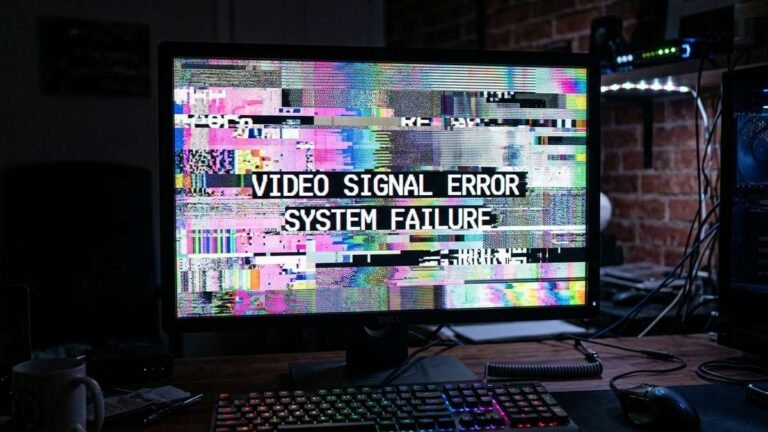
You’re mid-game when it happens: strange colored squares flicker across the screen. Textures stretch into impossible geometry. Lines of static tear through the image. Your first thought is that the game is broken — but then it happens on the desktop too.
What you’re seeing is called GPU artifacting: visual glitches produced when your graphics card renders frames incorrectly. Sometimes it’s a minor software hiccup you can fix in ten minutes. Sometimes it’s the first warning that your graphics card is dying. This guide explains exactly what GPU artifacting looks like, what causes it, how to diagnose the root cause, and every fix worth trying — in the right order.
What Is GPU Artifacting?
Artifacting is any visual corruption produced by the graphics pipeline: the GPU miscalculates what a frame should look like, and the errors show up on your screen. It comes in several recognizable forms:
- Colored squares or blocks scattered across the screen (often green, pink, or purple)
- Flickering or shimmering textures in 3D games
- Stretched or exploded geometry — polygons shooting off to infinity
- Horizontal lines, tearing, or static across the display
- Screen-wide flickering or brief blackouts
- Checkerboard patterns or dotted grids over the image
The key diagnostic question is where and when the artifacts appear. Artifacts that show up only in one game point to software. Artifacts on the desktop, in the BIOS screen, or across every application point to hardware — and that’s the situation to take seriously.

What Causes GPU Artifacting?
1. Overheating
Heat is the most common cause. When the GPU core or its memory (VRAM) overheats, the silicon makes calculation errors — and those errors render as artifacts. This is especially common on cards with dust-clogged coolers, dried thermal paste, or dead fans.
The tricky part: monitoring software usually reports only the GPU core temperature. The VRAM and voltage regulators (VRMs) can run 15–30°C hotter with no sensor visible to you. A card reporting a “fine” 70°C core can still have VRAM cooking past 100°C, particularly on cards with GDDR6 or GDDR6X memory.
2. An Unstable Overclock
Pushing the core or memory clock beyond what the silicon can handle produces artifacts almost immediately. Memory overclocks are the usual offender — artifacts like sparkles, flickering textures, and colored dots scream “memory clock too high,” while driver crashes and black screens point more at the core clock. Note that many cards ship factory overclocked, so “I’ve never overclocked” doesn’t fully rule this out.
3. Dying or Degraded VRAM
Graphics memory degrades over time, especially on cards that ran hot for years (a common story with ex-mining cards). VRAM-related artifacting has a signature look: persistent colored blocks and patterns that appear even at stock clocks and normal temperatures. This is the cause most likely to mean the card is on its last legs.
4. Corrupt or Buggy Graphics Drivers
Drivers translate between your games and the hardware. A corrupted installation or a buggy new release can absolutely cause artifacting — and it’s the easiest cause to fix, which is why it’s always worth ruling out first.
5. Insufficient or Unstable Power
A GPU starved of clean power misbehaves. An aging PSU, a daisy-chained single PCIe power cable on a card that wants two separate cables, or a PSU that can’t handle transient power spikes (modern high-end cards are notorious for these) can all produce artifacts under load.
6. Poor Physical Seating or Connection
A card that’s worked slightly loose in its PCIe slot, a damaged display cable, or a failing monitor port can all mimic artifacting. This is rare but takes thirty seconds to rule out — always check it.
How to Diagnose GPU Artifacting (Step by Step)
Follow this order. Each step isolates one variable, so by the end you’ll know exactly what you’re dealing with.
Step 1 — Note when it happens. Only in one game? Only under load? On the desktop and in BIOS? Write it down. BIOS-screen artifacts mean hardware, full stop.
Step 2 — Check temperatures. Run HWiNFO64 in the background and reproduce the artifacts. Core above 85°C under load is concerning; hotspot or VRAM readings above 95–100°C are critical. Also note whether artifacts appear immediately (more likely power/clock issue) or after 10–20 minutes of load (more likely heat soak).
Step 3 — Reset all overclocks. Open MSI Afterburner (or your manufacturer’s tool) and hit the reset button to return to stock clocks. If artifacts vanish, your overclock was unstable — back it off in small steps.
Step 4 — Clean-reinstall the drivers. Download Display Driver Uninstaller (DDU) and the latest driver from NVIDIA or AMD. Boot into Safe Mode, run DDU to wipe the old driver completely, reboot, and install the fresh driver. Retest.
Step 5 — Reseat the card and cables. Power down, unplug, remove the GPU, and reinstall it firmly until the PCIe latch clicks. Reseat both ends of the display cable, or try a different cable and port.
Step 6 — Test the power delivery. If your card has two PCIe power connectors, use two separate cables from the PSU — not one daisy-chained cable. If you have access to a known-good PSU with adequate wattage, swap it in as a test.
Step 7 — Isolate the card. If possible, test the GPU in a different PC, or test a different GPU in yours. This is the definitive hardware test: if the artifacts follow the card, the card is the problem.

Artifacting vs. Other Display Problems: How to Tell the Difference
Not every screen glitch is GPU artifacting, and misdiagnosis wastes time. Here’s how to tell the common lookalikes apart:
| Symptom | More likely culprit | Quick test |
|---|---|---|
| Glitches only in one specific game | Game bug or corrupt game files | Verify game files / reinstall the game |
| Entire screen flickers black intermittently | Failing display cable or port | Swap the cable; try a different port |
| Persistent lines or discoloration in one screen area, visible in BIOS and screenshots look normal | Failing monitor panel | Test with a different monitor |
| Screenshots capture the glitches | GPU or driver (the corruption is in the frame buffer) | Follow the diagnostic steps above |
| Screenshots look clean but you see glitches | Cable, monitor, or port (corruption happens after the frame leaves the GPU) | Swap cable and monitor |
| Artifacts only on an external monitor, laptop screen is fine | Cable, dock, or the monitor itself | Connect the monitor to another device |
The screenshot test is the single most useful trick here: press Windows + Shift + S, capture the glitch, and view the screenshot on another device. If the corruption is in the screenshot, the GPU rendered it — the problem is the card or its drivers. If the screenshot is clean, the corruption happened downstream: cable, port, or panel.
Artifacting on a Brand-New GPU
Artifacting on a brand-new card is alarming but rarely means a dead GPU. Run through this checklist before assuming the worst:
- Did you clean-install the drivers? Upgrading from an AMD card to NVIDIA (or vice versa) without DDU is the #1 cause of new-card artifacting. Old driver remnants conflict with the new hardware.
- Is the card fully seated? Heavy modern cards can sag or sit slightly loose. Reseat it until the PCIe latch clicks, and consider a GPU support bracket.
- Are all power connectors populated with separate cables? A new high-end card on daisy-chained cables is a classic artifacting setup.
- Is your PSU actually sufficient? Check the card manufacturer’s recommended PSU wattage — not just the card’s TDP. Transient spikes can exceed the average draw by 2×.
- Test with a different cable and monitor to rule out the display chain.
If artifacts persist through all of that on a new card, stop troubleshooting and start an RMA with the retailer or manufacturer immediately — don’t open the card or replace thermal paste, as that can void the warranty.
7 Fixes for GPU Artifacting, Easiest First
Fix 1: Disable or Reduce the Overclock
Reset to stock clocks first. If artifacts disappear, you’ve found it. You can then re-apply a milder overclock — reduce the memory offset in 25 MHz steps until artifacts are gone, since memory instability is the most common overclock-related cause.
Fix 2: Clean-Reinstall Graphics Drivers
As described in Step 4 above. Don’t skip the DDU-in-Safe-Mode part — a standard reinstall often leaves the corrupted files in place. This single fix resolves a surprising number of artifacting reports.
Fix 3: Fix the Cooling
Power down and clean the card’s heatsink and fans with compressed air. Verify every fan spins under load (use MSI Afterburner to set a manual fan curve as a test). If the card is more than 3–4 years old and runs hot even when clean, replacing the thermal paste — and critically, the thermal pads on the VRAM — can drop memory temperatures dramatically. This is an advanced job; watch a teardown guide for your exact card model first.
Fix 4: Undervolt or Underclock
If the card artifacts at stock settings but the silicon isn’t dead, reducing the load can buy it significant extra life. In MSI Afterburner’s curve editor, lowering voltage by 50–100 mV at your target clock typically cuts temperatures 5–10°C with minimal performance loss. As a diagnostic, dropping the memory clock by 100–200 MHz will immediately tell you whether VRAM is the weak point — if artifacts vanish, they are.
Fix 5: Rule Out the PSU and Cables
Use separate PCIe power cables, confirm the PSU’s wattage headroom (750W+ for most mid-to-high-end cards), and try a different display cable. Transient power spikes from modern GPUs can trip an otherwise “adequate” older PSU.
Fix 6: Test in Another System
Borrow a friend’s PC or a spare rig. If the card artifacts there too, you’ve confirmed a hardware fault and can stop chasing software.
Fix 7: Professional Repair or Replacement
For valuable high-end cards, board-level repair shops can reball or replace VRAM chips — but be realistic: diagnosis fees plus repair often exceed the card’s used-market value for mid-range and older models. Get a quote before committing.
When Artifacting Means the Card Is Dying
Not all artifacting is fixable. Here’s how to read the signs:
| Symptom | Likely meaning |
|---|---|
| Artifacts only in one game/app | Software or driver issue — very fixable |
| Artifacts vanish after driver reinstall | Corrupt driver — fixed |
| Artifacts vanish when overclock removed | Unstable overclock — fixed |
| Artifacts appear in BIOS / on boot screen | Hardware fault — serious |
| Artifacts persist at stock clocks, clean drivers, good temps | Degraded VRAM or GPU — likely dying |
| Artifacts worsen over weeks despite fixes | Progressive hardware failure — plan replacement |
| Artifacts disappear when memory is underclocked | Weak VRAM — underclock to extend life |
A card with degraded VRAM can sometimes limp along for months on reduced memory clocks — useful as a stopgap, but start budgeting for a replacement. And if you’re seeing hard crashes alongside the artifacts, check whether you’re also hitting Driver Power State Failure or CLOCK_WATCHDOG_TIMEOUT errors, which point to deeper system instability worth investigating in parallel.
Frequently Asked Questions
What does GPU artifacting look like?
The classic signs are colored squares or blocks on screen, flickering or shimmering textures in games, stretched polygon geometry, horizontal lines or static, and checkerboard patterns. If the glitches appear across multiple applications — or even in the BIOS — it’s almost certainly the GPU hardware rather than a game bug.
Can GPU artifacting be fixed?
Often, yes. Driver corruption, unstable overclocks, overheating, and power delivery issues are all fixable, and they account for most cases. Artifacting caused by physically degraded VRAM usually can’t be truly fixed, though underclocking the memory can extend the card’s usable life.
Does artifacting mean my GPU is dying?
Not necessarily — but it’s a warning worth investigating immediately. If artifacts persist after a clean driver reinstall, at stock clocks, with good temperatures and adequate power, then yes: the silicon (usually VRAM) is likely degrading and you should plan for a replacement.
Can overheating cause artifacts even if temps look normal?
Yes. Most monitoring tools show only the GPU core temperature, while VRAM and VRM temperatures can run much hotter with no visible sensor. Cards with GDDR6/GDDR6X memory are particularly prone to this. Replacing old thermal pads on the memory chips often resolves “mystery” artifacting on cards reporting normal core temps.
Will undervolting fix GPU artifacting?
It can help when artifacting is heat-related: lowering voltage by 50–100 mV typically drops temperatures 5–10°C, which may be enough to stabilize a card that’s artifacting at the edge of its thermal limits. It won’t fix physically degraded VRAM, though underclocking the memory specifically can mask that for a while.
Should I keep using a GPU that artifacts?
Light, occasional artifacts from a known software cause are fine once fixed. But persistent hardware-level artifacting means the card is degrading — back up anything important, avoid irreplaceable work on that machine, and don’t buy an expensive cooler “to save it” until you’ve confirmed the cause isn’t dead VRAM.
Final Thoughts
GPU artifacting looks alarming, but it’s a solvable problem more often than not. Work the diagnostic order: note when it happens, check temperatures, reset overclocks, clean-reinstall drivers from NVIDIA or AMD, reseat the card, and verify power delivery. Most cases end at one of those steps.
If artifacts survive all of that — appearing in the BIOS, at stock clocks, with clean drivers and healthy temperatures — you’re looking at failing VRAM. Underclock the memory to buy time, and start shopping for a replacement. Either way, you’ll know exactly where you stand instead of guessing, and that’s what separates a quick fix from a month of frustration. And if your troubleshooting turns up error codes rather than visual glitches, our bvostfus python issue fix guide walks through resolving those step by step.