CRITICAL_PROCESS_DIED Blue Screen? 7 Fixes for Windows 10/11
Of all the blue screens Windows can throw at you, CRITICAL_PROCESS_DIED — the “critical process died” stop code (0x000000EF) — is one of the most alarming — because it means exactly what it says. A process that Windows literally cannot run without has terminated unexpectedly, and the system had no choice but to crash to protect itself.
The error can appear once and never return, or it can trap you in a brutal loop: blue screen, “Automatic Repair,” “Your PC did not start correctly,” repeat. This guide explains what the error means, what causes it, and the 7 fixes to work through in order — from quick recovery-environment repairs to hardware diagnostics. Most cases are resolved by fix 3 or 4.
What Does CRITICAL_PROCESS_DIED Mean?

Windows relies on a set of critical system processes — things like csrss.exe (Client Server Runtime), wininit.exe, and services.exe — that must stay alive for the operating system to function. If any one of them crashes or is forcibly terminated, Windows bug-checks immediately with CRITICAL_PROCESS_DIED rather than limping along in a corrupted state.
Microsoft’s official documentation defines bug check 0xEF precisely this way: a critical system process died. See Microsoft’s bug check 0xEF reference for the technical definition.
The important nuance: the error tells you what happened (a critical process died), not why. The “why” is what you have to diagnose — and it’s usually one of four things.
What Causes CRITICAL_PROCESS_DIED?
| Likely cause | Typical pattern | How to confirm |
|---|---|---|
| Corrupted system files | Crash after forced shutdown, failed update, or power cut | sfc /scannow reports repaired files |
| Bad driver (storage, display, chipset) | Crashes started after a driver update; may name a .sys file |
Safe Mode is stable; Device Manager shows issues |
| Problematic Windows update | Crashes began within days of a cumulative update | Uninstalling the update stops the crashes |
| Failing hardware (RAM, SSD, PSU) | Random crashes across different apps, freezes at desktop, crashes in Safe Mode too | Memory Diagnostic / disk health tools report errors |
| Third-party security/driver software | Crashes after installing antivirus, VPN, or anti-cheat (e.g., game anti-cheat drivers) | Clean boot stops the crashes |
Corrupted system files are the single most common software cause. Failing hardware is the most common cause of recurring crashes that survive all software fixes.
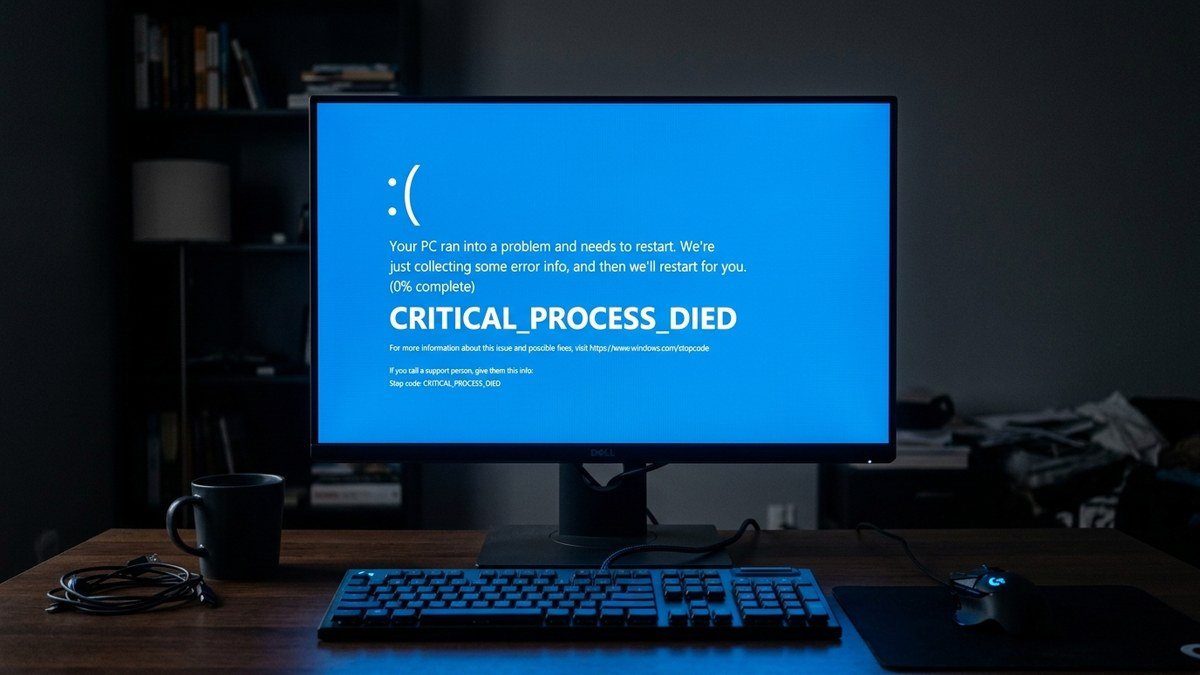
How to Read the Blue Screen (What to Note Before It Restarts)
The blue screen disappears fast, but it carries diagnostic clues. If you can, note these before the PC reboots:
- The stop code: It will say
CRITICAL_PROCESS_DIED— confirming you’re dealing with 0xEF and not a different error with similar symptoms. - A named file: Sometimes the screen names a
.sysfile (likentfs.sysornvlddmkm.sys). That filename usually identifies the faulty driver directly — write it down or photograph the screen. - The QR code: Windows 11 blue screens include a QR code linking to Microsoft’s troubleshooting resources. Scanning it on your phone gives you the official starting point while your PC is down.
- The percentage counter: “Your PC ran into a problem” screens show a crash-dump collection percentage. If it freezes at 0% repeatedly, that itself hints at storage problems — the system can’t even write the dump file.
If the screen vanishes too quickly, the same information is preserved in the minidump: after booting, check C:\Windows\Minidump\ for .dmp files dated to the crash. Free tools like BlueScreenView can read them and highlight the faulting driver — no WinDbg expertise needed.
Before You Start: Getting Into the Recovery Environment
Many of these fixes require the Windows Recovery Environment (WinRE), because the PC may not boot normally. To get there:
- Power on the PC and force it off by holding the power button as soon as Windows starts loading.
- Repeat three times. On the third boot, Windows enters Automatic Repair and then the Choose an option screen.
- Go to Troubleshoot > Advanced options. You’ll find Command Prompt, Startup Repair, System Restore, and Uninstall Updates here.
If you can still boot into Windows (even unreliably), you can also reach WinRE via Settings > System > Recovery > Advanced startup > Restart now. And Safe Mode (Troubleshoot > Advanced options > Startup Settings > Restart, then press 4) is invaluable for diagnosis: if the PC is stable in Safe Mode, the cause is almost certainly a driver or third-party software, not hardware.
Fix 1: Run SFC and DISM to Repair System Files

Corrupted Windows system files are the #1 software cause. These two built-in tools repair them:
- In WinRE, go to Troubleshoot > Advanced options > Command Prompt. (If you can boot normally, open an admin Command Prompt instead: Start > type
cmd> right-click > Run as administrator.) - Run the System File Checker:
sfc /scannow
Wait for it to finish — this takes 10–20 minutes. Don’t close the window. - Then run the Deployment Image tool, which repairs the Windows image SFC draws replacements from:
DISM /Online /Cleanup-Image /RestoreHealth - Run
sfc /scannowone more time after DISM completes. - Restart and test.
If SFC reports “found corrupt files and successfully repaired them,” there’s a good chance your problem is solved. Microsoft’s support engineers recommend this exact sequence as the first serious repair step — see the Microsoft Q&A discussion on this error for the official guidance.
Fix 2: Uninstall the Most Recent Windows Update
If the crashes started within days of a Windows update, the update is the prime suspect:
- In WinRE: Troubleshoot > Advanced options > Uninstall Updates.
- Choose Uninstall latest quality update first. Restart and test.
- If crashes persist, go back and try Uninstall latest feature update.
If you can boot into Windows: Settings > Windows Update > Update history > Uninstall updates, then remove the most recent cumulative update. After stabilizing, pause updates for a week or two before letting that update reinstall — Microsoft often ships a revised version quickly.
Fix 3: Roll Back or Update Problem Drivers
Drivers — especially storage controller, chipset, and graphics drivers — are the next most common trigger:
- Boot into Safe Mode (if stable there, a driver is very likely the cause).
- Press Win + X > Device Manager.
- Look for any device with a yellow warning icon. Right-click it > Properties > Driver tab > Roll Back Driver (if the option is available) or Update driver.
- Pay special attention to Display adapters, IDE ATA/ATAPI controllers / Storage controllers, and System devices (chipset).
- If a crash names a specific
.sysfile on the blue screen (e.g.,nvlddmkm.sys,ntfs.sys), search that filename — it usually points directly at the responsible driver. GPU.sysfiles mean reinstall the graphics driver cleanly from the manufacturer’s site (NVIDIA/AMD/Intel).
Third-party drivers that run deep in the kernel deserve suspicion: antivirus filter drivers, VPN clients, and game anti-cheat systems (which install kernel-level drivers) are documented triggers for this exact stop code.
Fix 4: Test Your RAM

Bad memory causes exactly this kind of random, process-killing corruption — and it will survive every software fix you try:
- Press Win + R, type
mdsched.exe, and press Enter. - Choose Restart now and check for problems.
- Let the Windows Memory Diagnostic run to completion (it takes a while).
If it reports hardware errors, you’ve found your cause. With multiple RAM sticks, test them one at a time to isolate the bad module — or try reseating them (power off, remove, reinsert firmly). Faulty RAM is a top cause of recurring CRITICAL_PROCESS_DIED that resists all software repairs.
Fix 5: Check Your Drive Health
A failing SSD or hard drive corrupts the very system files Windows needs, producing this error repeatedly:
- Open an admin Command Prompt and run:
chkdsk C: /f /r
(Agree to run it at next restart if prompted, then reboot.) - Check the drive’s SMART health: in PowerShell (admin), run:
Get-PhysicalDisk | Get-StorageReliabilityCounter | Select-Object DeviceId, Temperature, Wear, ReadErrorsTotal, WriteErrorsTotal
High wear percentages or growing error counts on an SSD mean it’s dying — back up immediately and replace it.
Clicking or grinding noises from a mechanical drive, plus this blue screen, is an emergency: back up your data now, before the drive fails completely.
Fix 6: Perform a Clean Boot to Isolate Software Conflicts
If Safe Mode is stable but normal mode crashes, a third-party program is the trigger. Narrow it down:
- Press Win + R, type
msconfig, and press Enter. - Go to the Services tab, check Hide all Microsoft services, then click Disable all.
- Go to the Startup tab and click Open Task Manager — disable all startup items.
- Restart. If crashes stop, re-enable services in groups until the crashes return — the last group contains your culprit.
Security software, VPN clients, RGB/fan control utilities, and overclocking tools are the usual suspects. Uninstall or update the offending program once identified.
Fix 7: System Restore, Reset, or Clean Install (Last Resorts)
If nothing above works, escalate in this order:
- System Restore: In WinRE > Troubleshoot > Advanced options > System Restore, roll back to a point before the crashes began. This undoes driver, update, and software changes without touching your files.
- Reset this PC (keep my files): Settings > System > Recovery > Reset PC, or via WinRE. Reinstalls Windows while preserving personal files. You’ll need to reinstall apps.
- Clean install from USB: Create Windows installation media on another PC, boot from it, and install fresh. This eliminates every software variable — if crashes persist after a clean install, it’s definitively hardware.
Related blue-screen troubleshooting on TechVistaLab: this error shares causes with other stop codes, so our guides on CLOCK_WATCHDOG_TIMEOUT (CPU/driver hangs) and Driver Power State Failure (driver power-state bugs) are worth reading if your crashes involve those codes too. And for the truly strange software-side cases, see our walkthrough of obscure Windows software errors.
Preventing CRITICAL_PROCESS_DIED in the Future
Once you’re stable, a few habits keep this blue screen from coming back:
- Don’t force-shutdown unless you must. Holding the power button mid-write is the classic way system files get corrupted. Use Start > Power > Shut down and wait.
- Keep drivers current — but not bleeding edge. Update chipset, storage, and GPU drivers from the manufacturer a few weeks after release, not on day one. Day-one driver releases are a known source of exactly this stop code.
- Let Windows updates install, then verify. After a major update, use the PC normally for a day before assuming all is well. If instability appears, you have a 10-day window to roll back a feature update easily.
- Monitor drive health yearly. SSDs wear out. A yearly glance at SMART data (Fix 5’s PowerShell command) catches a dying drive before it starts corrupting system files.
- Keep 15–20% free space on C:. A nearly full system drive causes update failures, paging problems, and file corruption — all of which feed this error.
- Use a UPS or surge protector. Power cuts and brownouts during disk writes are a top real-world cause of the file corruption behind 0xEF. A basic UPS is cheap insurance for a desktop.
Frequently Asked Questions
Is CRITICAL_PROCESS_DIED serious?
It can be. A one-off occurrence after a power cut or forced shutdown is usually harmless — Windows just caught file corruption and crashed safely. But recurring CRITICAL_PROCESS_DIED means something is actively wrong: corrupted system files, a bad driver, or failing hardware. Don’t ignore repeats.
Can RAM cause CRITICAL_PROCESS_DIED?
Yes — faulty RAM is one of the top hardware causes. Bad memory corrupts critical processes in memory, Windows detects the inconsistency, and bug-checks. If software fixes don’t help, run the Windows Memory Diagnostic (Fix 4).
Will I lose my files fixing this?
No — Fixes 1 through 6 don’t touch personal files. SFC, DISM, driver rollbacks, and update uninstalls only affect system components. Only Fix 7’s “Remove everything” reset option deletes files, and even the “Keep my files” reset preserves them. Still, if you can access the drive, back up important data before major repairs — especially if hardware failure is suspected.
Why does it happen in a loop with Automatic Repair?
The crash occurs during boot, Windows tries Automatic Repair, the repair can’t fix the underlying cause (corrupted files it can’t replace, or a driver that loads at boot), and the cycle repeats. Break the loop by booting into WinRE manually (three forced shutdowns) and running SFC/DISM from Command Prompt, or use System Restore from the Advanced options.
Can a virus cause CRITICAL_PROCESS_DIED?
Rarely directly, but malware can corrupt or terminate system processes, and aggressive “system cleaner” malware certainly can. If you suspect infection, run a Microsoft Defender Offline scan from Windows Security. More commonly, though, the cause is file corruption, drivers, or hardware — not malware.
How is this different from other blue screens like CLOCK_WATCHDOG_TIMEOUT?
Each stop code points at a different subsystem. CRITICAL_PROCESS_DIED (0xEF) means a critical user-mode process terminated. CLOCK_WATCHDOG_TIMEOUT means a CPU core stopped responding (usually overclocking or CPU/chipset drivers). The troubleshooting overlaps (SFC, drivers, hardware tests) but the primary suspects differ — which is why noting the exact stop code matters.
The blue screen mentions a .sys file. What do I do with that?
Search the exact filename. nvlddmkm.sys = NVIDIA graphics driver (reinstall it cleanly). ntfs.sys = NTFS file-system driver (points at storage/drive issues — run chkdsk). fltmgr.sys = file-system filter manager (often a third-party antivirus filter driver — try uninstalling it). The filename is the single most specific clue the blue screen gives you.
Can overclocking cause CRITICAL_PROCESS_DIED?
Indirectly, yes. An unstable CPU or RAM overclock corrupts data in memory, which can kill a critical process and trigger 0xEF. If you overclock and the crashes started after pushing clocks higher, reset BIOS/UEFI to optimized defaults and retest before doing anything else.
Final Thoughts
CRITICAL_PROCESS_DIED looks terrifying, but the repair path is well-trodden: get into the Recovery Environment, run SFC and DISM, remove the recent update or bad driver if one is implicated, and test your RAM and drive if software fixes don’t hold. That sequence resolves the overwhelming majority of cases.
The cases that resist everything share one trait: they’re hardware. If you’ve done a clean install and the blue screen is still there, stop reinstalling Windows and start testing components — RAM first, then the drive, then the power supply. Knowing when to stop troubleshooting software and start suspecting hardware is the real skill, and now you have the full playbook.