WerFault.exe Error in Windows 10/11: What It Is & 8 Ways to Fix It
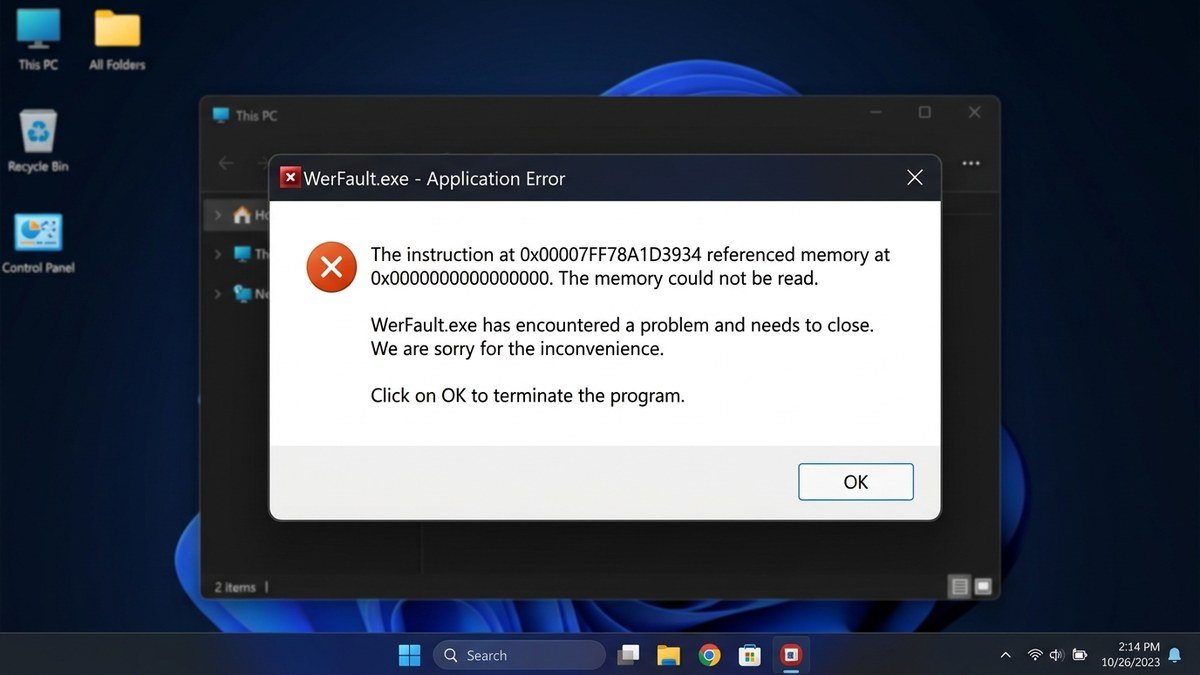
Few Windows errors are as confusing as the WerFault.exe error. You’re working normally when a dialog pops up: “WerFault.exe – Application Error” — sometimes with a cryptic memory address attached. The natural question is: what is WerFault.exe, is it a virus, and why is an error-reporting tool itself throwing errors?
Here’s the short version: WerFault.exe is a legitimate Windows component — the executable behind Windows Error Reporting. When an application crashes, WerFault.exe is the process that collects the crash data and asks if you want to send it to Microsoft. So a “WerFault.exe application error” usually means the error reporter itself tripped while handling another program’s crash. The real culprit is hiding one layer deeper. This guide explains what WerFault.exe does, how to identify the actual crashing program, and eight fixes that resolve the error for good.
What Is WerFault.exe?

WerFault.exe (Windows Error Fault) is the user-mode process for Windows Error Reporting (WER), a system Microsoft introduced back in Windows XP. Its job is straightforward: when an application crashes, hangs, or hits an unhandled exception, WerFault.exe wakes up, captures a snapshot of the failure (faulting module, exception code, memory state), optionally packages a minidump, and offers to send the report to Microsoft. Developers use these aggregated reports to find and fix bugs — it’s genuinely useful infrastructure.
The legitimate file lives at C:\Windows\System32\WerFault.exe (and C:\Windows\SysWOW64\WerFault.exe for the 32-bit variant). It normally runs invisibly, does its job in seconds, and exits. You only notice it when something goes wrong in the reporting pipeline itself — typically because the original crash is severe, the reporting service is damaged, or so many crashes are occurring that the reporter gets overwhelmed.
Key insight: fixing WerFault.exe is usually the wrong goal. The right goal is finding and fixing whatever keeps crashing underneath it. The methods below do both.
Is WerFault.exe a Virus?
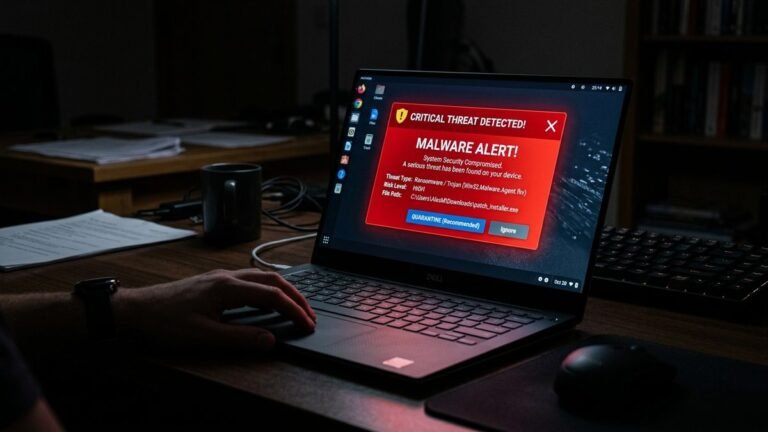
This is the most common fear, and the answer is: the real one isn’t, but malware sometimes pretends to be it.
The legitimate WerFault.exe:
– Lives in C:\Windows\System32\ (or SysWOW64)
– Is digitally signed by Microsoft
– Only runs briefly after an app crash
– Uses minimal CPU and memory
A fake one (malware masquerading as WerFault.exe):
– Lives somewhere else — your user folder, Temp directories, AppData
– Isn’t signed by Microsoft
– Runs constantly or at startup
– Causes high CPU usage on its own
To check yours: open Task Manager > Details, right-click WerFault.exe > Open file location. If it opens System32, it’s genuine. Then right-click the file > Properties > Digital Signatures and confirm Microsoft’s signature. If the file is anywhere else, treat it as malware: disconnect from the network and run a full Microsoft Defender offline scan immediately.
Some users ask whether they can just delete WerFault.exe. Don’t — it’s a protected system file, Windows will fight you, and removing it blinds your crash diagnostics without fixing anything.
What Causes the WerFault.exe Application Error?
The error appears when the reporting process itself fails. The common triggers:
- A repeatedly crashing application — the most frequent cause. Some program on your system is crashing in a loop, and WerFault.exe chokes trying to report each crash. Fix the app, and the WerFault errors vanish.
- Corrupted system files — damage to WER components or shared libraries breaks the reporter.
- Corrupted or outdated drivers — especially display and chipset drivers, which cause the underlying crashes.
- Malware — either masquerading as WerFault.exe or corrupting the real reporting pipeline.
- A stuck Windows Error Reporting service — the service hangs in a bad state and every report attempt fails.
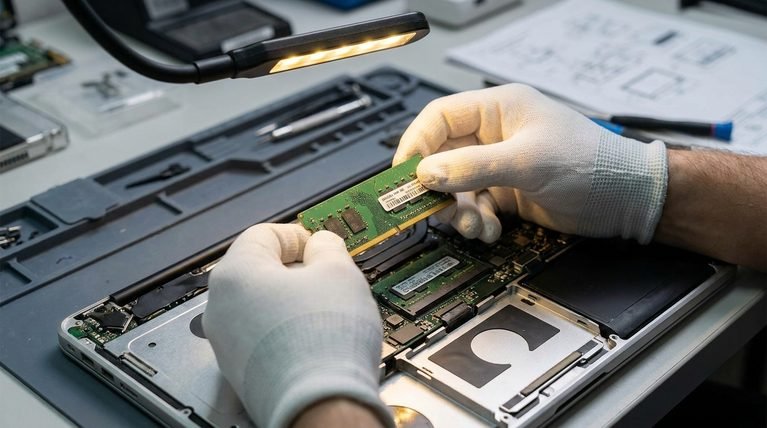
- Disk errors or failing RAM — hardware-level instability produces the crashes that flood the reporter.
- Conflicting third-party software — aggressive “system optimizers” and old antivirus products are repeat offenders.
Step 0: Find the App That’s Actually Crashing
Before fixing anything, identify the real culprit. This takes two minutes and prevents hours of misdirected effort.
Method A — Reliability Monitor (easiest):
1. Press Windows key, type Reliability Monitor, and open View reliability history.
2. Look for red ✕ marks at the times the WerFault error appeared.
3. Click a red mark — it names the failing application, not WerFault.exe. That’s your target: update, repair, or reinstall that program first.
Method B — Event Viewer (most detailed):
1. Press Windows key + X, choose Event Viewer.
2. Navigate to Windows Logs > Application.
3. Look for Error entries timestamped with your WerFault popups.
4. Open one and read “Faulting application name,” “Faulting module name,” and “Exception code.” The faulting module often identifies a specific DLL — extremely useful for driver-related crashes.
In our experience, this step alone resolves the mystery most of the time: it’s usually one misbehaving program (a browser with a bad extension, an outdated utility, a game with a broken update), and dealing with that program ends the WerFault errors.
Fix 1: Update, Repair, or Reinstall the Crashing App
Once you’ve identified the faulting application:
- Update it — check the app’s own updater or the publisher’s site for the latest version. Most crash bugs get patched.
- Repair it — Settings > Apps > Installed apps, click the app’s … menu > Advanced options > Repair (for Store apps) or use the publisher’s installer repair option.
- Reinstall it cleanly — uninstall, restart, then install the latest version fresh. For stubborn cases, also delete the app’s leftover data in
%AppData%after uninstalling.
If the crashing app is your browser, disable all extensions first and re-enable them one by one — a single bad extension causes a remarkable share of these errors.
Fix 2: Restart the Windows Error Reporting Service

If the same WerFault dialog keeps looping, the reporting service itself may be wedged. Restart it cleanly:
- Press Windows key + R, type
services.msc, and press Enter. - Scroll to Windows Error Reporting Service.
- Right-click it and choose Restart. If it’s stopped, choose Start and confirm the Startup type is Manual (the Windows default — don’t set it to Disabled permanently, as some guides suggest; that only hides the symptom).
- Restart your PC and watch whether the error returns.
This is a safe, reversible operation and resolves cases where the service hung mid-report.
Fix 3: Repair System Files With DISM and SFC
Corrupted WER components or shared libraries are a classic cause. Microsoft’s standard repair sequence applies here — DISM first, then System File Checker:
- Press Windows key, type cmd, right-click Command Prompt, and choose Run as administrator.
- Run:
DISM.exe /Online /Cleanup-image /Restorehealthand wait for completion. - Run:
sfc /scannowand wait for “Verification 100% complete.” - Restart and retest.
Microsoft documents this procedure in its System File Checker guide. If SFC reports that it repaired files, there’s a good chance your WerFault errors are gone — the reporter was tripping over the same corruption.
Fix 4: Update Your Drivers
Outdated or corrupt drivers — particularly display, chipset, and storage drivers — cause the underlying application crashes that flood WerFault. This is doubly relevant because WerFault errors frequently accompany the kind of driver instability behind errors like Driver Power State Failure:
- Press Windows key + X and open Device Manager.
- Expand Display adapters, right-click your GPU, and choose Update driver — but don’t stop there.
- For the real fix, download the latest driver from the manufacturer’s site (NVIDIA, AMD, or Intel) and choose the clean install option.
- Also update chipset drivers from your motherboard or laptop manufacturer’s support page — Windows Update routinely misses these.
If the WerFault errors started right after a driver update, do the reverse: Properties > Driver > Roll Back Driver.
Fix 5: Run a Full Malware Scan
Because malware both masquerades as WerFault.exe and corrupts the genuine reporting pipeline, a thorough scan is non-negotiable:
- Open Windows Security > Virus & threat protection > Scan options.
- Choose Microsoft Defender Offline scan and click Scan now. Your PC will restart into a clean environment where persistent malware can’t hide.
- After the offline scan, run one full standard scan for completeness.
If Defender finds and removes something named like WerFault in a non-system location, that was your problem. Change important passwords afterward from a clean device — credential theft is the most common payload of this malware family.
Fix 6: Check Your Disk and Memory
Hardware instability creates the crash storms that overwhelm error reporting:
Disk check:
1. Open an elevated Command Prompt.
2. Run: chkdsk C: /f /r — agree to schedule it at next restart if prompted, then reboot. (The /r locates bad sectors; it takes a while on large drives.)
Memory check:
1. Press Windows key, type Windows Memory Diagnostic, and open it.
2. Choose “Restart now and check for problems.”
3. Let the test complete — memory errors cause exactly the kind of random app crashes that trigger WerFault loops.
If either test finds hardware faults, you’ve found the root cause, and no software tweak will substitute for repair or replacement. Persistent hardware-level crashes can also manifest as Clock Watchdog Timeout errors, so watch for those as a corroborating symptom.
Fix 7: Disable Conflicting Startup Software (Clean Boot)
Third-party utilities that inject themselves into other processes — old antivirus, “game boosters,” overlay software, outdated system utilities — are frequent hidden culprits:
- Press Windows key + R, type
msconfig, and press Enter. - Go to the Services tab, check “Hide all Microsoft services,” then click Disable all.
- Go to the Startup tab and click Open Task Manager — disable all startup items.
- Restart. If the WerFault errors stop, re-enable services and startup items in small groups until the offender reveals itself.
This is diagnostic rather than a permanent fix — once identified, update or uninstall the conflicting program instead of leaving everything disabled.
Fix 8: Temporarily Disable Windows Error Reporting (Diagnostic Only)
Some guides present this as the fix. It isn’t — it’s a diagnostic step that tells you whether the reporter or the underlying crashes are the problem:
services.msc> Windows Error Reporting Service > Properties.- Set Startup type to Disabled, click OK, and restart.
- If the popups stop but apps still crash or misbehave, you’ve confirmed the underlying crashes are real and still need fixing (return to Fixes 1–7).
- Re-enable the service afterward (set back to Manual). Leaving it disabled permanently blinds Windows diagnostics and can mask problems that get worse silently.
Microsoft’s own community engineers treat disabling WER as a temporary troubleshooting measure, not a solution — see the long-running discussion on Microsoft Learn.
Quick-Reference: WerFault.exe Troubleshooting Flow
| What you observe | What it means | Do this |
|---|---|---|
| WerFault error names one app in Reliability Monitor | That app is crashing | Update/reinstall that app (Fix 1) |
| WerFault.exe in Task Manager points outside System32 | Malware impersonation | Offline Defender scan (Fix 5) |
| Errors started after a driver update | Bad driver | Roll back driver (Fix 4) |
| SFC reports repaired files | System corruption | You’re likely fixed — retest |
| Errors in clean boot disappear | Software conflict | Re-enable in groups (Fix 7) |
| Memory/disk tests fail | Hardware fault | Repair/replace hardware |

Frequently Asked Questions
Can I disable WerFault.exe permanently?
You can disable the Windows Error Reporting service, but you shouldn’t leave it that way. It doesn’t fix the crashing application — it just silences the messenger. Use it as a short diagnostic step, then re-enable it and fix the actual problem.
Why does WerFault.exe use 100% CPU sometimes?
That’s the “crash storm” scenario: an application is crashing repeatedly (sometimes dozens of times per minute), and WerFault.exe is desperately trying to report each one. Open Task Manager, find which other process keeps appearing and disappearing alongside it — that’s your real culprit. End that process, then update or reinstall it.
Is it safe to delete the WerFault.exe file?
No. It’s a protected Windows system file; deletion attempts will be blocked or immediately undone by Windows File Protection, and even if you succeeded, you’d gain nothing — crash reporting would break while the underlying crashes continued. Repair or reinstall Windows instead if system files are that damaged.
WerFault.exe error appears at startup. What’s crashing?
Use Task Manager > Startup apps and Event Viewer > Windows Logs > Application filtered to boot time. Common startup-time offenders: outdated antivirus components, broken updater services (Adobe, printer utilities), and corrupted user-profile load items. A clean boot (Fix 7) isolates it quickly.
Does the WerFault.exe error mean I need to reinstall Windows?
Rarely. Reinstallation is the last resort for when SFC/DISM can’t repair corruption or the same errors survive a clean boot with all third-party software removed. The eight fixes above resolve the overwhelming majority of cases without anything so drastic.
How is WerFault.exe different from dwm.exe or csrss.exe errors?
They’re all Windows system processes, but with different jobs: WerFault.exe handles crash reporting, dwm.exe (Desktop Window Manager) handles screen compositing, and csrss.exe handles Win32 subsystem duties. Errors in each point at different subsystems — don’t apply WerFault fixes to dwm crashes or vice versa.
Final Thoughts
The WerFault.exe error is Windows’ crash reporter crying for help — and the help it needs is almost always directed at whatever is crashing underneath it. Start with Reliability Monitor to name the real offender, deal with that application, and work through the service restart and system-file repairs if the errors persist.
Resist the temptation to just disable error reporting and move on; the crashes it was trying to tell you about are still happening whether you see the dialog or not. Fix the cause, and WerFault.exe will quietly go back to the invisible, useful job it was designed for. And the next time a crash dialog appears, you’ll know exactly how to read it — Reliability Monitor first, panic never.