
Printer Printing Blank Pages? 10 Fixes for HP, Canon, Epson & Brother
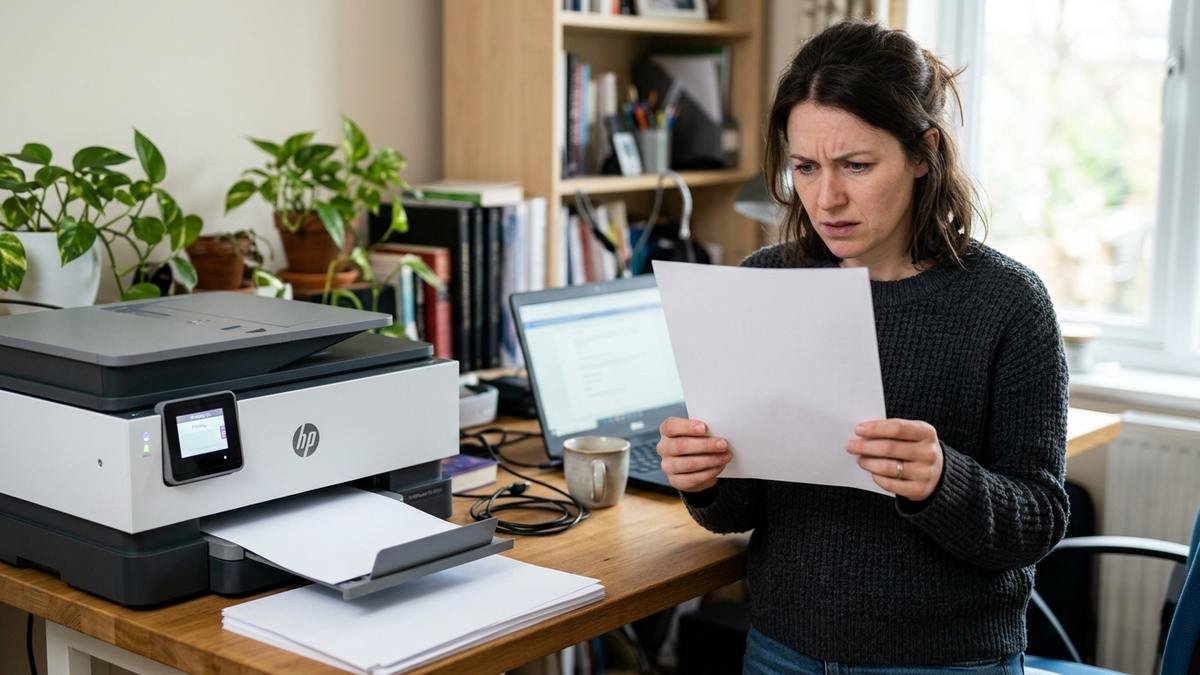
Few things are as baffling as a printer printing blank pages: it hums, the paper feeds through perfectly, and out comes… nothing. A pristine white sheet, as if the printer went through the motions purely out of politeness. Whether you have an HP, Canon, Epson, or Brother — inkjet or laser — this problem has a short list of usual suspects and a clear fix order.
This 2026 guide covers why printers print blank pages, 10 fixes ordered from simplest to most involved, brand-specific notes for the big four manufacturers, and how to prevent it from happening again.
Why Is My Printer Printing Blank Pages? Common Causes
Blank-page printing almost always comes down to ink/toner not reaching the paper, or the printer thinking it shouldn’t put ink on the paper. Here’s the lineup:
| Cause | Inkjet or laser? | How to spot it |
|---|---|---|
| Empty or low ink/toner cartridge | Both | Printer software shows low levels; faded prints preceded the blanks |
| Clogged printhead nozzles | Inkjet | Printer sat unused for weeks; nozzle check pattern has gaps |
| Improperly seated cartridge | Both | Cartridge was recently replaced or refilled |
| Dried ink on cartridge contacts | Inkjet | Visible crust on the cartridge outlet |
| Outdated or corrupt printer driver | Both | Started after a Windows/macOS update |
| Wrong paper size/type settings | Both | Mismatch between tray paper and print dialog settings |
| “Separators” or blank-page feature enabled | Mostly laser | A blank page appears between every printed page |
| Air bubbles in ink lines (tank printers) | Ink tank models | Started right after refilling tanks |
| Failed printhead (hardware) | Inkjet | Deep cleaning cycles change nothing |
| Firmware bugs | Both | Blank pages began after a firmware update |
The single most common cause for inkjets is clogged nozzles from disuse — if your printer sat idle for a month, start at Fix 3. For lasers, check toner and the separators setting first.
Fix 1: Restart the Printer and Computer
The two-minute fix that resolves a surprising number of cases — a stuck print job or a glitched printer state can produce blank output.
- Turn off the printer with its power button.
- Unplug the power cord and wait 5 minutes (this clears the printer’s memory).
- Restart your computer.
- Reconnect the printer, power it on, and print a test page.
If blank pages persist, the problem is physical (ink/printhead) or software (driver/settings) — keep going.
Fix 2: Check Ink or Toner Levels (And Don’t Trust the Sensor Blindly)
Open your printer’s software or check the control panel display for ink/toner levels. But here’s the catch: level sensors lie. They estimate rather than measure, and they can misread — especially with refilled or third-party cartridges.
- Inkjet: Remove each cartridge and inspect it. Look for dried, crusty ink around the outlet — gently wipe it with a soft, lint-free cloth dampened with warm water. If a cartridge is genuinely empty, replace it with a fresh one (genuine cartridges register more reliably than refills).
- Laser: Remove the toner cartridge, hold it level, and gently rock it side to side to redistribute the toner evenly, then reinstall. This classic trick can squeeze out dozens more pages and confirms whether low toner is the issue.
Quick tip: Never touch the printhead nozzles or the copper/gold electronic contacts directly — oils from your fingers cause misreads and clogs.
Fix 3: Run a Printhead Cleaning Cycle
For inkjets, clogged nozzles are the #1 cause of blank pages. Dried ink blocks the microscopic nozzles, and the printer happily “prints” nothing. The built-in cleaning cycle forces ink through to clear the blockage.
- Open your printer software on the computer (HP Smart, Epson Software, Canon IJ Printer Utility, etc.).
- Go to the Maintenance or Tools tab.
- Select Clean Printhead (or Head Cleaning).
- After it finishes, print a Nozzle Check Pattern to see if the gaps are gone.
- Repeat up to 2–3 times for stubborn clogs.
If your printer sat unused for weeks, run a Deep Cleaning (Canon) or Power Cleaning (Epson) instead — it’s stronger, takes 5–10 minutes, and uses more ink. Afterward, let the printer rest for about 30 minutes so ink can reflow through the printhead before testing again.
Fix 4: Reseat or Reinstall the Cartridges
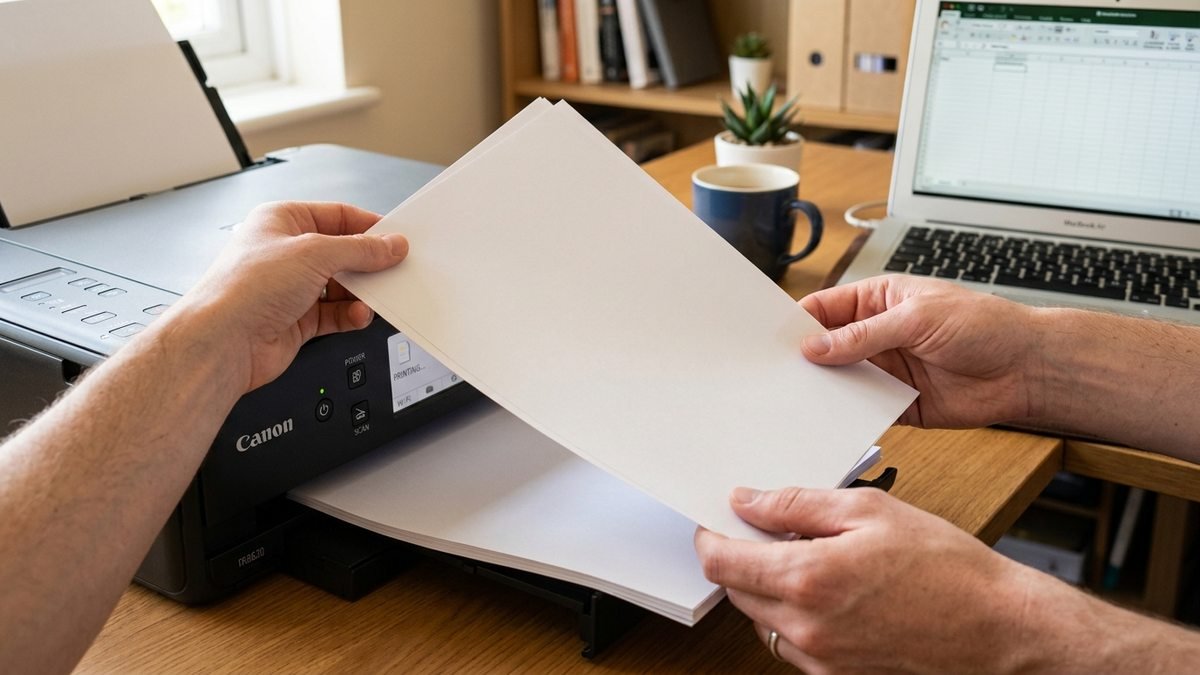
A cartridge that isn’t fully clicked into place can’t deliver ink — and this happens constantly after replacements and refills.
- Open the cartridge access door and remove each cartridge.
- Check for protective tape or clips you forgot to remove (a classic with new cartridges — that little plastic strip must come off).
- Inspect the slot for debris or dried ink; wipe gently if needed.
- Reinstall each cartridge firmly until it clicks.
- For ink tank printers (EcoTank, MegaTank): verify all tank lids are closed tightly and tanks are properly seated — loose caps after refilling are a notorious cause of blank pages.
Fix 5: Print a Test Page to Isolate the Problem
A test page bypasses your document and application entirely — it comes straight from the printer’s firmware. This tells you whether the problem is the printer or your computer.
Windows: Control Panel → Devices and Printers → right-click your printer → Printer properties → General tab → Print Test Page.
Mac: System Settings → Printers & Scanners → select printer → Options → Print Test Page under Utility.
- Test page is also blank → the problem is in the printer (ink, printhead, hardware). Focus on Fixes 2–4 and 8–9.
- Test page prints fine but documents are blank → the problem is software (driver, app settings). Jump to Fixes 6–7.
Fix 6: Update or Reinstall the Printer Driver and Firmware
Software miscommunication causes blank prints more often than people expect — especially after OS updates. A corrupt or outdated driver can send malformed data that the printer “prints” as nothing.
- Visit the manufacturer’s official support site: HP Support, Epson Support, or Brother Support — search your exact model.
- Download the latest driver and any available firmware update.
- Install both, restart the printer and computer, and test.
Firmware deserves special attention: manufacturers occasionally ship firmware that introduces printing bugs (and occasionally firmware that blocks third-party cartridges — if blanks started right after a firmware update and you use refills, that’s a strong lead). Keep firmware current, but note what changed if problems start immediately after an update.
Fix 7: Check Paper Settings and Disable Separators
Two settings gremlins cause blank pages:
Paper size/type mismatch: If the print dialog says “Letter” but the tray holds “A4” (or vice versa), some printers output blanks. In the print dialog, verify the paper size and type match what’s actually loaded, and check the tray guides fit the paper snugly.
Separators feature (laser printers): Many office printers have a “Separators” option that inserts a blank page between print jobs. If you’re getting a blank page between every printed page: Control Panel → Devices and Printers → right-click printer → Printing Preferences → Paper tab → set Separators to No Separators.
Fix 8: Manually Clean the Printhead (Advanced Inkjet Fix)
If 2–3 automatic cleaning cycles didn’t help, manual cleaning is the next level. This is for comfortable DIYers — it’s not difficult, but it requires care.
- Remove the cartridges and, if your model allows, the printhead assembly (check your manual — on many HP and Canon models it lifts out; on Epson it’s usually fixed).
- Dampen a lint-free cloth or coffee filter with warm distilled water (not tap water — minerals leave residue).
- Gently blot the printhead nozzles — never scrub or apply pressure.
- For stubborn clogs, soak the nozzle plate in a shallow dish of warm distilled water for 10–15 minutes, then blot dry.
- Reinstall, run one automatic cleaning cycle, and print a nozzle check.
Do not use alcohol or household cleaners on printheads — they can damage the nozzle plate coatings.
Fix 9: Address Air Bubbles in Tank Printers
Refillable ink tank printers (Epson EcoTank, Canon MegaTank/G-series) can develop air locks in the ink lines after refilling, blocking ink flow completely:
- With the printer off, gently tilt it side to side to help bubbles migrate.
- Briefly open and re-close the ink tank lids to equalize air pressure.
- Run a Power Cleaning cycle (Epson) afterward to prime the lines.
- Always use genuine ink — third-party ink with different viscosity can worsen flow problems and may not register with the printer’s sensors.
Fix 10: Recognize When It’s a Hardware Failure
If you’ve done everything above and pages are still blank, the printhead itself may have failed — particularly on older inkjets where the printhead is a separate replaceable unit. Signs pointing to hardware:
- Deep/power cleaning cycles produce zero improvement across multiple attempts
- The nozzle check pattern is completely empty (not just patchy)
- The printer is 4+ years old with heavy use
Check whether a replacement printhead is available for your model and what it costs — sometimes it’s half the price of a new printer, in which case replacement of the printer is the rational call. If the printer is under warranty, contact the manufacturer’s support line before opening anything.
For broader printer troubles beyond blank pages — a printer that won’t print at all, shows as offline, or reports driver errors — see our companion guides: why is my printer not printing, why does my printer say offline, and printer support resources, plus the printer driver is unavailable fix if Windows reports a driver problem.
Inkjet vs. Laser: Blank-Page Troubleshooting Differences
Inkjet and laser printers go blank for different reasons, so it helps to know which camp you’re in:
Inkjet printers (most home models) print by spraying liquid ink through microscopic nozzles. Blank pages here are overwhelmingly about ink delivery — clogged nozzles from disuse, dried ink on cartridge outlets, air bubbles in tank lines, or cartridges the printer thinks are empty. The cleaning cycle is your best friend, and regular use is the best prevention. Inkjet printheads also wear out: on models with user-replaceable printheads, a fresh printhead can revive an otherwise healthy printer.
Laser printers (most office models) print by fusing dry toner powder onto the page with heat. Blank pages here point to toner delivery — an empty or unevenly distributed toner cartridge, a worn-out drum unit, or a transfer roller that isn’t moving toner to the paper. The shake-and-redistribute trick (Fix 2) and checking the drum’s page count are laser-specific steps inkjet owners never need. Laser printers don’t clog from disuse the way inkjets do, so a laser that sat idle for months usually wakes up fine.
Knowing your printer type also changes the economics: a replacement inkjet printhead can cost nearly as much as a budget printer, while a laser drum unit is a routine consumable with a predictable lifespan (typically 12,000–20,000 pages). Check your printer’s supplies status page for drum life before assuming the worst.
Brand-Specific Notes
- HP: The free HP Print and Scan Doctor app diagnoses and fixes many blank-page causes automatically — run it before manual troubleshooting.
- Canon: Deep Cleaning is under Maintenance in the IJ Printer Utility; G-series tank models benefit most from the air-bubble steps in Fix 9.
- Epson: Power Cleaning is the strongest option but consumes significant ink — use it as a last resort before manual cleaning. EcoTank models: check the maintenance box isn’t full.
- Brother: Laser models — check the drum unit in addition to toner; a worn drum causes faded-to-blank output. Inkjet models have user-replaceable printheads on many lines.
How to Prevent Blank Pages in the Future
- Print at least once every 1–2 weeks. Regular use is the single best prevention for clogged inkjet nozzles.
- Don’t let cartridges run bone dry. Printing on empty damages printheads; replace at the low warning.
- Use genuine ink/toner for at least the critical colors — third-party supplies are the most common source of sensor misreads and flow issues.
- Keep drivers and firmware updated via the manufacturer’s utility.
- Power off properly with the printer’s power button (not by yanking the cord) so it can park the printhead correctly.
- Store paper properly — damp or curled paper causes feed issues that mimic printing problems.
Frequently Asked Questions
Why is my printer printing blank pages when ink is full?
Full cartridges with blank output usually mean clogged printhead nozzles (inkjet), a protective tape strip left on a new cartridge, an improperly seated cartridge, or a driver problem. Run a nozzle check first — if the pattern has gaps or is empty, clean the printhead (Fix 3).
Can outdated drivers cause blank pages?
Yes. A corrupt or outdated driver can send data the printer can’t interpret, resulting in blank output. This often appears after Windows or macOS updates. Reinstalling the latest driver from the manufacturer’s official site (Fix 6) resolves it.
Why does my Epson EcoTank print blank after refilling?
Almost always air bubbles trapped in the ink lines during refilling, or tank lids not sealed properly. Tilt the printer gently while off, reseal the lids, and run a Power Cleaning cycle to prime the lines (Fix 9).
Is it worth cleaning the printhead manually?
If 2–3 automatic cleanings failed, yes — manual cleaning resolves many clogs that automated cycles can’t. It’s low-risk if you’re gentle and use only warm distilled water. If manual cleaning also fails, the printhead has likely failed as hardware.
Why is there a blank page between every page I print?
That’s the Separators feature, not a malfunction. Disable it in Printing Preferences → Paper tab → Separators → No Separators (Fix 7).
Should I just buy a new printer?
Consider it if: the printer is 5+ years old, the printhead has failed and a replacement costs more than half a new printer, or you’ve spent more on ink troubleshooting than the printer is worth. For a printer under 3 years old with a clog issue, cleaning almost always wins.
Final Thoughts
A printer printing blank pages is annoying but rarely mysterious — walk the causes in order: restart, check ink (don’t trust the sensor), clean the printhead, reseat cartridges, isolate with a test page, update drivers and firmware, verify paper settings, and only then move to manual cleaning or hardware diagnosis. Most blank-page problems surrender at the cleaning-cycle stage, especially on inkjets that sat idle.
For model-specific drivers, utilities like HP’s Print and Scan Doctor, and firmware updates, stick to the official sources — HP Support, Epson Support, and Brother Support — rather than third-party download sites. And the cheapest fix of all: print something every couple of weeks, so the nozzles never get a chance to clog in the first place.