Printer Support: How to Get Legitimate Help and Avoid Support Scams
When your printer stops working the night before a deadline, finding reliable printer support becomes urgent fast. But here is the problem: the internet is full of fake “printer support” phone numbers, paid third-party help desks posing as manufacturers, and outdated advice.
In this 2026 guide, you will learn exactly what printer support covers, how to reach the official support channels for HP, Canon, Epson, and Brother, which problems you can fix yourself in minutes, how to spot a printer support scam before it costs you money, and when it is genuinely time to call a professional technician.
What “Printer Support” Actually Means in 2026
Printer support is an umbrella term for every kind of help you can get for a printer: manufacturer warranty service, driver and firmware downloads, troubleshooting documentation, live chat or phone assistance, on-site repair visits, and paid out-of-warranty service. Modern printer support is split into three layers.
First, self-service support: knowledge bases, setup guides, and diagnostic tools published by the manufacturer. Second, assisted support: chat, email, phone, or remote-desktop help from the manufacturer’s own agents or authorized partners. Third, hardware service: in-warranty repairs, paid repairs, and replacement programs.
Understanding which layer you need saves hours. Roughly 80 percent of home printer problems — offline errors, stuck print queues, driver glitches, paper jams — are solved at the self-service layer without ever contacting anyone. The remaining cases usually involve hardware failure, warranty claims, or genuinely tricky network setups where assisted support earns its keep.

The Official Printer Support Channels by Brand
The single most important rule of printer support: always start at the manufacturer’s own website. Type the brand name plus your exact model into a search engine, and look for the official domain. Below are the legitimate starting points for the four biggest home and office printer brands.
HP Printer Support
HP’s support hub covers its DeskJet, ENVY, OfficeJet, and LaserJet lines. Enter your model number to get the exact driver package, firmware updates, and model-specific troubleshooting guides. HP also offers the HP Smart app, which can diagnose many issues automatically, and a virtual agent for common problems. Warranty check tools on HP’s site tell you instantly whether your printer is still covered.
Canon Printer Support
Canon organizes support by product family (PIXMA, MAXIFY, imageCLASS). Canon’s support pages provide drivers, manuals, and firmware, plus live chat during business hours in most regions. For imageCLASS business printers, Canon offers more advanced assisted support options tied to the product’s service plan.
Epson Printer Support
Epson’s support site covers EcoTank, WorkForce, and Expression lines. Epson is notable for its detailed driver archives — useful if you run an older operating system — and its print-head cleaning utilities, which fix a large share of Epson print-quality complaints without any human help.
Brother Printer Support
Brother maintains one of the most straightforward support portals in the industry at support.brother.com, with drivers, manuals, and FAQs organized by model. Brother’s laser printers are workhorses in small offices, and its support documentation for network setup is genuinely excellent. If you need Brother’s official downloads or contact options, start at Brother’s official support portal.
A note on phone numbers: manufacturers do publish support numbers, but they never appear in pop-up ads or sponsored results promising “24/7 instant printer help.” If a site pressures you to call immediately, that is not the manufacturer.
Fix These Printer Problems Yourself Before Calling Support
Most support tickets are resolved by the same handful of fixes. Try these before you pick up the phone — they take minutes and they work for HP, Canon, Epson, and Brother alike.
| Symptom | DIY fix (try first) | Full guide |
|---|---|---|
| Printer shows “Offline” | Uncheck “Use Printer Offline” in the queue; restart the Print Spooler | Why does my printer say offline |
| Nothing prints at all | Clear stuck jobs; restart spooler; check USB/Wi-Fi | Why is my printer not printing |
| Pages come out blank | Run a nozzle check; verify ink/toner and protective seals | Printer printing blank pages |
| Paper keeps jamming | Clear the full paper path; reload dry, supported paper | Manufacturer’s jam-clearing guide |
| Garbled or faded output | Reinstall the correct driver from the manufacturer | Driver download page for your model |
Two built-in Windows tools deserve special mention. The automated printer troubleshooter (Settings > System > Troubleshoot > Other troubleshooters > Printer, or the Get Help app on newer Windows 11 builds) fixes driver and spooler misconfigurations on its own.
And Microsoft’s official guide to fixing printer-not-found and recognition errors walks through connection checks, spooler restarts, and driver updates step by step. If you have already worked through these and the printer still misbehaves, you have earned the right to contact support — and you will be able to tell the agent exactly what you tried, which gets you to a solution faster.
Printer Support Scams: Red Flags to Watch For
This section matters more than any troubleshooting step. Fake printer support is a large, persistent scam industry. Here is how it works: you search for help, click a sponsored result or call a number from a pop-up, and reach a call center that claims to be HP, Canon, or “Microsoft printer support.” They run a fake “diagnostic,” declare your computer infected or your printer “blocked,” and charge hundreds of dollars — sometimes installing remote-access software that creates real security problems.
Printer scams aren’t the only ones — the Geek Squad renewal scam uses fake invoices the same way, and our breakdown shows exactly how it works. Geek Squad renewal scam explained
Red flags that you are dealing with a scam, not legitimate printer support:
- A pop-up or ad gave you the number. Manufacturers do not advertise support numbers in pop-ups.
- They called you first. No printer manufacturer cold-calls customers about printer problems.
- They ask for remote access immediately, before asking for your model number or error message.
- They demand payment by gift card, wire transfer, or cryptocurrency. Legitimate support never does this.
- They claim your printer’s “license” or “subscription” expired. Printers do not have licenses that expire this way (ink subscription programs like HP Instant Ink are the exception, and those are managed in your HP account, not by a cold caller).
- The website has no verifiable corporate identity — no physical address, no link to the real manufacturer’s domain, and a recently registered domain name.
If you already called a suspicious number: hang up, do not grant remote access, do not pay, and if you installed anything they sent you, uninstall it and run a full malware scan. You can report the incident to your national consumer protection agency.
Warranty, Out-of-Warranty, and Paid Repair: What Printer Support Costs
Manufacturer printer support during the warranty period is free for defects in materials and workmanship — typically one year for consumer printers, sometimes longer for business models. What the warranty does not cover: consumables (ink, toner, paper), damage from misuse, and problems caused by third-party parts.
Once the warranty expires, your options and their approximate costs look like this:
| Service option | Typical cost | Best for |
|---|---|---|
| Manufacturer phone/chat diagnosis | Free to low fee | Software, driver, and setup issues |
| Authorized service center repair | $80–$200+ parts | Mechanical failure on mid-range printers |
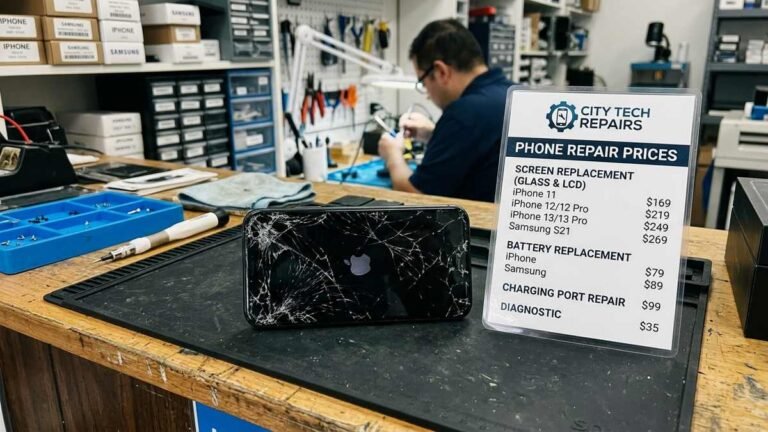
| Independent local repair shop | $50–$150 | Out-of-warranty printers of any brand |
| On-site business service contract | Varies by contract | Offices with fleets of printers |
| Replace the printer | $100–$400 for most home models | Printers older than 5 years with major failures |
The uncomfortable math of printer support: a budget inkjet that cost $80 new is rarely worth a $120 repair. For printers under about $150, replacement is usually the rational choice once a hardware fault is confirmed. For $300+ laser printers and business machines, professional repair almost always makes sense.
When to Call a Professional Technician
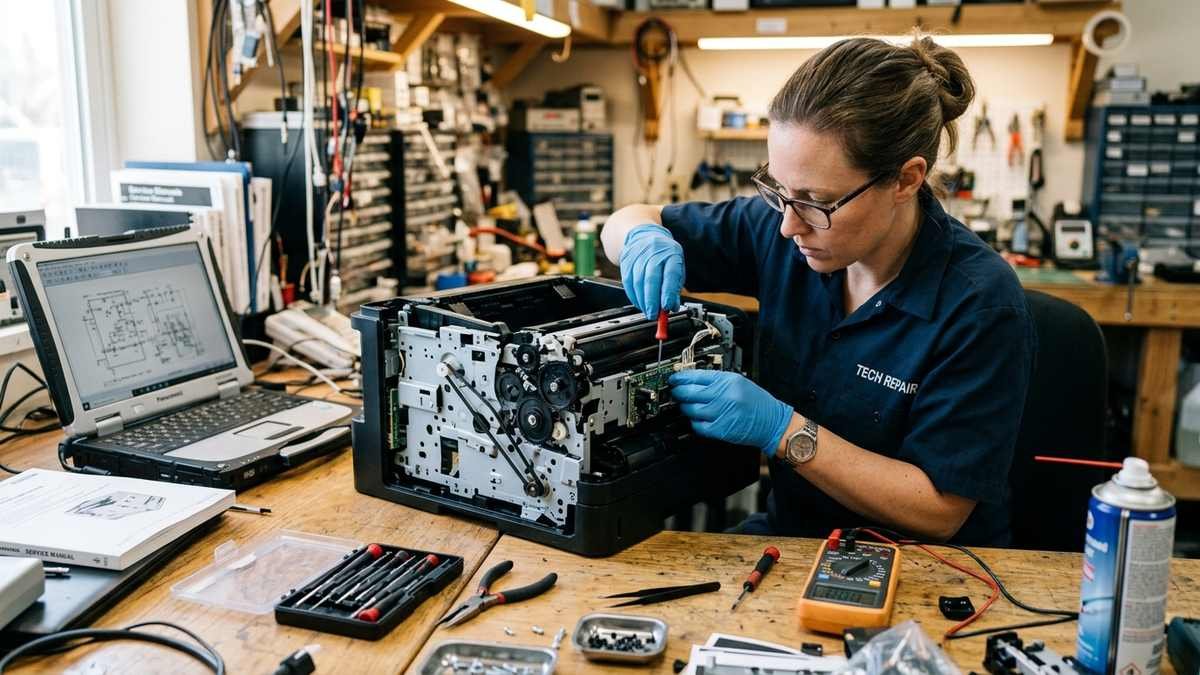
Call for help when you see these signs: grinding or loud mechanical noises, repeated paper jams at the same spot after the path is fully clear, error codes that persist after a factory reset, leaking toner or ink inside the machine, or any burning smell. Also call when the printer is under warranty and the problem is not software-related — do not open the machine yourself, or you may void the coverage.
For businesses, consider a managed print service contract before things break. A technician who already knows your fleet resolves issues far faster than cold-calling support during a crisis.
How to Prepare Before Contacting Printer Support
You will get dramatically better printer support if you prepare for two minutes first. Have ready: the exact model number (on a label on the printer), the serial number, your operating system and version, the connection type (USB, Wi-Fi, Ethernet), the exact error message or error code on the printer’s display, and a short list of what you already tried. If the problem is intermittent, note when it happens — after sleep, after a router reboot, only with duplex printing. Support agents work from decision trees; precise inputs get you to the right branch immediately.
What Legitimate Remote Printer Support Looks Like
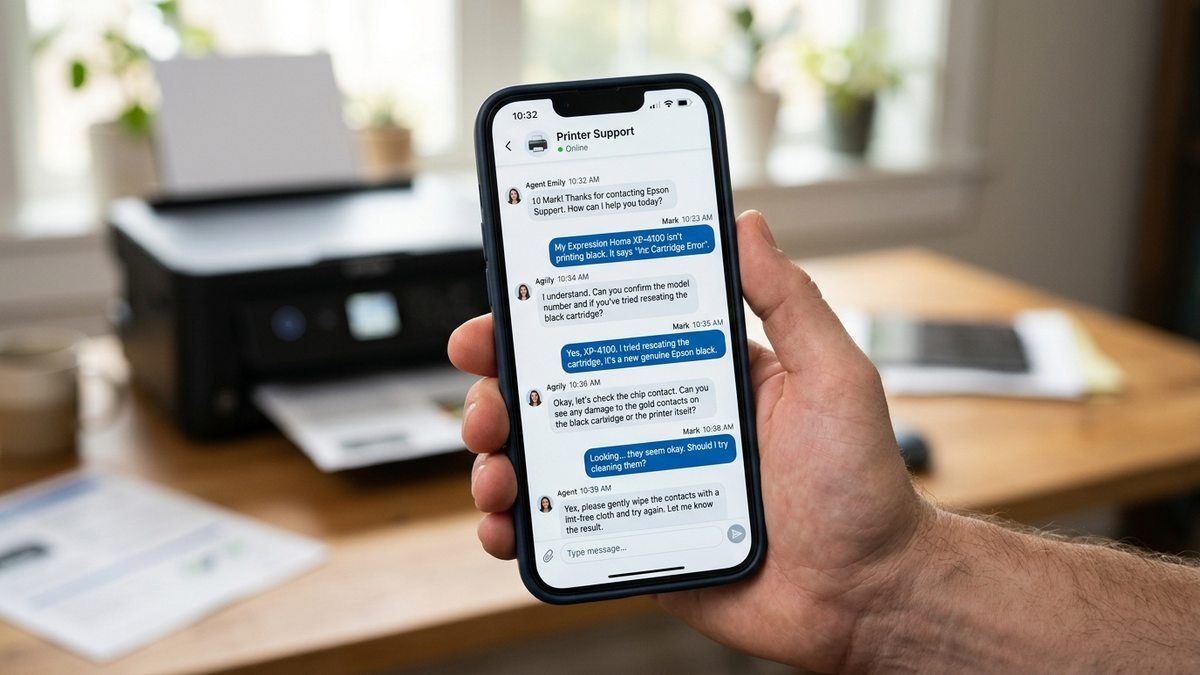
Knowing what a real remote support session looks like helps you instantly recognize a fake one. When you contact the manufacturer through its official site, a legitimate session follows a predictable pattern. First, the agent verifies your identity and product: model number, serial number, and warranty status.
Second, they ask about the symptom in specific terms — exact error codes, when the problem started, and what changed recently. Third, they guide you through steps while explaining what each step does; they never rush you or demand you “act now before the printer locks permanently.”
If remote desktop access is needed, the agent sends you to download the manufacturer’s own remote tool (or a well-known one like the one built into Windows Quick Assist) — they never ask you to install an unfamiliar .exe from a random link.
They will not ask for your full credit card number “for verification,” will not request gift cards, and will not claim your printer is “infected with a virus” — printers do not get computer viruses in the way scammers describe. A real session ends with a case or reference number you can use for follow-up. If any session deviates from this pattern, end it and start over through the official channel.
Printer Support for Businesses: Managed Print Services
Home printer support and business printer support are different worlds. If your office runs five or more printers, break-fix support — calling someone each time something fails — becomes expensive and chaotic. Managed print services (MPS) flip the model: a provider monitors your fleet remotely, ships toner before it runs out, handles driver deployments, and guarantees response times under a service-level agreement.
For a small business, the decision points are simple. If printer downtime regularly blocks billable work, an MPS contract or at least a per-device annual maintenance agreement pays for itself. Look for contracts that include next-business-day on-site response, genuine parts, and a clear page-volume allowance so you are not surprised by overage charges. Even without a full contract, standardizing on one or two printer models across the office dramatically simplifies support — one driver package, one set of spare toner cartridges, and one troubleshooting playbook your staff can actually learn.
How Long Does Printer Support Take?
Set expectations before you start. Self-service fixes take 5–30 minutes. Manufacturer chat support typically resolves software issues within one session of 15–45 minutes, though you may wait in a queue first. Phone support runs longer — plan for up to an hour including hold time. Mail-in or depot hardware service takes 5–10 business days including shipping. If an agent quotes you a depot repair for a problem you suspect is software, it is always reasonable to ask for one more round of remote troubleshooting first.
Frequently Asked Questions
Is manufacturer printer support free?
Yes, during the warranty period, for defects and for help with setup, drivers, and software. Out-of-warranty hardware repairs and some premium support tiers cost money. Never pay a random website that claims to be the manufacturer — verify you are on the brand’s official domain first.
What is the official HP printer support website?
HP’s support is reached through HP’s official customer support site (search “HP support” and confirm the hp.com domain). Enter your exact model number to get drivers, warranty status, and contact options. Be wary of lookalike domains with extra words like “hp-printer-help” in the name.
Can printer support fix my printer remotely?
For software, driver, network-configuration, and queue problems — often yes, via guided steps or remote desktop with your permission. No legitimate agent can fix a mechanical paper jam or a dead printhead over the phone; if someone claims they can for a fee, it is a scam.
My printer is 6 years old and broken. Repair or replace?
For budget inkjets, replace. The repair will likely cost more than an equivalent new printer, and a new machine comes with fresh ink and a new warranty. For expensive laser or business printers, get a repair quote first — they are built to be serviced.
Does printer support cover ink and toner problems?
Partially. Support can help with ink-system errors, cartridge recognition failures, and print-quality troubleshooting. But empty or dried-out cartridges are consumables — they are never covered, and no support call will refill them.
How do I report a fake printer support website?
Report it to your country’s consumer protection or cybercrime reporting portal, and to the impersonated manufacturer’s brand-abuse or fraud reporting page. Reporting helps get the domains taken down.
Final Thoughts
Good printer support starts with knowing where to look: the manufacturer’s official site first, self-service troubleshooting second, and assisted support only when the problem genuinely needs a human. Keep the scam red flags in mind every time you search for help — the fake support industry exists precisely because printer problems feel urgent. Work through the DIY fixes for offline errors, printers that won’t print, and blank pages first, prepare your model details before calling, and you will resolve most printer issues faster — and cheaper — than you expect.