Why Does My Printer Say Offline? 10 Fixes That Actually Work
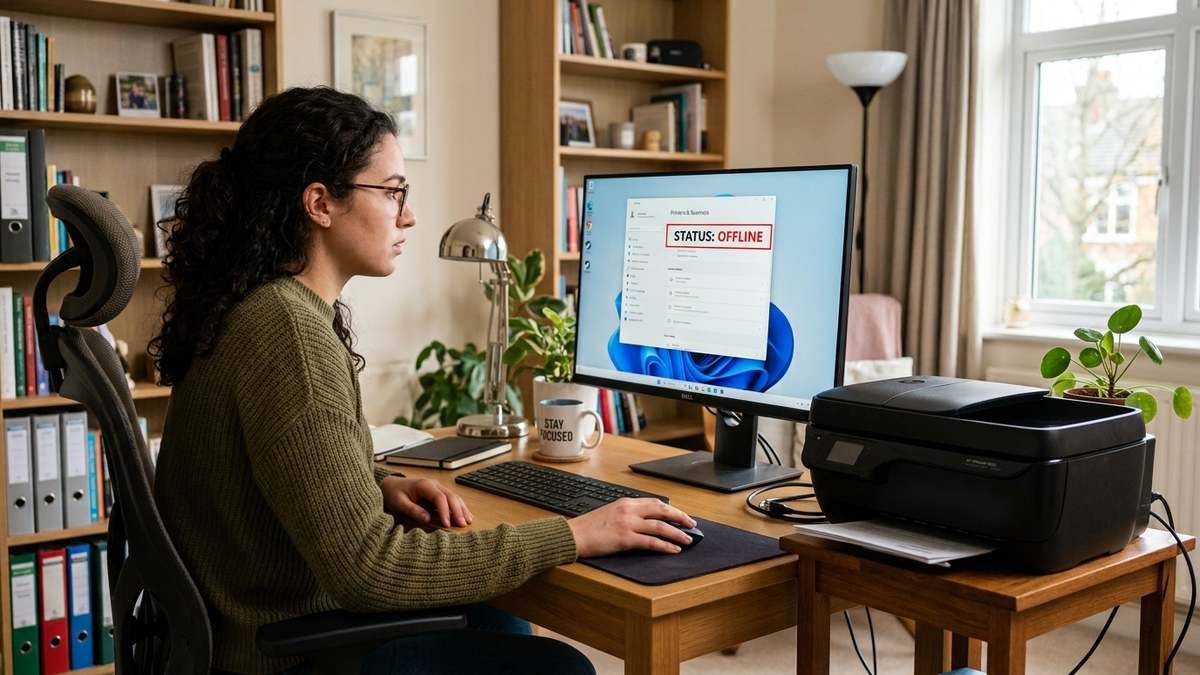
Your printer is powered on, sitting three feet away, and Windows insists it is offline. If you keep asking “why does my printer say offline,” here is the key insight: the “offline” label describes Windows’ relationship with the printer, not the printer’s actual state.
It usually means Windows cannot reach the printer over the network, a stuck setting is blocking communication, or the printer’s network address changed out from under it. This 2026 guide explains exactly why printers show offline and gives you 10 fixes in technician order — including the 30-second toggle that resolves most cases and the permanent static-IP fix for printers that keep going offline.
Quick Answer: Check “Use Printer Offline” First
The single most common cause of a printer suddenly showing offline in Windows is the “Use Printer Offline” setting, which Windows sometimes enables on its own after a failed job and never turns off.
- Press Windows + R, type
control printers, and press Enter. - Right-click your printer and choose See what’s printing.
- In the queue window, open the Printer menu.
- If Use Printer Offline has a checkmark, click it to uncheck it.
The status should flip to Ready immediately. If it was already unchecked — or the printer goes offline again later — continue with the fixes below.
Why Does My Printer Say Offline? The Real Causes
| Cause | What is happening | How often |
|---|---|---|
| “Use Printer Offline” enabled | Windows is told to hold jobs instead of sending them | Very common |
| Printer lost Wi-Fi connection | Printer dropped off the network after sleep or router reboot | Very common |
| IP address changed | Router gave the printer a new address; Windows still uses the old one | Very common (recurring cases) |
| Stuck print job wedged the queue | A failed job blocks communication state | Common |
| Print Spooler stalled | Windows’ print service is not responding | Common |
| Printer in deep sleep | Power-saving mode does not wake for print requests | Common |
| SNMP status misreporting | Windows polls the printer via SNMP and wrongly marks it offline | Occasional |
| WSD port instead of TCP/IP | Unstable Web Services port drops the connection | Occasional |
| Wrong network (guest Wi-Fi, different band) | Printer and PC are on networks that cannot see each other | Occasional |
Notice the pattern: in the overwhelming majority of cases, the printer is fine. The connection path between Windows and the printer is what broke.
Fix 1: Power-Cycle Everything in the Right Order
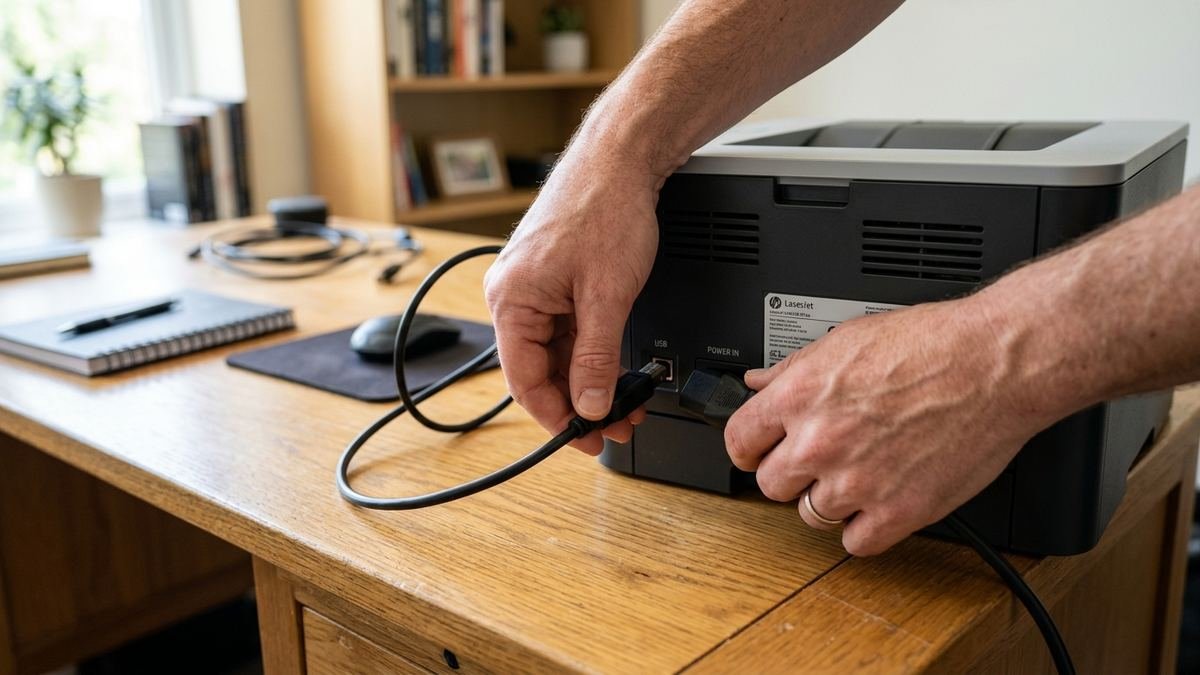
Do not just restart the printer — restart the whole chain, in order:
- Turn off the printer, the router, and the computer.
- Wait 60 seconds.
- Power on the router first and wait 30 seconds for it to fully boot.
- Power on the printer and wait for it to rejoin Wi-Fi (solid Wi-Fi icon, not blinking).
- Power on the computer and check the printer status.
Order matters because the printer needs the network to exist before it tries to join it.
Fix 2: Confirm the Printer Is on the Same Network
Print a network configuration page from the printer’s control panel (usually under Setup > Network > Print Network Configuration). Check two things: the Wi-Fi network name matches your computer’s exactly, and the printer has a valid IP address (not 169.254.x.x, which means it failed to get one). Guest networks, extenders with different SSIDs, and band-steering quirks are classic culprits — the printer and PC must be able to reach each other directly.
Fix 3: Clear the Print Queue and Restart the Print Spooler
A stuck job can leave the printer in a permanent offline state. Open the queue (Settings > Bluetooth & devices > Printers & scanners > your printer > Open print queue) and cancel everything. Then press Windows + R, type services.msc, find Print Spooler, right-click, and choose Restart. This two-punch combination resolves a large share of offline errors that are really queue errors in disguise. If your printer also refuses to print at all, our broader guide on why your printer is not printing covers the full diagnostic sequence.
Fix 4: Set the Printer as Default (and Stop Windows Managing It)
Windows’ “Let Windows manage my default printer” feature can silently route jobs to the wrong queue, making your real printer look dead. Go to Settings > Bluetooth & devices > Printers & scanners, turn off “Let Windows manage my default printer,” select your actual printer, and click Set as default. Then verify you are printing to it — not to an old “(Copy 1)” duplicate or a PDF printer.
Fix 5: Give the Printer a Static IP Address (The Permanent Fix)
This is the fix for printers that keep going offline every few days. Most home routers assign IP addresses dynamically (DHCP). When the router reboots or the lease expires, the printer gets a new address — but Windows keeps sending jobs to the old one, and the printer “goes offline.” The permanent cure:
- Find the printer’s current IP on its network configuration page.
- Log in to your router’s admin panel.
- Find the printer in the connected-devices list and create a DHCP reservation (sometimes called “static lease”) so it always gets the same address. Alternatively, set a static IP directly on the printer outside the router’s DHCP range.
- In Windows, verify the printer port matches:
control printers> right-click printer > Printer properties > Ports > Configure Port, and confirm the IP matches.
After this, router reboots stop breaking your printer. Microsoft’s documentation on shared printer connection problems covers related network-path issues if you print through another PC. For manufacturer-specific network setup guides, check the Epson support portal.
Fix 6: Disable Deep Sleep / Power Saving on the Printer
Many printers enter a deep sleep to save power and then fail to wake when a print job arrives — Windows sees no response and marks the printer offline. In the printer’s own menu (Setup > Preferences > Power Management, or the embedded web server at the printer’s IP address), set sleep to a longer delay or disable deep sleep entirely. This is especially common with EcoTank and older LaserJet models.
Fix 7: Switch From a WSD Port to a Standard TCP/IP Port
Windows often installs network printers on a WSD (Web Services for Devices) port, which is convenient but notoriously flaky — it drops offline status far more than a standard TCP/IP port. To switch:
- Open
control printers, right-click the printer, and choose Printer properties. - Go to the Ports tab and click Add Port.
- Select Standard TCP/IP Port, click New Port, and enter the printer’s IP address.
- Apply, then print a test page.
This single change permanently fixes a meaningful slice of recurring offline problems.
Fix 8: Disable SNMP Status Monitoring (If It Misreports)
Windows can poll the printer’s status over SNMP, and if the printer responds slowly or blocks the query, Windows wrongly declares it offline even though printing would work. In Printer properties > Ports > Configure Port, try unchecking “SNMP Status Enabled.” If the printer immediately shows Ready, SNMP misreporting was your problem. (Leave it off — you lose nothing except the real-time status icon nuance.)
Fix 9: Run the Printer Troubleshooter and Update Drivers
Run Settings > System > Troubleshoot > Other troubleshooters > Printer (or the Get Help app’s printer troubleshooter on newer Windows 11 builds). Then make sure the driver is current: download the latest driver for your exact model from the manufacturer’s official site.
Corrupted drivers after Windows updates are a known trigger — particularly since the 24H2/25H2 updates, where some HP v4 driver setups lost their drivers entirely and needed reinstalling. Also check whether Windows protected print mode got enabled (Printer preferences); it silently blocks printers that do not support the modern IPP standard.
Fix 10: Remove and Re-Add the Printer
When nothing else sticks, rebuild the relationship from scratch:
- In Printers & scanners, select the printer and click Remove.
- Restart the computer.
- Click Add device and reinstall. For maximum stability, add it by IP address (“The printer that I want isn’t listed” > Add a printer using a TCP/IP address) rather than relying on auto-discovery.
Re-adding clears stale ports, corrupted queue configuration, and phantom offline flags in one move.
Mac: Printer Shows Offline or Paused
On macOS, open System Settings > Printers & Scanners, select the printer, and open the print queue — clear any paused or stuck jobs. If it persists, remove the printer with the minus button and re-add it with the plus button, choosing IP at the top of the add dialog and entering the printer’s address manually. Adding by IP instead of Bonjour name avoids the same address-change problem that plagues Windows. As a last resort, right-click the printers list and choose Reset printing system.
Why Your Printer Goes Offline After Every Router Reboot
If your printer reliably goes offline whenever the router restarts — after a power outage, a firmware update, or your ISP’s nightly maintenance — you are looking at the DHCP problem described in Fix 5, and it deserves emphasis because it is the single most common recurring offline cause.
Here is the mechanics: your router assigns the printer an address like 192.168.1.42. Windows records that address in the printer port. The router reboots and hands the printer 192.168.1.47. Windows keeps knocking on .42, gets no answer, and labels the printer offline — even though the printer is happily connected at .47.
The DHCP reservation fix is permanent and takes five minutes in your router’s admin panel. As a bonus, while you are in there, give the printer a memorable address outside the everyday DHCP pool (for example, 192.168.1.200) so you can always reach its embedded web server directly. Printers with truly ancient firmware may also benefit from a firmware update at the same time — several manufacturers patched flaky Wi-Fi reconnection behavior in recent releases.
Reading Your Printer’s Network Status Page
Almost every network printer can print a network configuration or status page from its control panel (Setup > Network > Print Network Configuration, or a similar path). Learn to read it — it is the fastest diagnostic tool you own. Check the wireless network name, the signal strength (anything below about -70 dBm is marginal), the IP address (a 169.254.x.x address means the printer failed to get one), and the gateway. When you contact support, reading these four values aloud gets you past the first ten minutes of scripted questions instantly.
Preventing Offline Problems: A 10-Minute Setup Checklist
Do this once on every network printer you own and offline errors become rare: assign a DHCP reservation or static IP; switch the port to Standard TCP/IP; disable deep sleep or set a long sleep delay; update the printer firmware; turn off “Let Windows manage my default printer” and set the real printer as default; and print a network configuration page to file away the IP address and signal strength.
Ten minutes of setup eliminates the entire category of “mystery offline” problems that consume hours of troubleshooting later. Revisit the checklist after any router replacement, since a new router means new DHCP assignments.
Frequently Asked Questions
Why does my printer keep going offline every day?
Nine times out of ten, the printer’s IP address is changing. Your router reboots or the DHCP lease expires, the printer gets a new address, and Windows keeps calling the old one. Assign a static IP or DHCP reservation (Fix 5) and the daily offline cycle stops.
My printer is online but still won’t print. What now?
Then the problem is not the offline state — it is the queue, spooler, driver, or a hardware issue like empty ink. Work through our guide on why your printer is not printing step by step.
Why does my printer say offline when it is connected to Wi-Fi?
Being connected to Wi-Fi and being reachable by your computer are different things. The printer may be on a guest network, may have a new IP address, or may be in deep sleep. Verify the network name matches your PC’s, check the IP address, and disable deep sleep.
Does “Use Printer Offline” turn itself on?
Effectively, yes. Windows can set the flag after a failed print job or a communication timeout and will not clear it automatically. That is why it is always worth checking first — it takes 30 seconds.
Should I use a WSD or TCP/IP port for my network printer?
TCP/IP. WSD is easier to set up but drops offline far more often. If your printer keeps going offline and it is on a WSD port, switching to a standard TCP/IP port with a static IP is the most reliable long-term configuration.
When should I contact support about an offline printer?
If the printer is unreachable from every device, shows hardware error codes, or goes offline immediately after a factory network reset, you may have a failing network card. Before calling anyone, read our guide to getting legitimate printer support — and steer clear of the fake “printer support” numbers that dominate search ads.
Final Thoughts
“Why does my printer say offline” almost never means the printer is broken — it means Windows lost track of it. Check the “Use Printer Offline” toggle first, then work through the network fundamentals: same network, fresh queue, restarted spooler, and finally the permanent cures of a static IP and a TCP/IP port. Do those, and the printer that went offline every Monday morning becomes the printer you never think about. For the sibling problems of printers that will not print at all or spit out blank pages, our companion guides have you covered.