Second Monitor Not Detected in Windows 10/11? 10 Fixes That Work
You plug in your second monitor, and… nothing. Windows doesn’t see it, the screen stays black, or Display settings insists “we didn’t find another display.” A second monitor not detected is one of the most common multi-display headaches in Windows 10 and Windows 11 — but it’s also one of the most fixable, with the majority of cases solved by cable checks, display settings, or a driver reset.
This guide walks you through 10 fixes in the order a technician would try them: physical connection first, Windows settings second, drivers last. By the end, your dual-monitor setup will be detected and working — or you’ll know exactly which component has failed. These steps apply to HDMI, DisplayPort, USB-C, and even older DVI/VGA connections on both Windows 10 and Windows 11.
Quick Symptom Diagnosis
Match what you see to the most likely cause before changing anything:
| Symptom | Most Likely Cause | Jump To |
|---|---|---|
| Monitor shows “No Signal” | Cable in wrong port, wrong input source, or dead cable | Fix 1, Fix 2, Fix 5 |
| Windows detects the monitor but the screen is black | Wrong display mode (PC screen only) or out-of-range refresh rate | Fix 3, Fix 7 |
| Monitor worked, then vanished after a Windows update | Update replaced your graphics driver | Fix 8 |
| Monitor disconnects when the PC sleeps | DisplayPort deep sleep or USB power management | Fix 9 |
| Screen flickers on and off | Damaged cable or insufficient bandwidth | Fix 5 |
| Second monitor never detected, brand-new setup | Plugged into disabled motherboard port instead of GPU | Fix 5 |
Fix 1: Check the Physical Connections
Start with the basics — loose cables cause more detection failures than anything else:
- Power off your PC and both monitors.
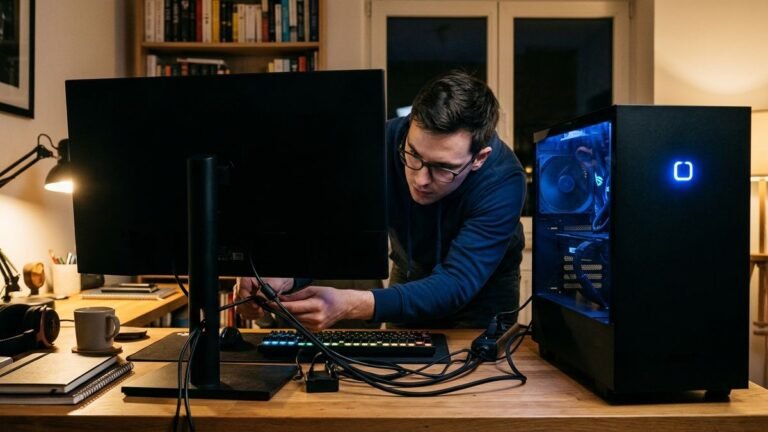
- Unplug the video cable (HDMI, DisplayPort, USB-C, DVI, or VGA) at both ends and plug it back in firmly. DisplayPort connectors have a latch — press it to release, and push until it clicks when reconnecting.
- Confirm the monitor’s power cable is secure and the power LED is on.
- Power everything back on.
While you’re there, inspect the cable for bent pins, kinks, or fraying. Cables are the cheapest component in the chain and the most likely to fail — if you have a spare, swap it in as a test before doing anything else.
Fix 2: Set the Correct Input Source on the Monitor
Your monitor may be fine but listening on the wrong input. Press the Input or Source button on the monitor (or use its on-screen menu) and cycle through HDMI 1, HDMI 2, DisplayPort, and so on until you select the port your cable is actually plugged into. Many monitors don’t auto-switch reliably, especially when the PC was already on. If the monitor has an “Auto” source option, try that too.
Fix 3: Use Win + P and Windows Display Settings
Windows may see the monitor but have it disabled. Press Win + P to open the projection menu and select Extend (for a dual-desktop setup) or Duplicate (same image on both). If it’s set to “PC screen only,” the second monitor will stay dark even though it’s detected.
Then open Display settings (right-click desktop > Display settings), scroll to Multiple displays, and click Detect. If the monitor appears in the diagram, click it and choose “Extend these displays” from the dropdown. Drag the monitor icons to match your physical layout so the mouse moves naturally between screens.
Fix 4: Restart the Graphics Driver Instantly
Windows has a built-in shortcut that restarts the graphics driver without rebooting: press Win + Ctrl + Shift + B. You’ll hear a beep and the screen will flicker for a second. This forces Windows to re-enumerate connected displays and resolves a surprising number of detection failures — it’s the fastest “real” fix in this guide. (You’ll need a working keyboard for this shortcut — if yours isn’t responding, see our guide on how to fix keyboard not typing first.)

Fix 5: Rule Out Ports, Cables, and the GPU-vs-Motherboard Trap
If the monitor is still not detected, isolate the hardware:
Not sure which GPU you have? Our guide shows how to see your computer specs on Windows in under a minute.
- Try a different port on both the PC and the monitor.
- Try a different cable — ideally a certified, high-quality one. Cheap or very long HDMI/DisplayPort cables cause detection failures, especially at high refresh rates.
- The GPU trap (desktops): if your PC has a dedicated graphics card, plug the second monitor into the graphics card’s ports, not the motherboard’s HDMI port. On many systems the motherboard video outputs are disabled when a dedicated GPU is installed, so a monitor connected there will never be detected.
- Bypass docks and adapters. Connect the monitor directly to the PC. USB-C hubs, HDMI splitters, and cheap adapters are frequent culprits — some only support mirroring, not extending, because they lack proper DisplayPort Alt Mode or MST support.
- Test the monitor on another PC to confirm the monitor itself works.
Fix 6: Check the Monitor on Another Computer
This takes two minutes and eliminates half the variables. Connect the “undetected” monitor to a different PC or laptop. If it works there, your monitor is fine and the problem is your PC’s ports, cable, or drivers — continue with Fix 7 and 8. If it doesn’t work anywhere, the monitor (or its cable) has failed.
Fix 7: Lower Refresh Rate and Resolution
A monitor can be “detected” but show nothing if Windows is driving it at a refresh rate or resolution it can’t handle. In Display settings, select the second monitor, open Advanced display, and set the refresh rate to 60 Hz and the resolution to the monitor’s native spec (or lower for testing).
Some monitors — particularly older or ultrawide models — fail detection handshakes at 120/144 Hz over marginal cables. Once it’s working at 60 Hz, you can try raising it step by step. If the monitor supports multiple refresh rates, also test with the monitor’s own on-screen menu set to a fixed refresh rate rather than “Auto,” which can confuse the handshake on some firmware versions.
Fix 8: Update, Roll Back, or Clean-Reinstall the Graphics Driver
Graphics driver problems are the top software cause of a second monitor not detected, especially right after Windows updates (which often overwrite manufacturer drivers with generic ones).
- Press Win + X > Device Manager > expand Display adapters.
- Right-click your GPU > Update driver > Search automatically.
- If the problem started after an update, go to Properties > Driver tab > Roll Back Driver.
- For stubborn cases, do a clean reinstall: download DDU (Display Driver Uninstaller), boot into Safe Mode, wipe the graphics driver completely, restart, then install the latest driver from NVIDIA, AMD, or Intel’s official site — not just Windows Update.
After reinstalling, reboot and check Display settings again. A clean driver install resolves the deep handshake issues that simple updates miss.

Fix 9: Fix Sleep, Dock, and Power-Management Issues
If the second monitor works after boot but vanishes after sleep, or only fails through a dock:
- Disable DisplayPort deep sleep in the monitor’s on-screen menu (often under Input or Power settings). Deep sleep can lock the DisplayPort handshake so Windows can’t re-detect the monitor on wake.
- Disable USB selective suspend: Control Panel > Power Options > Change plan settings > Change advanced power settings > USB settings > set “USB selective suspend” to Disabled. This stops Windows from cutting power to docks and USB-connected displays.
- Update dock firmware from the dock manufacturer’s site — dock firmware bugs are a notorious cause of second-monitor detection failures.
- In Device Manager, under USB Root Hub properties > Power Management, uncheck “Allow the computer to turn off this device to save power” for hubs feeding your display.
Fix 10: Check BIOS and Multi-Monitor Settings
On some systems — particularly desktops with both integrated and dedicated graphics — the BIOS/UEFI controls whether multiple GPUs can drive displays simultaneously. Enter BIOS setup (Del/F2 during boot) and look for settings like iGPU Multi-Monitor, “Integrated Graphics,” or “Primary Display.” Enable iGPU Multi-Monitor if you want to use motherboard video ports alongside your graphics card. Save, exit, and test again.
Laptop-Specific Issues: USB-C, Thunderbolt, and Lid Settings
Laptops add their own wrinkles to second-monitor detection:
- Not all USB-C ports carry video. Check your laptop’s specs for the DisplayPort or Thunderbolt symbol next to the port. A USB-C port without DisplayPort Alt Mode will charge and transfer data but never drive a monitor — no driver update can change that.
- Thunderbolt docks need Thunderbolt cables. A regular USB-C cable in a Thunderbolt dock may deliver only USB 2.0 speeds and no video. Use the cable that came with the dock.
- Lid-close behavior: if you close the laptop lid to use only the external monitor, set “When I close the lid” to “Do nothing” in Power Options — otherwise the laptop sleeps and the monitor goes dark.
- Hybrid graphics: gaming laptops with NVIDIA/AMD switchable graphics sometimes route external ports through the integrated GPU. Updating both the Intel/AMD iGPU driver and the discrete GPU driver fixes detection issues that a single driver update misses.
Choosing the Right Cable (So This Doesn’t Happen Again)
A surprising share of recurring detection problems trace back to marginal cables. When buying:
- Match the version to your needs: for 4K 60Hz you need HDMI 2.0 or DisplayPort 1.2 minimum; for 4K 144Hz+, HDMI 2.1 or DisplayPort 1.4.
- Keep it short: passive DisplayPort cables get unreliable beyond ~2 meters at high bandwidth; HDMI beyond ~5 meters.
- Look for certification: certified “Ultra High Speed” HDMI or VESA-certified DisplayPort cables cost little more and eliminate an entire category of handshake failures.
- Avoid adapters when possible: every HDMI-to-DisplayPort or USB-C-to-HDMI conversion is another potential failure point. Native cable types (DP-to-DP, HDMI-to-HDMI) are always more reliable.
Optimizing Your Dual-Monitor Setup Once It’s Detected
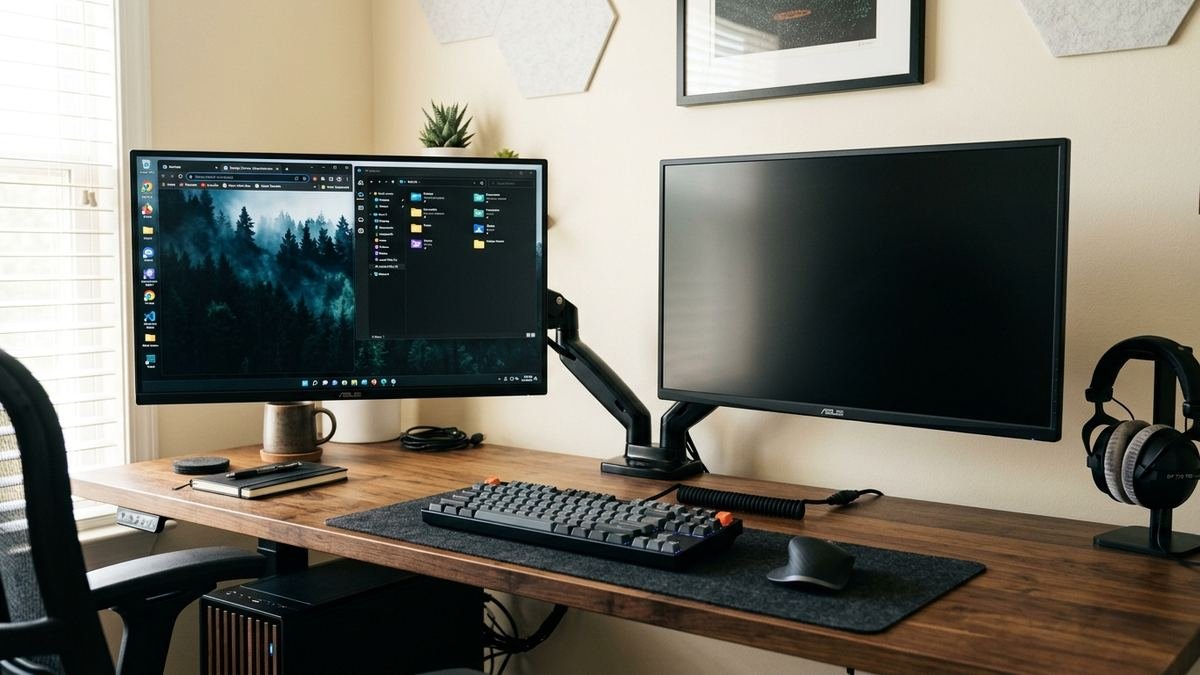
Once both monitors are working, a few tweaks make the setup genuinely pleasant — our full dual monitor setup walkthrough covers this in depth, but the essentials are:
- Set each monitor to its native resolution and recommended scaling.
- Arrange the displays in Settings to match their physical positions.
- Choose which monitor is the primary (where apps open by default).
- Match refresh rates where possible to avoid stutter when moving windows.
- Consider a monitor arm or stand — ergonomics matter when you add screen real estate.
- Enable HDR only on monitors that genuinely support it; forcing HDR on an SDR panel washes out colors and can cause flicker.
- If text looks blurry on one monitor, check that Windows scaling matches each display’s pixel density — mismatched scaling between a 1080p and a 4K monitor is the usual culprit, fixed per-display in Display settings.
Frequently Asked Questions
Why is my second monitor not detected but says “no signal”?
“No signal” means the monitor is powered but receiving nothing. Check the input source, try a different cable and port, and make sure desktops are plugged into the dedicated GPU’s ports rather than the motherboard’s.
Why does my second monitor only work when duplicating, not extending?
Cheap USB-C hubs and HDMI splitters often only support signal cloning, not independent displays. Extending requires proper DisplayPort Alt Mode or MST support in the dock/hub and cable.
Can a bad HDMI cable stop Windows from detecting a monitor?
Yes. HDMI and DisplayPort cables carry EDID data (the monitor’s identity) on dedicated pins. If those pins are damaged, Windows can’t identify the monitor even though the power light is on.
Why did my second monitor stop working after a Windows 11 update?
Windows updates frequently replace manufacturer graphics drivers with generic ones, breaking multi-monitor handshakes. Roll back the driver or do a clean reinstall from NVIDIA/AMD/Intel. See Microsoft’s own troubleshooting thread for the official steps.
How do I force Windows to detect my second monitor?
Press Win + Ctrl + Shift + B to restart the graphics driver, then go to Settings > System > Display > Multiple displays > Detect. If that fails, the issue is almost certainly cable, port, or driver-level.
Does the order I turn things on matter?
Sometimes. Power on the monitors first, then the PC — this gives the EDID handshake the best chance of succeeding during boot, particularly with DisplayPort.
Why is my second monitor detected but stuck at the wrong resolution?
Windows may be using a generic PnP monitor driver instead of the monitor’s proper driver. In Device Manager, check Monitors — if it shows “Generic PnP Monitor,” download the monitor driver/INF from the manufacturer’s site. Also verify you’re not exceeding the cable’s bandwidth at your chosen refresh rate.
Can Windows 11 handle three or more monitors?
Yes — Windows 11 supports many displays, limited mainly by your GPU’s outputs and bandwidth. The same troubleshooting applies: verify each link in the chain, use Detect in Display settings, and keep drivers current. Daisy-chaining via DisplayPort MST works on monitors that support it.
Final Thoughts
A second monitor not detected almost always comes down to one of three things: the physical connection chain (cable, port, input source), Windows display settings (Win + P, Detect, Extend), or the graphics driver. Work through the fixes in order — most people are up and running by Fix 4 or Fix 5 — and use the cross-PC test in Fix 6 to quickly determine whether the monitor or the computer is at fault.
For persistent cases, remember the two big gotchas: desktops must use the dedicated GPU’s ports (not the motherboard’s), and docks/hubs should be bypassed during troubleshooting. Once both screens are detected, take ten minutes to arrange, scale, and calibrate them properly — a well-configured dual setup is one of the biggest productivity upgrades you can make.
If you’re still stuck after all ten fixes, the fault is almost certainly hardware: a dead port, a failed cable, or a dying monitor — and the cross-PC test in Fix 6 will have told you which one. Microsoft’s guide to adding and using a second monitor is a useful companion reference for the settings side.