Why Is My Printer Not Printing? 12 Fixes for Windows 11 and Mac
Few things are as frustrating as hitting Print and getting silence. If you are asking “why is my printer not printing,” the good news is that the cause is almost always one of a short list of usual suspects: a stuck print queue, a stalled Print Spooler service, a connection hiccup, a driver problem, or a simple settings mistake.
This 2026 guide walks you through 12 proven fixes in the order a technician would try them — from 30-second checks to deeper repairs — for Windows 11, Windows 10, and Mac. Work through them in order and you will resolve the vast majority of “printer not printing” cases without calling support.
Quick Answer: The 5-Minute Checklist
If you want the fastest path, run this checklist first. It fixes most cases:
- Confirm the printer is powered on, has paper loaded, and shows no error on its display.
- Make sure you are printing to the correct printer (not a PDF printer or an old duplicate entry).
- Open the print queue and cancel any stuck jobs.
- Restart the Print Spooler service (Windows) or reset the printing system queue (Mac).
- Power-cycle the printer and restart your computer.
If the printer still does not print after these five steps, continue with the detailed fixes below — each one targets a specific root cause.
Why Is My Printer Not Printing? The Common Causes
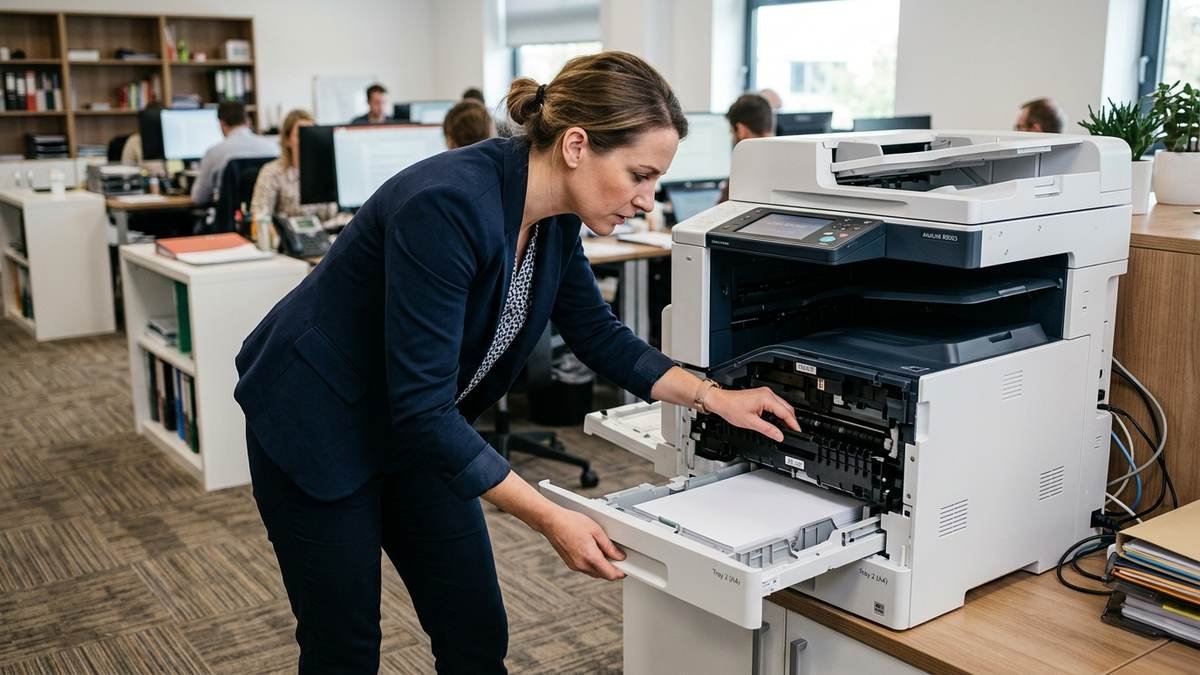
Before fixing, it helps to know what you are hunting. These are the causes behind nearly every “my printer is not printing” complaint, roughly in order of frequency:
| Cause | How common | Typical symptom |
|---|---|---|
| Stuck print job blocking the queue | Very common | Jobs pile up; nothing prints |
| Print Spooler service stalled or crashed | Very common | Printer shows “Ready” but ignores jobs |
| Wrong printer selected (PDF, old copy) | Common | Job “prints” but nothing comes out |
| Wi-Fi/USB connection dropped | Common | Printer offline or not found |
| Outdated or corrupted driver | Common | Garbled output, errors, or silence |
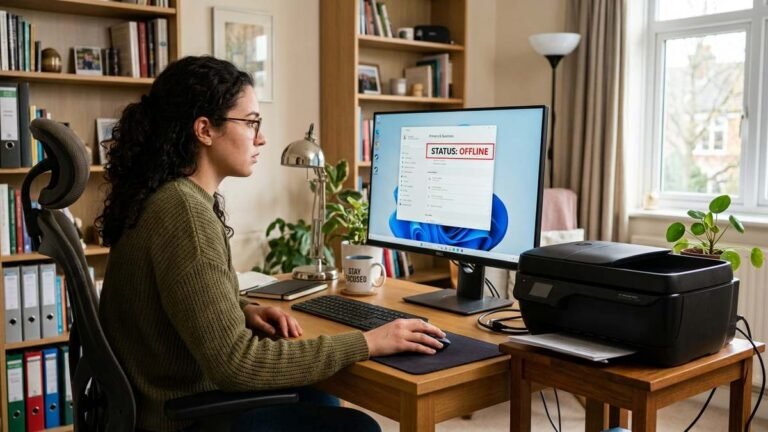
| “Use Printer Offline” accidentally enabled | Common | Printer shows Offline in Windows |
| Empty ink/toner or paper jam | Common | Error light or message on printer |
| Windows update changed printer settings | Occasional | Worked yesterday, broken today |
Notice that hardware failure is not on the list — a printer that was working and suddenly stops is a software or connection problem far more often than a dead machine.
Fix 1: Cancel Stuck Jobs in the Print Queue
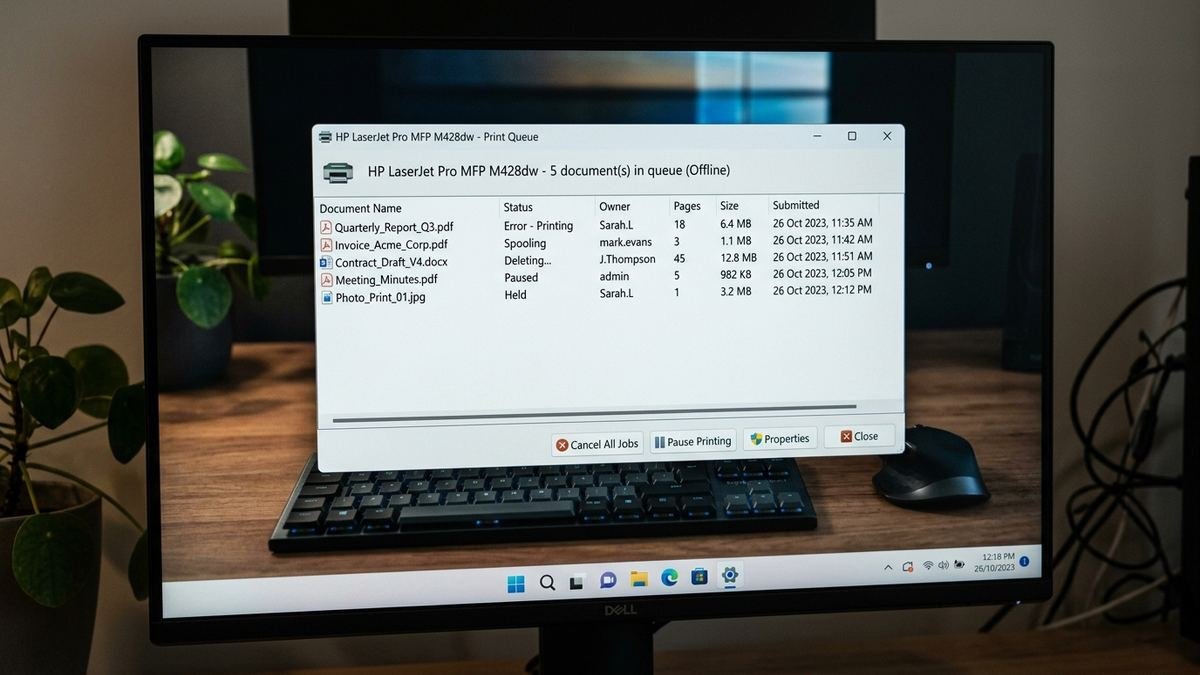
One corrupted or oversized job can block every job behind it. Clear the queue first:
On Windows 11/10:
1. Go to Settings > Bluetooth & devices > Printers & scanners.
2. Select your printer, then click Open print queue.
3. Click the ellipsis (…) and choose Cancel all, or right-click individual jobs and cancel them.
4. Send a simple test page (a one-line text document) to confirm printing works again.
On Mac:
1. Open System Settings > Printers & Scanners.
2. Select the printer and click Open Print Queue.
3. Delete stuck jobs with the X button, then retry.
If jobs refuse to cancel, move to Fix 2 — the spooler itself is wedged.
Fix 2: Restart the Print Spooler Service (Windows)
The Print Spooler is the Windows service that manages all print jobs. When it stalls, printers appear fine but nothing prints.
- Press Windows + R, type
services.msc, and press Enter. - Scroll to Print Spooler, right-click it, and choose Restart.
- Wait a few seconds, then try printing again.
For a deeper clear, stop the service, delete the files in C:\Windows\System32\spool\PRINTERS, then start the service again. This wipes every stuck job at the filesystem level. Microsoft’s own troubleshooting guidance covers spooler restarts as a core step for printer-not-found and recognition errors. If you own an Epson printer, their official support portal offers model-specific troubleshooting guides.
Fix 3: Check the Physical and Network Connection
USB printers: unplug the cable from both ends and reconnect firmly. Try a different USB port — preferably one directly on the computer rather than a hub. Swap the cable if you have a spare; cables fail more often than people expect.
Wi-Fi printers: confirm the printer is connected to the same Wi-Fi network name as your computer — not a guest network, not the 5 GHz band while the PC is on 2.4 GHz with client isolation on. Print a network configuration page from the printer’s menu to verify its IP address and signal strength. If the printer lost Wi-Fi after a router reboot, reconnect it through its wireless setup wizard.
If the printer shows as offline specifically, see our dedicated guide on why your printer says offline — it covers the “Use Printer Offline” toggle, static IPs, and sleep-mode issues in depth.
Fix 4: Make Sure You Are Printing to the Right Printer
This sounds too simple to be the problem, which is exactly why it gets missed. Homes and offices accumulate printer entries: “HP LaserJet (Copy 1),” “Microsoft Print to PDF,” old printers from previous jobs. Open the print dialog and verify the selected printer is your actual, current device. Then set it as the default so applications stop guessing: Settings > Bluetooth & devices > Printers & scanners > select the printer > Set as default. If the button is missing, turn off “Let Windows manage my default printer” first.
Fix 5: Update or Reinstall the Printer Driver
Drivers translate between your computer and the printer. When they corrupt — often after a Windows update — printing fails silently or produces garbage.
- Download the latest driver for your exact model from the manufacturer’s official support site (not a driver-aggregator site).
- In Device Manager, expand Printers or Print queues, right-click your printer, and choose Update driver — or Uninstall device for a clean slate.
- Restart the computer and install the freshly downloaded driver.
- Print a test page.
Tip: if the manufacturer’s installer keeps failing, add the printer by IP address and let Windows use its built-in IPP class driver. It handles basic printing reliably and sidesteps vendor installer bugs.
Fix 6: Run the Windows Printer Troubleshooter
Windows includes an automated printer troubleshooter that detects misconfigurations, restarts services, and repairs queue problems:
- Go to Settings > System > Troubleshoot > Other troubleshooters.
- Click Run next to Printer and follow the prompts.
- On the newest Windows 11 builds, the same diagnostic lives in the Get Help app.
It resolves a surprising number of cases in under a minute — always worth trying before manual surgery.
Fix 7: Check Ink, Toner, and Paper
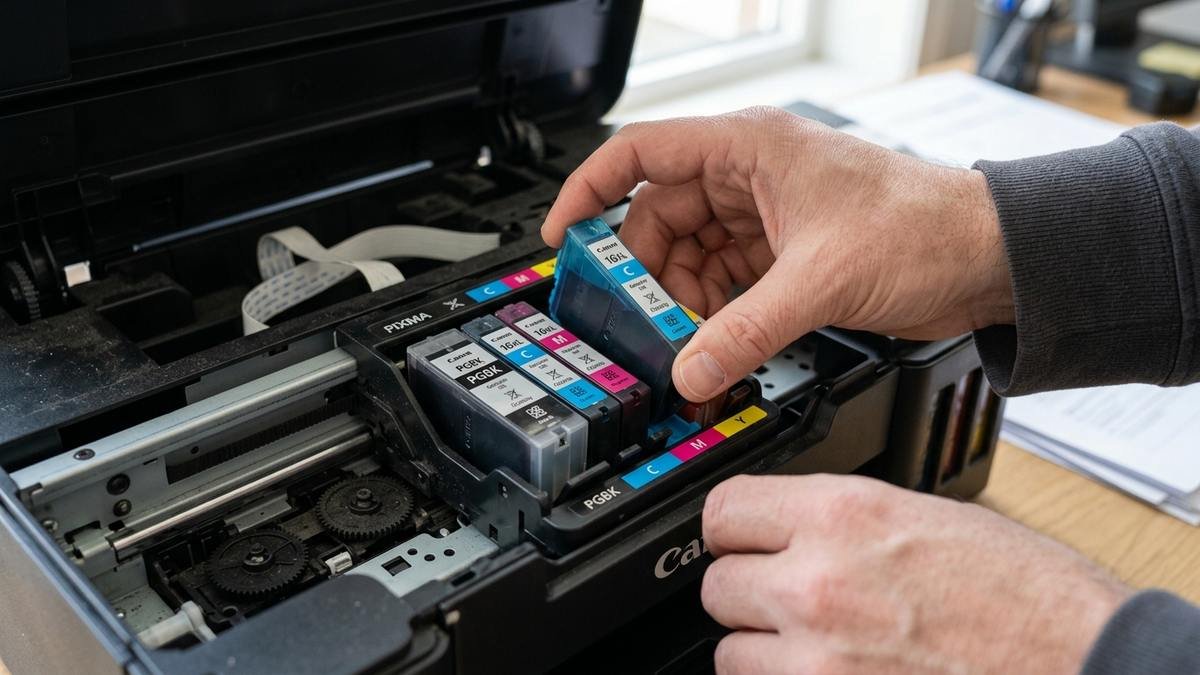
Look at the printer itself. Many printers refuse all jobs when ink or toner is depleted, when a cartridge is not seated correctly, or when there is a paper jam — and the on-screen error is easy to miss if you print from another room. Remove and reseat cartridges, check that you pulled the protective tape off new cartridges, and clear any jammed paper following the printer’s diagram (pull in the direction of the paper path, never against it). If your pages come out blank specifically, our guide to printers printing blank pages covers ink-system causes in detail.
Fix 8: Remove and Re-Add the Printer
When configuration data corrupts, the cleanest fix is a fresh start:
- In Printers & scanners, select the printer and click Remove, then confirm.
- Restart your computer.
- Click Add device and let Windows rediscover and reinstall the printer.
- For network printers that do not appear, click “The printer that I want isn’t listed” and add it by IP address.
Re-adding rebuilds the driver association, port, and queue from scratch — it fixes problems that piecemeal troubleshooting cannot.
Fix 9: Disable Windows Protected Print Mode (Windows 11 24H2 and Later)
On recent Windows 11 builds, Windows protected print mode can silently block printers that do not support the modern IPP printing standard. If your printer vanished or stopped working after a Windows update, check Settings > Bluetooth & devices > Printers & scanners > Printer preferences for this mode and turn it off, then restart and re-add the printer. This has become one of the more common “worked yesterday” causes since the 24H2 rollout.
Fix 10: Check for App-Specific Problems
If the printer works from one application but not another, the problem is the app, not the printer. Print a Windows test page (Printer properties > Print Test Page) — if that works, your printer is fine. For Microsoft Office printing issues specifically, try repairing the Office installation (Settings > Apps > Installed apps > Microsoft 365 > Advanced options > Quick Repair) and check that the document itself is not corrupted.
Fix 11: Mac-Specific Fixes
On macOS, printing problems usually trace to the queue or the printer entry itself. Open System Settings > Printers & Scanners, open the print queue, and clear stuck jobs. If that fails, remove the printer with the minus button and re-add it with the plus button — for network printers, add by IP address for the most stable connection.
As a last resort, right-click in the printers list and choose Reset printing system, which removes all printers and lets you start clean. (On Apple devices more broadly, wireless discovery hiccups can resemble other connectivity bugs — our guide on why AirDrop is not working covers similar Wi-Fi and Bluetooth troubleshooting logic.)
Fix 12: Test With Another Device
Print from a different computer or your phone. If the printer works from the second device, the problem is isolated to the first computer — focus on its drivers, queue, and settings rather than the printer. If no device can print, the problem is the printer or the network: check for hardware errors, update the printer’s firmware, and consider a factory reset of the printer’s network settings before calling support.
Printer Not Printing After a Windows Update? Start Here
“Worked yesterday, broken today” after a Windows update is its own diagnostic category. Updates can replace your printer driver with a generic one, enable Windows protected print mode (which blocks printers that do not support modern IPP printing), or create duplicate printer entries that steal the default status.
If the timing lines up with an update, check these three things first: open Printer preferences and confirm protected print mode is off; look for duplicate entries of your printer in Printers & scanners and remove the stale ones; and reinstall the manufacturer’s latest driver rather than trusting the one Windows substituted. In most post-update cases, one of these three restores printing without touching anything else.
Preventing Future “Not Printing” Problems
Once printing works again, a few habits keep it working. Leave the printer powered on instead of unplugging it — modern printers run automatic maintenance cycles (print-head cleaning, network keep-alive) that prevent the two most common failure modes.
Install driver and firmware updates when the manufacturer offers them, but do it deliberately rather than mid-deadline. Keep the printer on a DHCP reservation so its address never changes. And once a quarter, print a test page from each computer that uses the printer; catching a driver problem during a calm moment beats discovering it at midnight before a flight.
Frequently Asked Questions
Why is my printer connected but not printing?
The most common reasons are a stuck print job blocking the queue, a stalled Print Spooler service, or the wrong printer selected in the print dialog. Clear the queue, restart the spooler, and verify the selected printer — this resolves the majority of “connected but not printing” cases.
Why did my printer suddenly stop printing?
Sudden failures usually follow a trigger: a Windows update (driver or protected print mode changes), a router reboot (printer got a new IP address), a failed print job that wedged the queue, or depleted ink. Think about what changed recently — the answer is usually there.
How do I restart the Print Spooler in Windows 11?
Press Windows + R, type services.msc, press Enter, find Print Spooler in the list, right-click it, and choose Restart. You can also use an elevated Command Prompt with net stop spooler followed by net start spooler.
Why is my printer printing blank pages instead of nothing?
Blank pages point to the ink or toner system — empty cartridges, clogged print heads, or protective seals left on new cartridges — rather than a connection problem. Run a nozzle check from the printer’s maintenance menu to diagnose it.
Should I uninstall and reinstall my printer driver?
Yes, if updating did not help. A clean uninstall (Device Manager > Uninstall device), a restart, and a fresh install of the manufacturer’s latest driver for your exact model fixes corrupted driver states that updates cannot repair.
When should I give up and call support?
When you have worked through the queue, spooler, connection, driver, and re-add steps and the printer still fails from multiple devices — or when there are hardware symptoms like grinding noises, persistent error codes, or leaks. See our guide to getting legitimate printer support (and avoiding support scams) before you call anyone.
Final Thoughts
“Why is my printer not printing” feels like a mystery, but it is almost always a queue, spooler, connection, driver, or selection problem — all fixable with the steps above. Work through them in order, test with a simple document after each fix, and resist the urge to change five settings at once: methodical troubleshooting finds the real cause instead of masking it.
If your issue turns out to be the closely related offline problem, head to our offline printer fix guide; for blank-page output specifically, see printer printing blank pages. And if you eventually need a human, make sure it is a legitimate one — our printer support guide shows how.