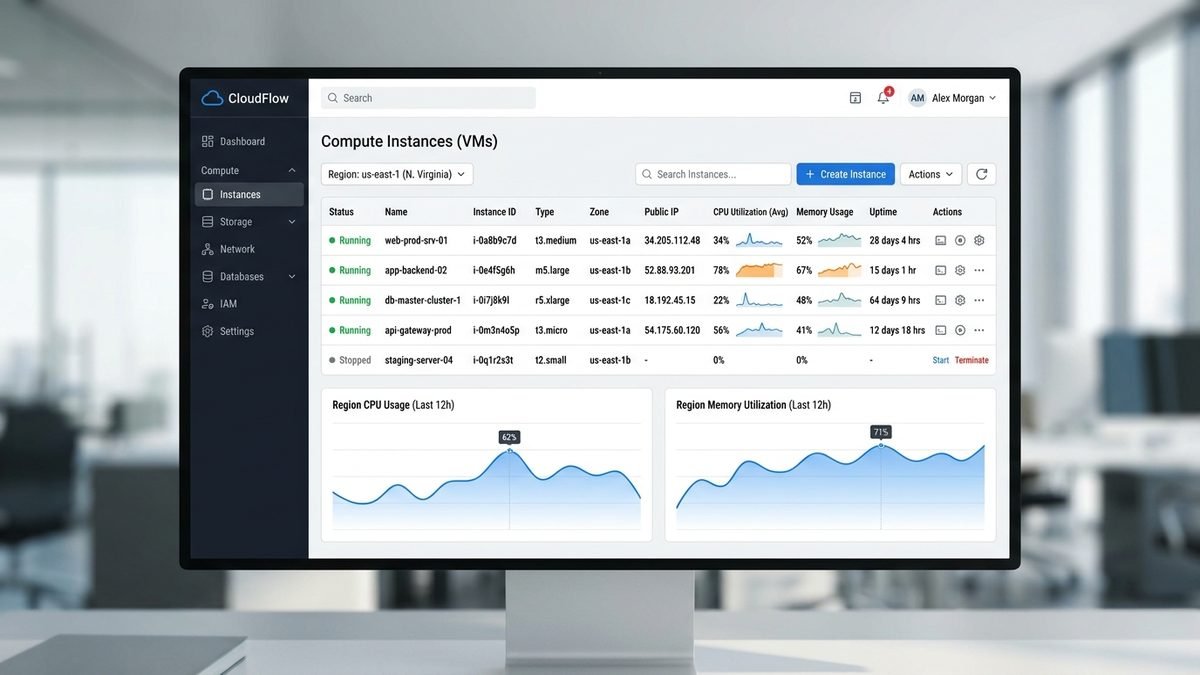
Amazon EC2 Explained: Instance Types, Pricing & Getting Started
If you have ever wondered where half the internet actually runs, a big part of the answer is Amazon EC2. Netflix, Airbnb, NASA, and countless startups all run their workloads on Elastic Compute Cloud — Amazon’s core virtual-server service and the backbone of AWS. But EC2’s flexibility is also what makes it confusing: hundreds of instance types, five different pricing models, and a bill that can surprise you if you do not understand how it works.
This guide explains Amazon EC2 from the ground up: what it is, how the instance types work, what it really costs in 2026, how to launch your first server, and how to keep the bill under control.
What Is Amazon EC2?
Amazon Elastic Compute Cloud (EC2) is a web service that provides resizable virtual servers — called instances — in the cloud. Instead of buying and maintaining physical hardware, you rent virtual machines by the second, choosing exactly how much CPU, memory, storage, and networking power each one gets.
The “elastic” part is the whole point. You can launch one tiny server for a weekend experiment or ten thousand powerful machines for a product launch, then shut them all down when you are done. You pay only for the compute time you actually use, with no upfront hardware investment.
Each EC2 instance is defined by a few core building blocks:
- AMI (Amazon Machine Image): the template your server boots from — an operating system like Amazon Linux, Ubuntu, or Windows Server, optionally bundled with pre-installed software.
- Instance type: the hardware profile — how many virtual CPUs, how much RAM, what kind of networking and storage performance.
- EBS volumes: persistent block storage drives attached to your instance (your data survives reboots because it lives on EBS, not on the temporary instance disk).
- Security groups: virtual firewalls that control which traffic can reach your instance (for example, allowing web traffic on port 443 but blocking everything else).
- Key pairs: the SSH credentials you use to log in securely.
- Regions and Availability Zones: the physical data-center locations your instances run in. AWS has dozens of regions worldwide, each with multiple isolated Availability Zones for fault tolerance.
EC2 Instance Types Explained

Instance types are named with a family letter, a generation number, and a size — for example, m5.large is a 5th-generation general-purpose instance in the “large” size. The family letter tells you what the instance is optimized for:
| Family | Optimized for | Example types | Typical use |
|---|---|---|---|
| T (T3, T4g) | Burstable, low cost | t3.micro, t4g.small | Dev/test, small websites, microservices |
| M (M5, M6i, M7i) | Balanced general purpose | m5.large, m6i.xlarge | Web servers, app backends, small databases |
| C (C5, C6i, C7i) | Compute-heavy | c5.large, c6i.2xlarge | Batch processing, game servers, HPC |
| R (R5, R6i, R7i) | Memory-heavy | r5.large, r6i.4xlarge | In-memory databases, caching, analytics |
| X / Z | Extreme memory / clock speed | x2idn, z1d | SAP HANA, electronic design automation |
| I / D | Fast local storage | i4i.large, d3.xlarge | NoSQL databases, data warehousing |
| P (P4, P5) | GPU training | p5.48xlarge | Large language model training |
| G (G4dn, G5) | GPU graphics/inference | g4dn.xlarge, g5.xlarge | ML inference, video rendering, gaming |
| Inf / Trn | AWS AI chips | inf2.xlarge, trn1.32xlarge | Cost-efficient ML inference and training |
A few practical notes on choosing:
- Start with T3 or M5 for general workloads. Burstable T-series instances are the cheapest way to run anything with spiky traffic, like a small website.
- Graviton processors (the “g” in t4g, m7g) are AWS’s own ARM-based chips. They typically cost about 20% less than equivalent Intel/AMD instances for the same performance — worth choosing when your software supports ARM.
- GPU instances are a different price universe. A g4dn.xlarge (one NVIDIA T4) runs about $0.53/hour on demand, while a p5.48xlarge with eight NVIDIA H100s lists around $55/hour. Only reach for these when you genuinely need accelerated compute.
- For a look at where compute goes beyond classical chips entirely, see our explainer on the latest quantum computing breakthroughs.
Amazon EC2 Pricing in 2026

EC2 has five pricing models. Understanding them is the difference between a $10/month hobby server and a surprise $500 bill.
1. On-Demand
The default: pay per second for whatever you run, no commitment. Maximum flexibility, highest price. Representative Linux on-demand rates in us-east-1:
| Instance type | vCPU / RAM | On-demand $/hour | Approx. $/month (always on) |
|---|---|---|---|
| t3.nano | 2 / 0.5 GB | $0.0052 | ~$3.80 |
| t3.micro | 2 / 1 GB | $0.0104 | ~$7.60 |
| t3.small | 2 / 2 GB | $0.0208 | ~$15.20 |
| t3.medium | 2 / 4 GB | $0.0416 | ~$30.40 |
| m5.large | 2 / 8 GB | $0.0960 | ~$70.10 |
| c5.large | 2 / 4 GB | $0.0850 | ~$62.10 |
| g4dn.xlarge | 4 / 16 GB + T4 GPU | $0.5260 | ~$384 |
(Rates are approximate list prices and vary by region and operating system — Windows instances cost more because of licensing. Always confirm on the official EC2 pricing page.)
2. Savings Plans
Commit to a consistent dollar amount of compute per hour for 1 or 3 years, and AWS discounts everything under that commitment — up to 72% off on-demand rates. A 1-year Compute Savings Plan brings an m5.large from $0.096/hour down to roughly $0.067/hour. This is the best option for steady, predictable workloads, and unlike Reserved Instances it applies flexibly across instance families and regions.
3. Reserved Instances
The older commitment model: reserve a specific instance type in a specific region for 1 or 3 years for a large discount. Less flexible than Savings Plans, but still useful for rock-stable workloads like a database server that will not change for years.
4. Spot Instances
Bid on spare AWS capacity at discounts of up to 90% — with the catch that AWS can reclaim your instance with a 2-minute warning when it needs the capacity back. Perfect for fault-tolerant batch jobs, CI pipelines, and anything checkpointed. Terrible for databases or anything that cannot tolerate interruption.
5. Dedicated Hosts
Rent an entire physical server for compliance or licensing reasons (for example, software licensed per physical socket). The most expensive option, starting around $0.12/hour per host for small configurations and scaling steeply.
Price comparison: one m5.large, us-east-1
| Model | Effective $/hour | Monthly (730 hrs) | Commitment |
|---|---|---|---|
| On-Demand | $0.096 | ~$70 | None |
| Savings Plan (1-yr) | ~$0.067 | ~$49 | 1 year |
| Reserved (1-yr) | ~$0.054 | ~$39 | 1 year, fixed type |
| Spot | ~$0.028 | ~$20 | None — interruptible |
New AWS accounts also get a Free Tier: 750 hours per month of t2.micro or t3.micro usage free for the first 12 months — enough to run one small server around the clock for a year at no compute cost.
How to Launch Your First EC2 Instance

Here is the minimal path from zero to a running server:
- Create an AWS account at the AWS console and set up billing alerts on day one (Billing → Budgets). This is the single most important step for beginners.
- Pick a region close to your users — us-east-1 (N. Virginia) if you have no preference, since it usually has the lowest prices and newest features.
- Open the EC2 console and click Launch Instance.
- Choose an AMI — Amazon Linux 2023 is the safe default for learning.
- Choose an instance type — t3.micro qualifies for the Free Tier.
- Create a key pair (download the .pem file and keep it safe — you cannot download it again).
- Configure the security group — allow SSH (port 22) from your IP only, and HTTP/HTTPS (ports 80/443) from anywhere if you are running a website.
- Add storage — the default 8 GB gp3 EBS volume is fine to start.
- Launch, then connect with
ssh -i your-key.pem ec2-user@<public-ip>.
From there, installing a web server is a few commands away, and you have a real server on the internet.
Common EC2 Use Cases
- Web hosting: from a single WordPress blog on a t3.small to auto-scaled fleets behind a load balancer.
- Development and testing: spin up an environment per branch or per developer, destroy it when merged.
- Batch processing: render farms, video transcoding, and scientific simulations that need hundreds of CPUs for a few hours.
- AI/ML training and inference: GPU and Trainium instances for model work. Teams running AI workloads on EC2 often pair them with an AI coding assistant for ops and automation — our ChatGPT vs Copilot comparison can help you pick one.
- Hybrid and edge: AWS Outposts and Local Zones extend EC2 to on-premises and metro locations.
If you want machine learning without managing the underlying servers at all, a managed platform may fit better — see our Amazon SageMaker guide for the fully managed alternative.
Developers often run coding agents on a cloud box — once your instance is up, follow our Codex CLI install steps to get OpenAI’s terminal agent running. Codex CLI install steps for your instance
7 Tips to Reduce Your EC2 Bill
- Right-size ruthlessly. Most instances run at under 20% CPU. Check CloudWatch, then downsize.
- Stop what you are not using. A stopped instance costs nothing for compute (you still pay for attached EBS storage). Schedule dev servers to shut down at night.
- Buy Savings Plans for the steady baseline, keep On-Demand for the spikes.
- Use Spot for batch and CI. It is routinely 60–90% cheaper.
- Switch to Graviton where your stack supports ARM — an easy ~20% saving.
- Clean up EBS snapshots and unattached volumes. They are the classic silent bill-growers.
- Set billing alarms. A $10 budget alert that emails you is worth more than any optimization trick.
EC2 vs the Alternatives
EC2 is not the only way to run code on AWS. Here is how it compares to the closest options:
| Service | What it is | Best when | Trade-off |
|---|---|---|---|
| EC2 | Full virtual servers | You need OS-level control, custom software, steady heavy use | You manage patching, scaling, availability |
| Lightsail | Simplified VPS with flat pricing | Simple blogs, small projects, beginners | Fewer instance types and regions |
| Lambda | Serverless functions | Event-driven, spiky, short tasks | 15-minute execution limit, cold starts |
| ECS / EKS | Containers on EC2 or Fargate | Microservices at scale | Container orchestration complexity |
| SageMaker | Managed ML platform | Training and deploying ML models | Higher cost than raw EC2, less control |
Rule of thumb: if your workload is a long-running process or needs special system software, EC2 is usually the answer. If it is short, bursty, and event-triggered, look at Lambda first.
EBS Storage: What Lives Where
A common beginner mistake is treating an EC2 instance like a laptop. It is not — the instance’s local disk is temporary. Your persistent data lives on EBS (Elastic Block Store) volumes, which are network-attached drives that survive instance stops and terminations (unless you explicitly delete them).
The main volume types:
- gp3: the default general-purpose SSD. Good for boot volumes and most workloads; you can tune IOPS and throughput independently.
- gp2: the older general-purpose SSD, still common.
- io2: high-performance SSD for latency-sensitive databases, with much higher durability guarantees.
- st1 / sc1: throughput-optimized and cold HDDs for big sequential workloads like log processing and backups — far cheaper per GB.
Size your root volume sanely (20–30 GB is plenty for most Linux servers), put databases on separate volumes so you can snapshot and resize them independently, and snapshot before any risky change. Snapshots are incremental, so they are cheap insurance.
EC2 Security Basics
A server on the public internet gets probed within minutes of launching. The essentials:
- Security groups are deny-by-default. Open only the ports you need — 22 (SSH) restricted to your IP, 80/443 open to the world for a web server, database ports open only to your app servers.
- Never use the root AWS account for daily work. Create an IAM user with least-privilege permissions.
- Patch regularly. Use AWS Systems Manager Patch Manager or a simple cron job with unattended upgrades on test servers.
- Disable password SSH login and use key pairs only. Better yet, use EC2 Instance Connect or Systems Manager Session Manager so you do not need open SSH ports at all.
- Encrypt EBS volumes. It costs nothing in performance on modern instance types and protects data if a drive is ever retired.
- Back up with AMIs and snapshots before major changes — a golden image of a working server has saved more weekends than any other AWS feature.
Frequently Asked Questions
Is Amazon EC2 free?
New accounts get 12 months of Free Tier: 750 hours/month of t3.micro or t2.micro, plus limited EBS storage and data transfer. Beyond that, EC2 is pay-as-you-go starting under a cent per hour for the smallest instances.
What is the difference between EC2 and S3?
EC2 is virtual servers (compute); S3 is object storage (files). They are complementary — a typical app runs its code on EC2 and stores uploads, backups, and static assets in S3.
EC2 vs Lambda — which should I use?
EC2 gives you full servers you manage; Lambda runs your code without any servers to manage and bills per millisecond. Lambda wins for event-driven, spiky workloads; EC2 wins for long-running processes, custom system software, and predictable heavy use.
How is EC2 billed — per hour or per second?
On-Demand Linux instances are billed per second with a 60-second minimum. Windows instances and some other configurations have per-hour minimums.
Can I change an instance type after launching?
Yes, for EBS-backed instances: stop the instance, change the type, start it again. It takes about a minute and is one of EC2’s most useful features.
What happens to my data if a Spot instance is interrupted?
Anything on the instance’s temporary disk is lost, but EBS volumes persist. Design Spot workloads to checkpoint progress to EBS or S3 so they can resume.
How many EC2 instances can I run?
New accounts start with modest limits (for example, a small number of on-demand vCPUs per region), but you can request increases from the Service Quotas console. Most real workloads never hit the defaults.
Do I need a credit card to try EC2?
Yes — AWS requires a card for identity verification even for the Free Tier, though the free-tier usage itself is not charged. Set a $0 billing alert if you want maximum peace of mind.
Final Thoughts
Amazon EC2 remains the default way to rent raw compute in the cloud: unmatched instance variety, per-second billing, and pricing models for every risk tolerance. Start on the Free Tier with a t3.micro, learn the console with billing alerts enabled, and graduate to Savings Plans or Spot once your workload stabilizes. For official details and the current price list, start at the Amazon EC2 page and the EC2 pricing page.